Our mobile application’s chat feature is designed to keep you connected with your team, no matter where you are. It allows for seamless communication through instant messaging, file sharing, and direct voice calls—all within a single interface.
Log in to the PhoneHQ mobile app
Tap the chat icon on the app toolbar
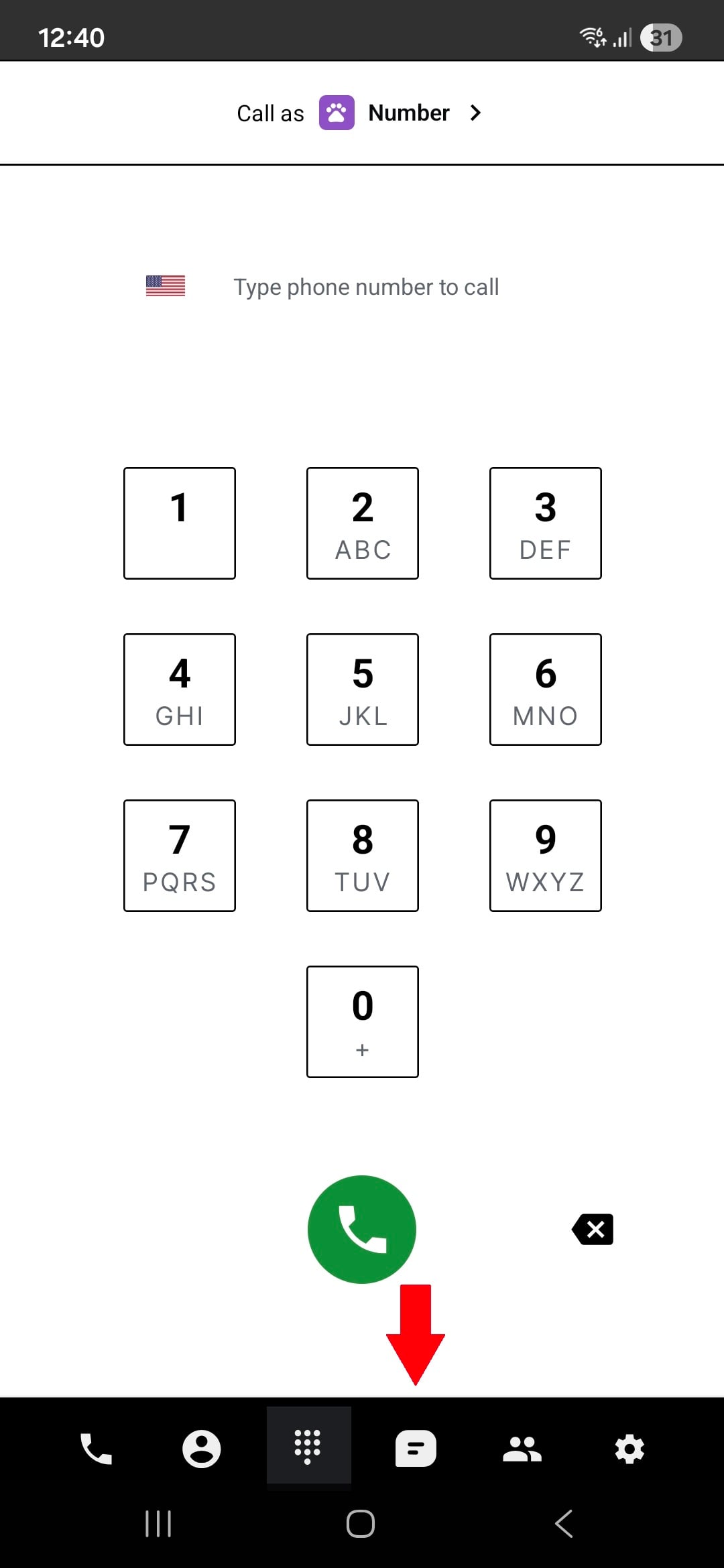
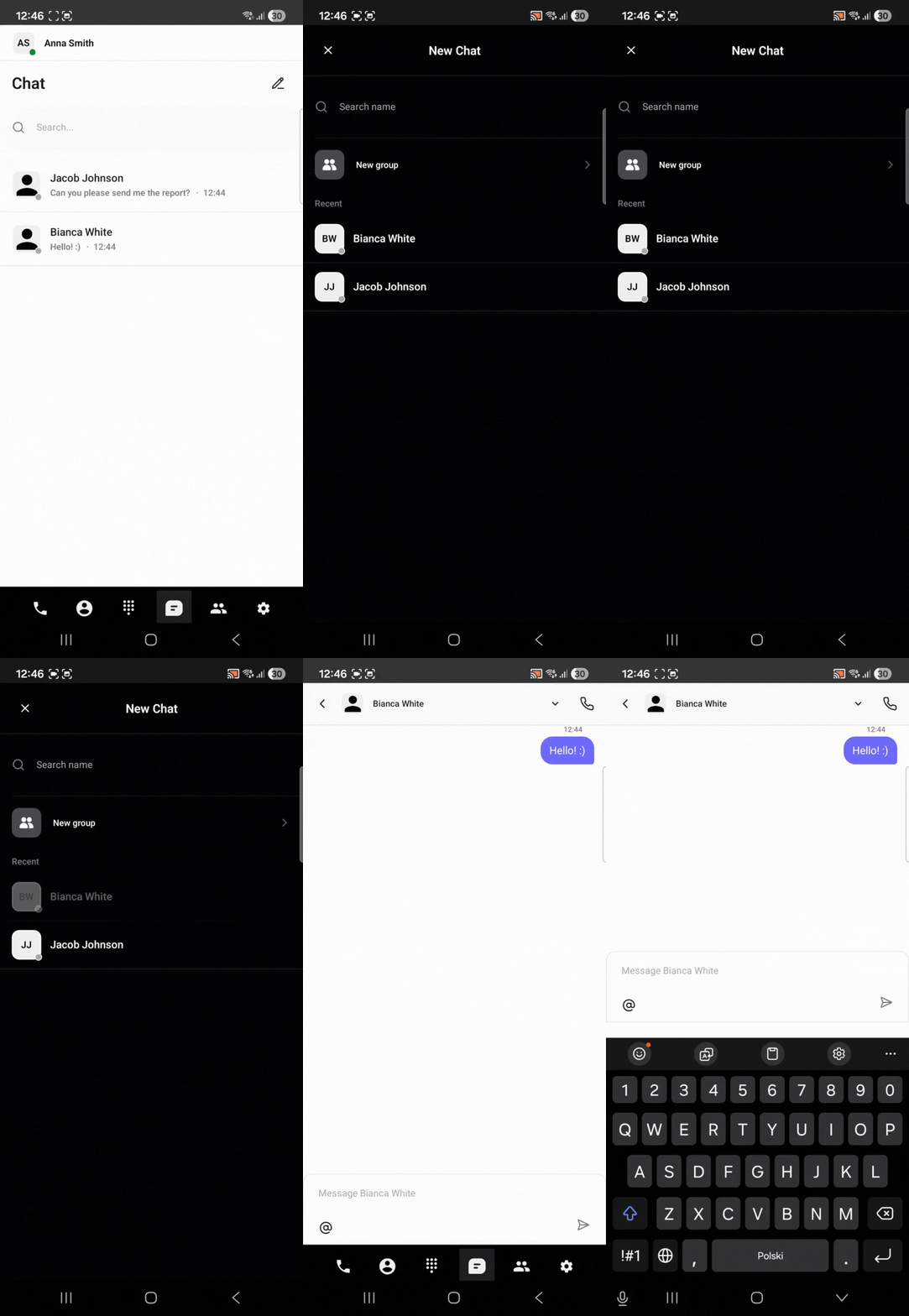
To create a new conversation, go to the chat section and click on the pen icon at the top of the screen.
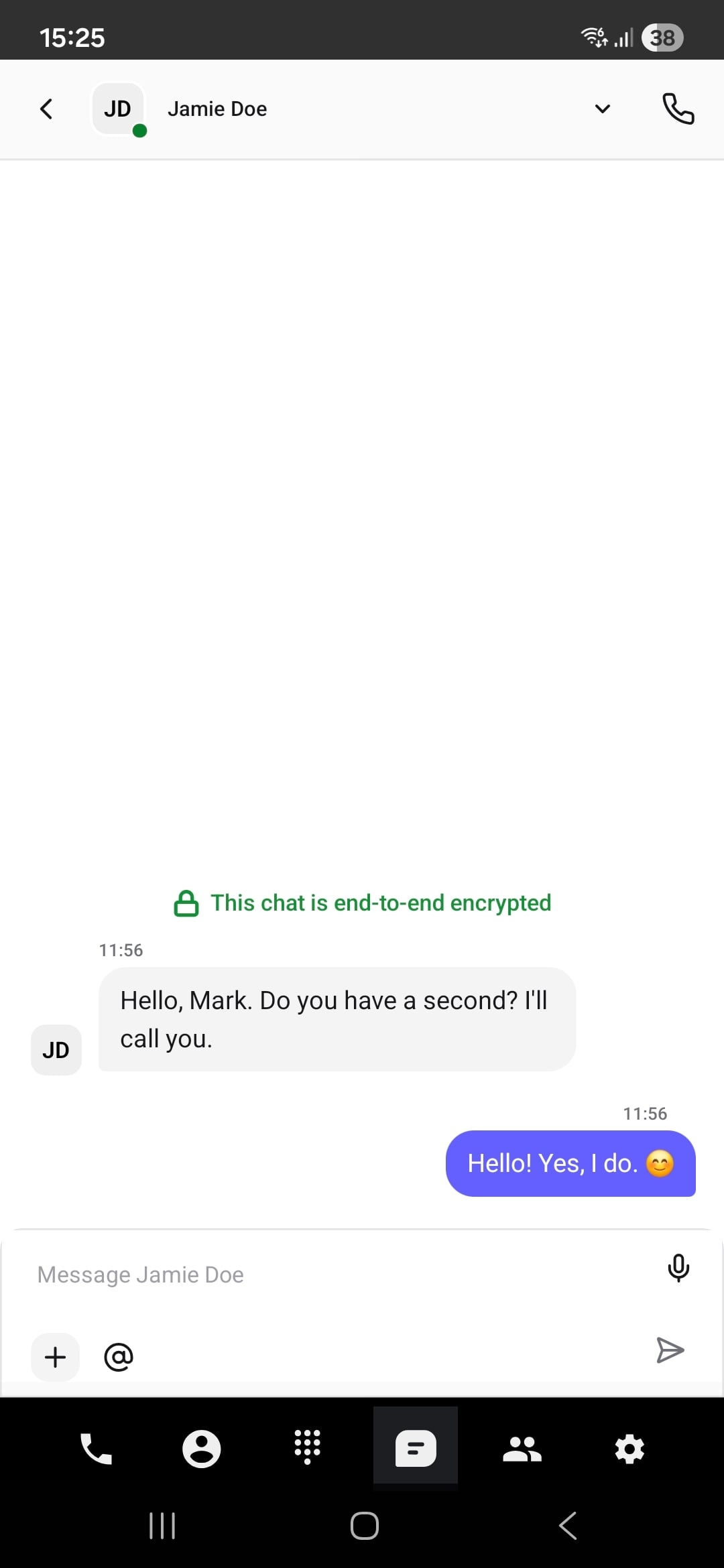
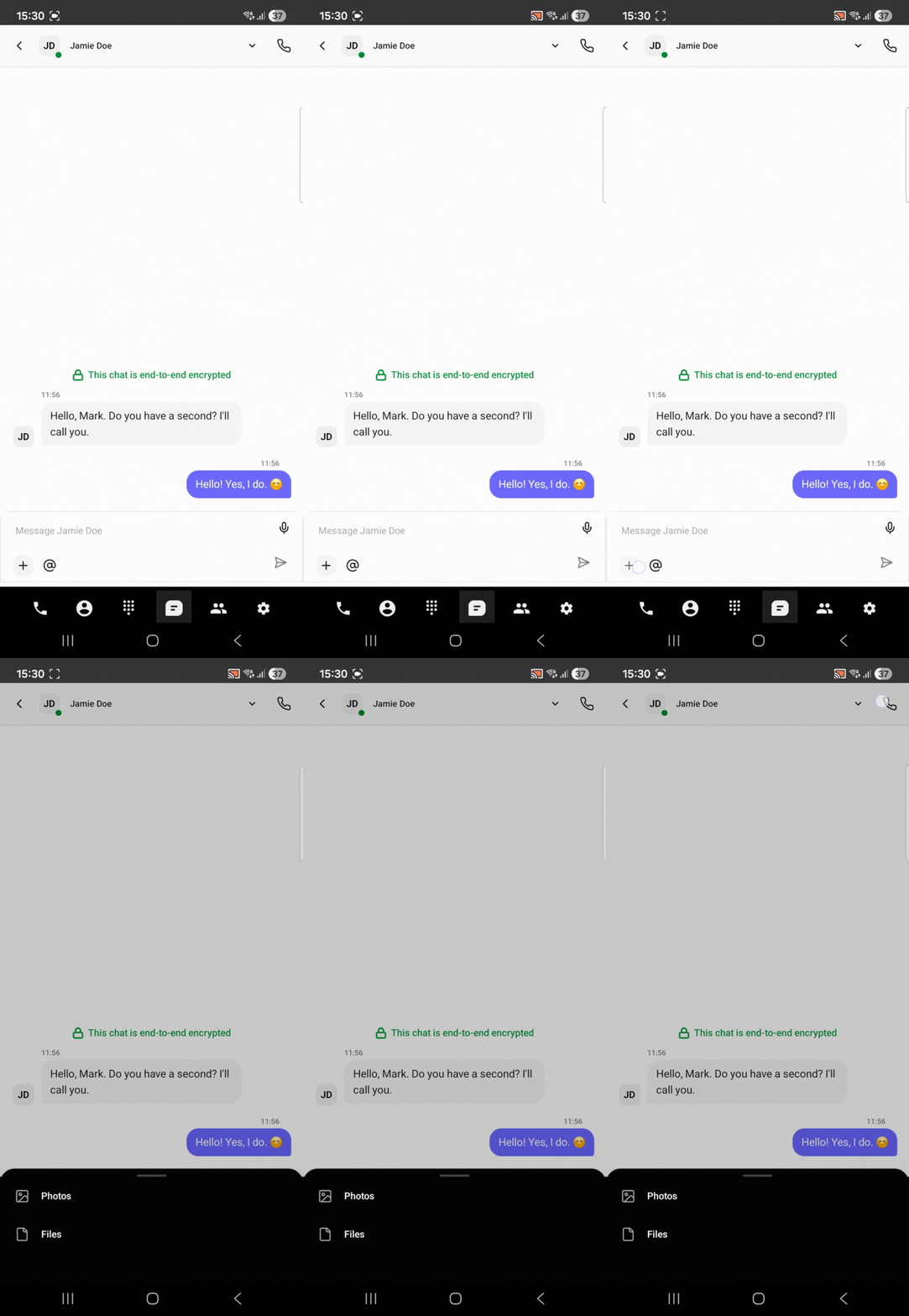
Here are the chat functionalities visible on the screen:
Back button to return to the previous screen
Contact name displayed at the top
Profile avatar icon for the contact
Dropdown/arrow icon next to the contact name - there you can check the details of the contacts
Call button to initiate an internal phone call with the contact
Text input field for typing a new message
“+'“ icon for sending files and photos
“@” symbol for mentioning people in the conversation
Send button (paper-plane icon) to send the written message
End-to-end encryption ensures that only the sender and recipient can read the messages, keeping them private even from the service provider. This means messages are securely scrambled during transmission and can only be decrypted on the recipient’s device.
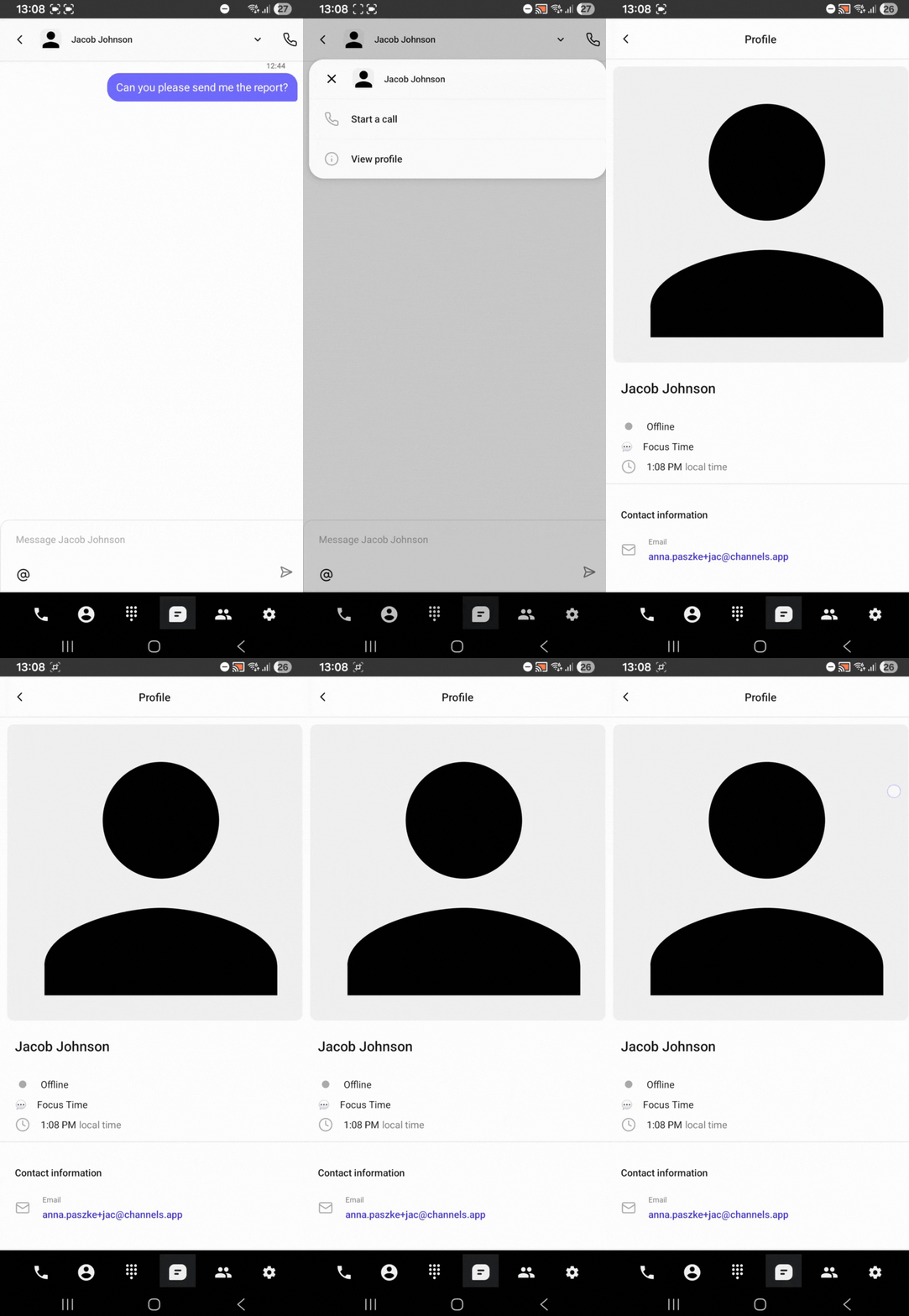
You can check more info about the profile of the person you are chatting with by using the ‘View profile’ option.
Functionalities of the ‘View profile’ option:
Name and surname
Profile picture
Status - online/offline or custom status
Local time of the person you are chatting with
Contact information
You can make a call from the chat to the other user. To make a call, simply click on the Phone icon.
By clicking the “+” icon, you can send the photos and files. Sent content will appear on the chat.
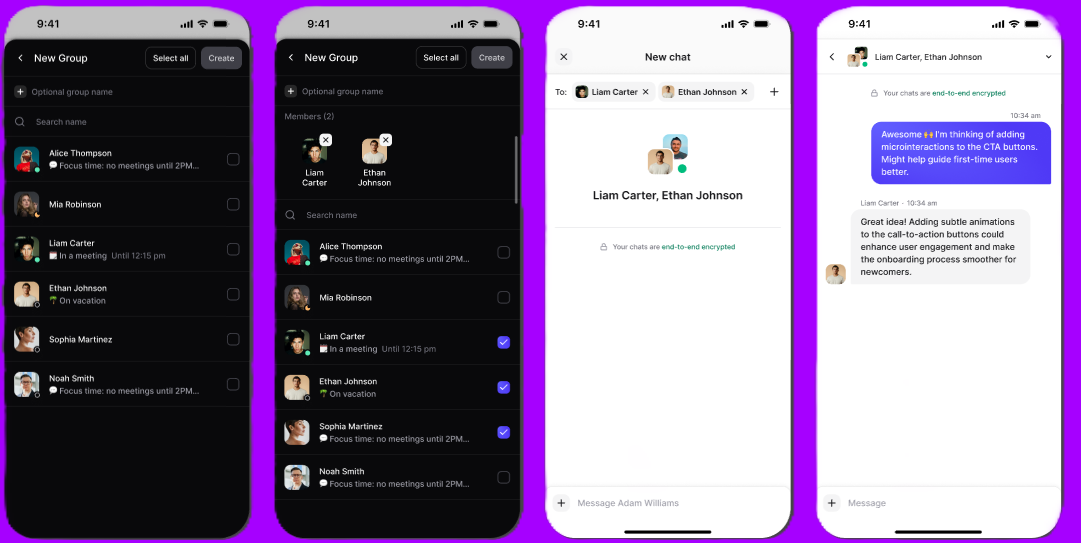
Go to the chat panel in the mobile app
Click the pen icon
Choose the ‘New group’ option, and then choose the recipients of the group chat
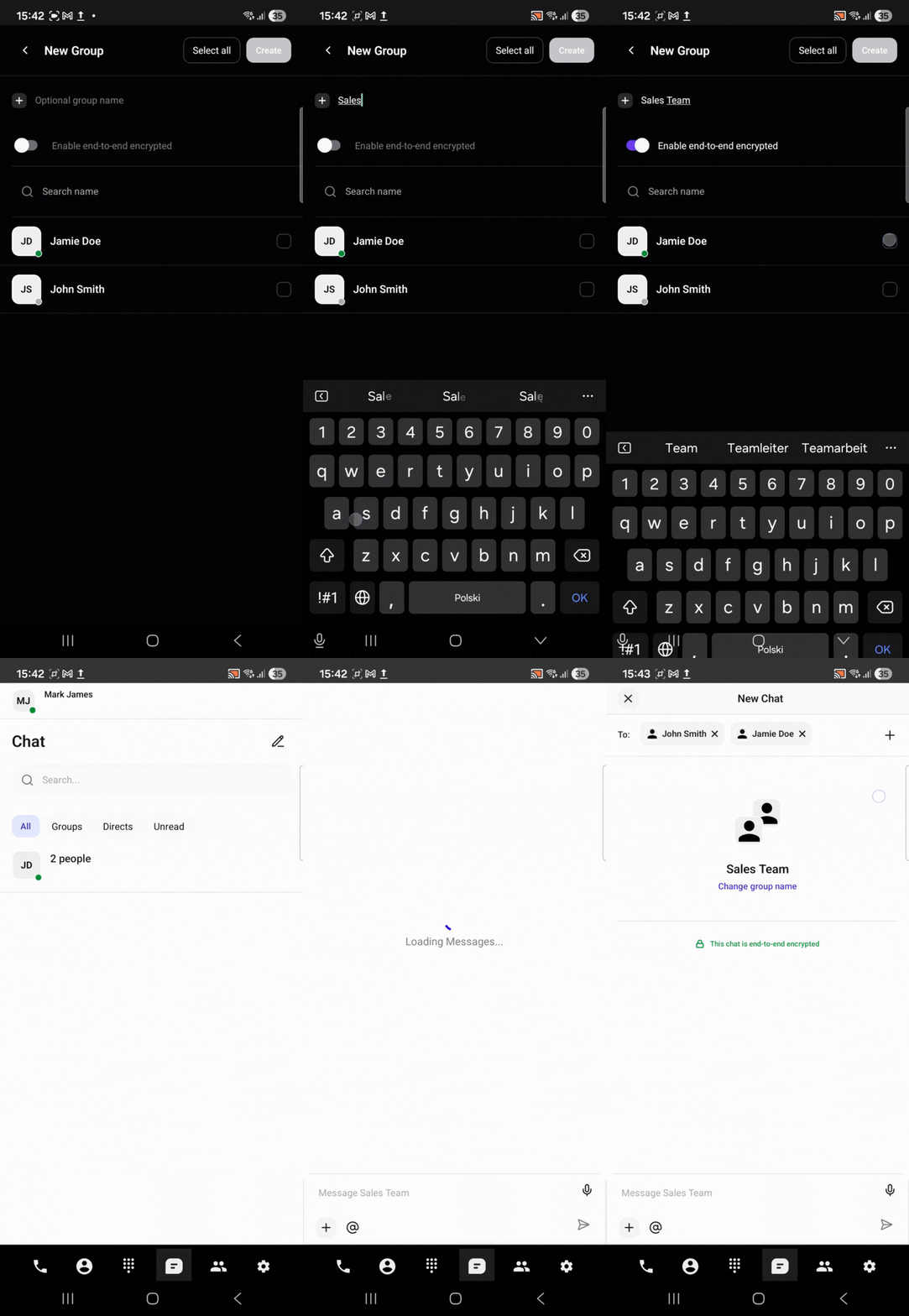
For the group chat, you can choose whether the chat will be end-to-end encrypted or not. Additionally, you can type the group name. You can also change the group name later, after clicking the ‘Info’ icon on the chat.
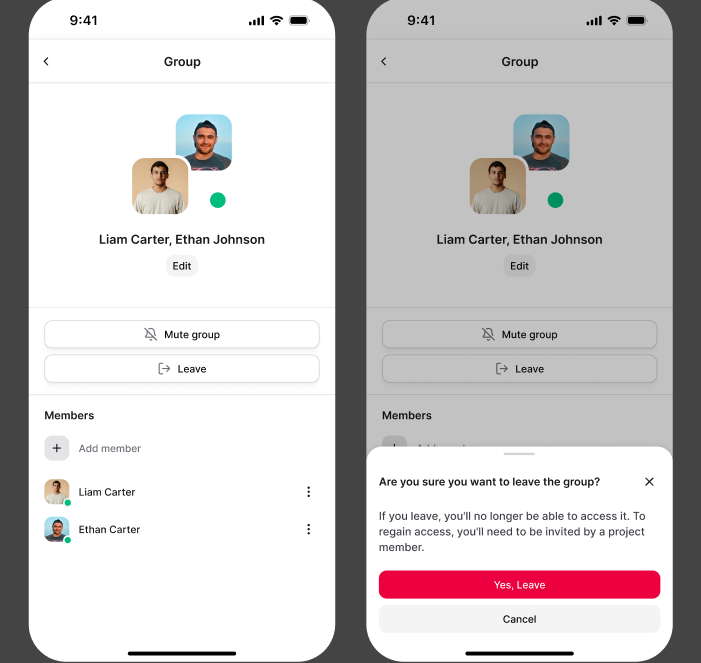
You can mute notifications from a group or leave the group chat entirely. To do this, tap the info icon and select your desired option; to unmute later, return to the same menu and choose “Unmute.” When leaving a group, the system will ask you to confirm your decision.
Q: How do I start a new chat conversation?
A: Go to the chat section of the app and tap the pen icon at the top of the screen.
Q: How can I send a message?
A: Type your message in the text input field and tap the send button (paper-plane icon).
Q: How do I mention someone in a chat?
A: Use the “@” symbol in your message followed by the person’s name.
Q: How can I view contact details in a chat?
A: Tap the dropdown/arrow icon next to the contact name or select ‘View profile’ to see more information.
Q: What information is shown in the ‘View profile’ option?
A: It displays the contact’s name, profile picture, status (online/offline or custom), local time, and other contact information.
Q: How do I initiate a call from a chat?
A: Tap the call button in the chat view to make an internal phone call with the contact.
Q: How can I create a group chat?
A: Go to the chat panel, tap the pen icon, select ‘New group,’ and choose the recipients for the group chat.
Chat icon | An icon in the app toolbar that opens the chat section. |
Pen icon | Button used to start a new conversation or create a new group chat. |
Back button | Navigational button to return to the previous screen. |
Contact name | Name of the person you are chatting with, displayed at the top of the chat screen. |
Profile avatar | Small image representing the contact in the chat. |
Dropdown/arrow icon | An icon next to the contact name that allows viewing contact details. |
Call button | Button to initiate an internal phone call with the chat contact. |
Text input field | Area where you type your messages. |
“@” symbol | Used to mention or tag someone in a conversation. |
Send button | Paper-plane icon used to send a typed message. |
View profile | Option to see detailed information about a contact, including status, local time, and contact info. |
Status | Indicates whether the contact is online, offline, or has a custom status. |
Group chat | A conversation involving multiple participants. |
