Follow these steps to set up calls recording:
Log in to the Mobile App
Click the ‘Rack’ (Settings) icon and then Phone numbers
Click on the phone number for which you want to set up calls recording.
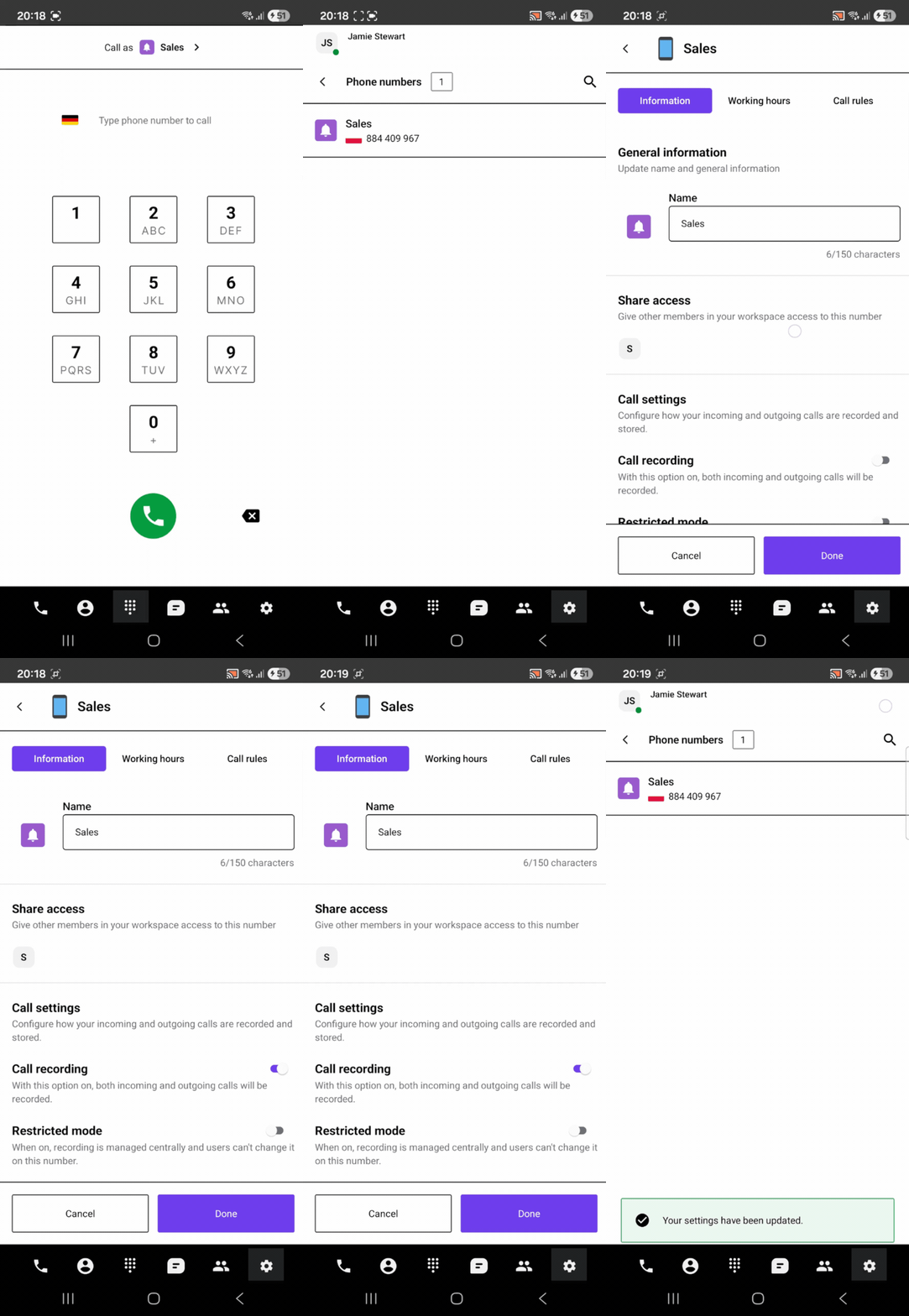
New call recording settings let organisations control who can start or stop recordings. By default, users can turn recording on or off themselves, but a restricted mode makes recording an admin-only task for higher security.
The default "User-controlled" setting lets people enable or disable recording unless an administrator changes it to restrict that ability.
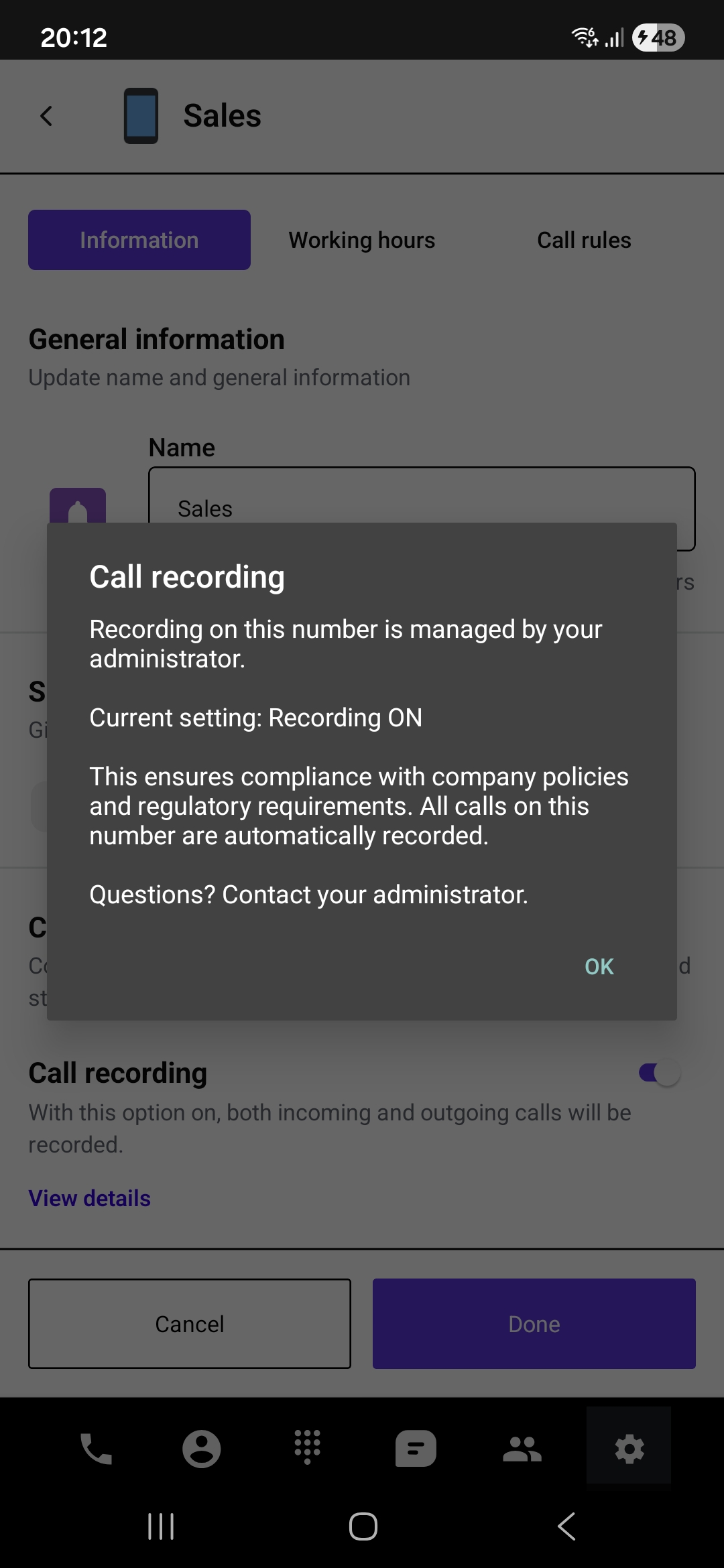
When the recording is restricted, and the user wants to change that, the message will be displayed:
1. How do I access call recording settings on my phone?
Log in to the Mobile App, tap the ‘Rack’ (Settings) icon, and select Phone numbers. From there, tap the specific number you wish to configure.
2. Who can turn call recording on or off?
By default, it is User-controlled, meaning users can toggle it themselves. However, an administrator can switch this to Restricted mode for higher security.
3. What happens if I try to change settings in Restricted mode?
If an admin has restricted the settings, a message will be displayed informing you that the action is not permitted.
Term | Definition |
‘Rack’ Icon | The specific icon (Settings) in the Mobile App is used to access configuration menus. |
Recording Mode | A setting that defines whether a user or only an admin has the authority to start/stop recordings. |
User-controlled | The default permission level where users have the autonomy to enable or disable recording. |
Restricted Mode | A security state that limits recording control exclusively to administrators. |
Found a mistake or missing article? Contact PhoneHQ Support and let us know!
