Last update: 01/04/2025
After your accounts are connected, all correctly formatted contacts from Pipedrive are added to PhoneHQ. You can now call them directly from the PhoneHQ panel, and each call (outgoing and incoming) will be properly added to your Pipedrive contact history.
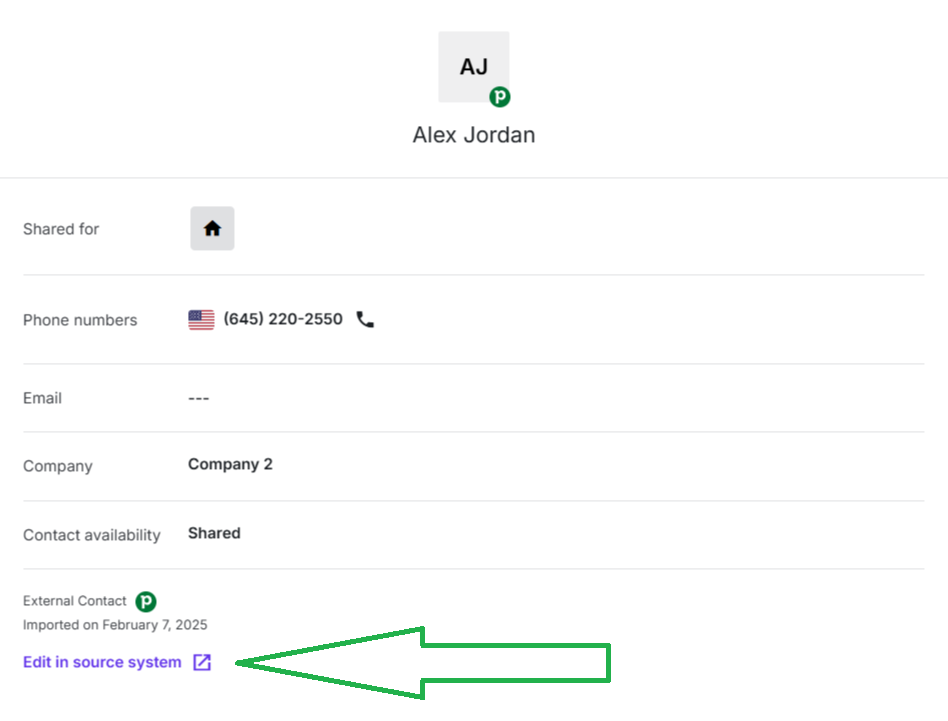
Contacts migrated from Pipedrive are marked with a Pipedrive icon in the contact details:

Phone numbers must include the country code and start with a plus (+) sign, e.g., +1 XXX XXX XXXX for U.S. numbers.
If a number is missing the country code, it will be added automatically based on the default country set in your integration settings.
Email addresses (if included) must be properly formatted, with a local part and domain separated by the @ symbol, e.g., yourname(@)domain.com
If these requirements aren’t met, the contact will not be migrated to PhoneHQ. Once you've updated the contact in Pipedrive and saved your changes, the contact will be added automatically.
When you add a new contact to your Pipedrive Contacts list, they will be automatically imported to PhoneHQ. This works one way, so creation of a new contact directly in PhoneHQ will not result in creation of a new contact in Pipedrive.
If you need to update contact details for a migrated contact, you must edit them directly in Pipedrive.
Since the contact synchronization is one-way, PhoneHQ will automatically update the contact with any changes made in Pipedrive. Each contact in PhoneHQ includes a link to Pipedrive, allowing you to quickly navigate to the contact’s details for editing.
In the event of disabling the integration with Pipedrive, the exported contact will remain in the PhoneHQ system.
Found a mistake or missing article? Contact PhoneHQ Support and let us know!
