Navigate to Phone Numbers Settings:
Start by going to the "Phone Numbers" tab in your account settings. This section allows you to manage all phone numbers associated with your user.
Select a Phone Number:
From the list of phone numbers, choose the specific phone number you want to configure by clicking on it. This will open the settings for that number.
Access Call Rules:
Once the phone number is selected, look for the "Call Rules" option. Click on it to access the rules and settings for how calls to this number are handled.
Configure the Welcome Message:
In the "Call Rules" section, find the "Welcome Message" option. This feature allows you to create a message that callers will hear when they dial the number during business hours.
Click on the "Welcome Message" field to start setting it up.
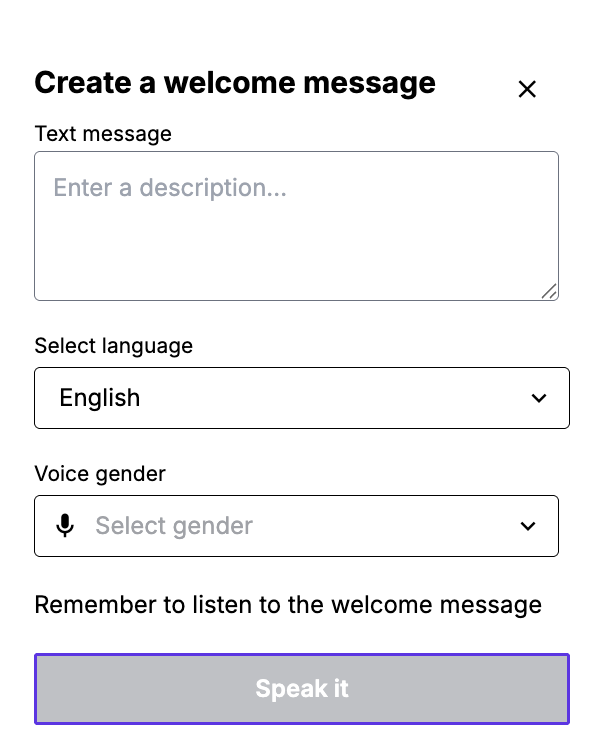
You’ll see a window titled "Create a welcome message" (as shown in the image).
Text Message: In the text box labeled "Enter a description...", type the message you want callers to hear. For example, "Thank you for calling! We're here to assist you."
Select Language: Choose the language for the message from the dropdown menu (default is English).
Voice Gender: Select the voice gender for the text-to-speech feature by clicking the dropdown menu labeled "Select gender" (you can choose options like male or female).
Preview the Message: After entering the message, click the "Speak it" button to hear how the text-to-speech will sound. Make sure to listen to the welcome message to confirm it sounds clear and professional.
Configure the After-Hours Message:
In the same "Call Rules" section, locate the "After Hours Message" option. This message will play when someone calls outside of your business hours.
Click on the "After Hours Message" field to set it up.
Follow the same steps as above:
Enter your message in the text box (e.g., "We’re currently closed. Please call back during business hours.").
Select the language and voice gender for the text-to-speech feature.
Use the "Speak it" button to listen to the message and ensure it’s correct.
Save Your Changes:
After setting up both the Welcome Message and After-Hours Message, make sure to save your changes in the "Call Rules" section to apply the new settings.
The text-to-speech feature converts your typed message into a spoken greeting, allowing for a professional and automated response without needing to record your voice.
Always preview the message using the "Speak it" button to ensure the tone, pronunciation, and clarity meet your expectations.
You can adjust the message, language, or voice gender at any time by revisiting the "Call Rules" section for the selected phone number.
Found a mistake or missing article? Contact PhoneHQ Support and let us know!
