Last update: 31/03/2025
After the integration is completed, Admins can configure several settings related to phone call exports to Pipedrive.
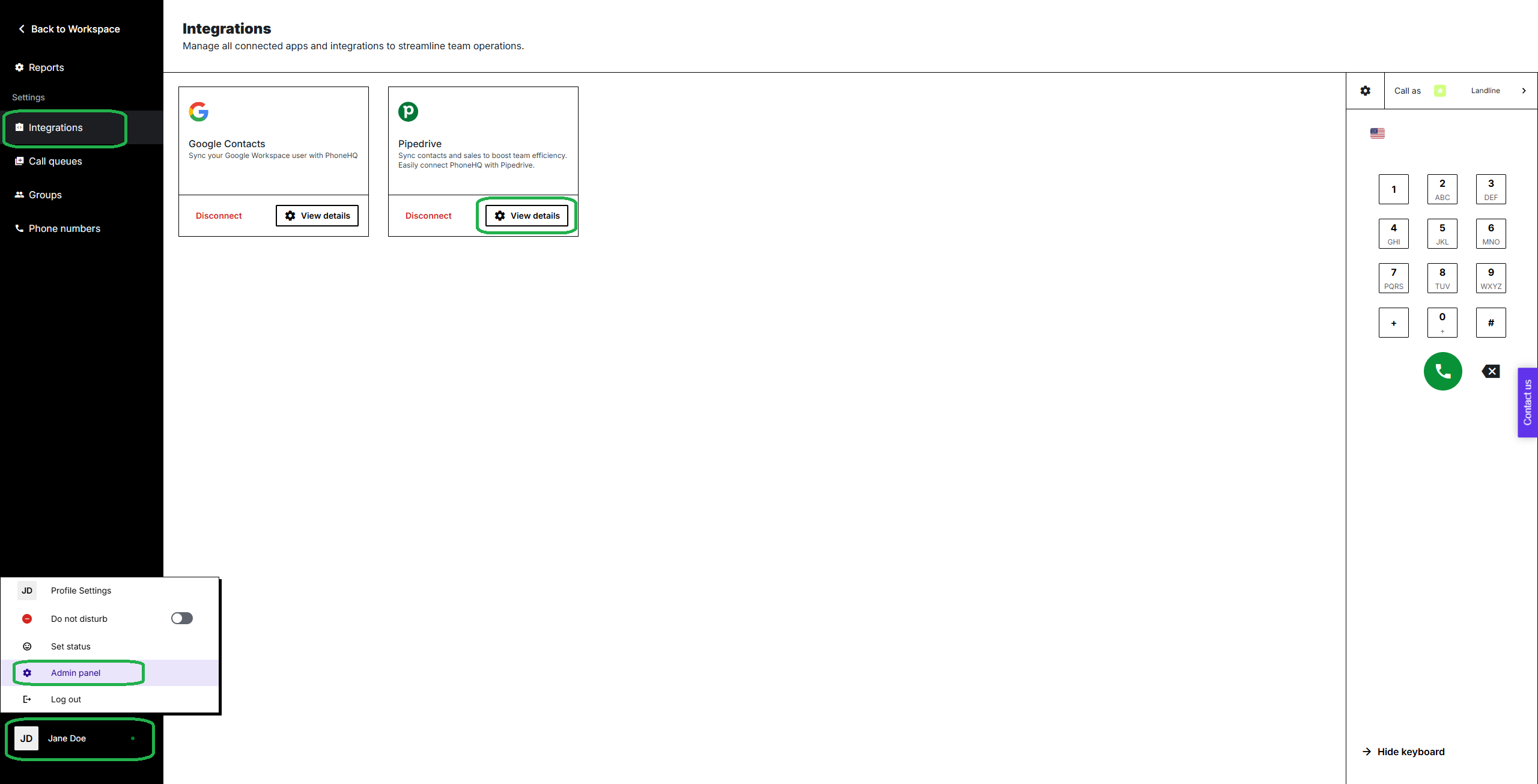
To access Pipedrive integration settings, follow steps below:
Log in to your PhoneHQ account on the Web Portal.
Open your profile menu (bottom-left corner of the screen).
Click on the “Admin” tab.
In the Admin panel, navigate to “Integrations”.
Under Pipedrive, click the “View details” button.
Once you’ve accessed the Pipedrive integration settings panel, there are a few options available:
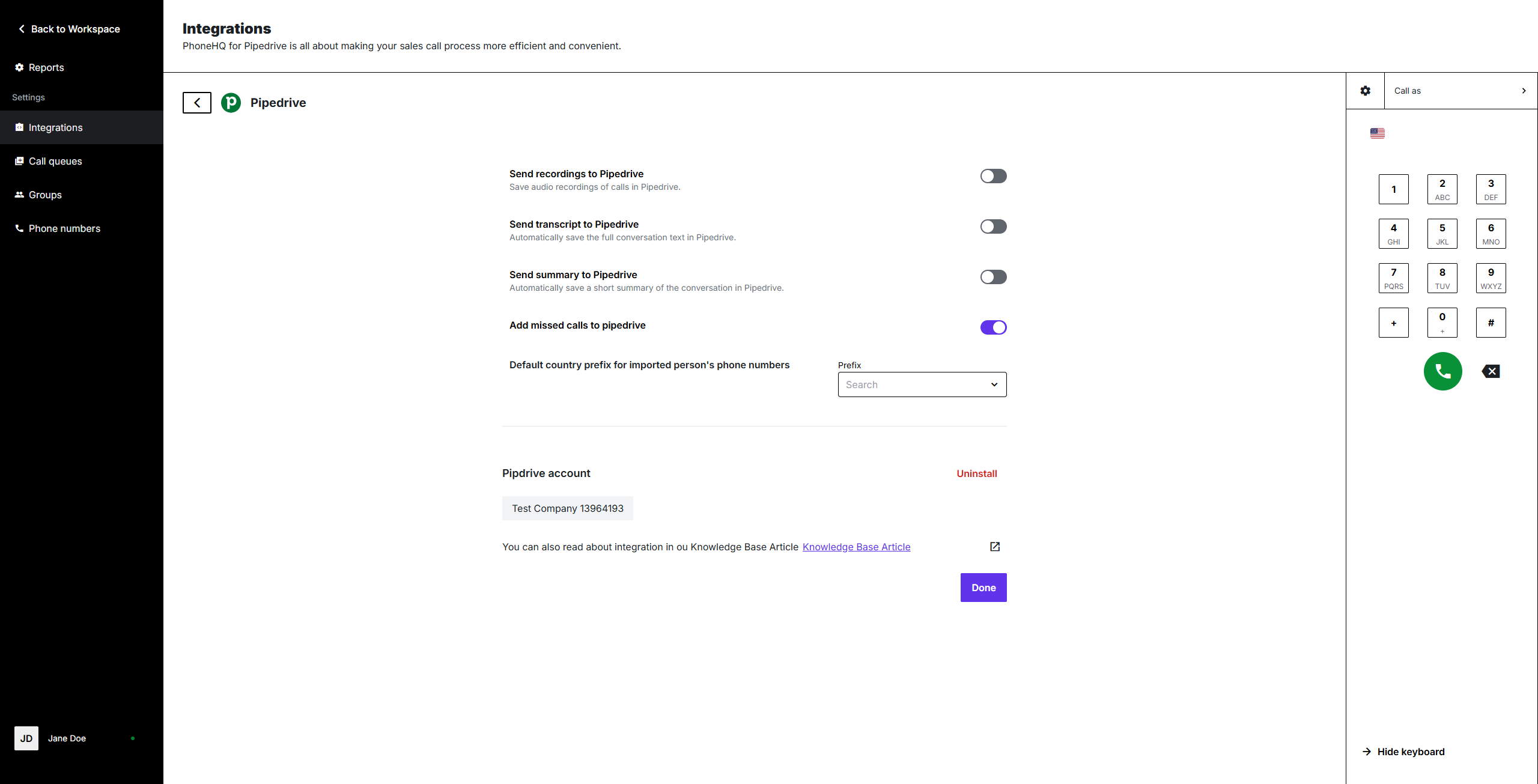
When enabled, PhoneHQ automatically attaches a link to the call recording in the notes section of the corresponding Pipedrive contact. This allows users with access to the Pipedrive account to listen to recordings directly, without needing to manually search for them in PhoneHQ. Clicking the link will initiate a download process on the user’s device.
Requirements:
contact exists in Pipedrive, and has been migrated to PhoneHQ.
call has been made using the same number as one saved in contact details
call has been made by one of the integrated users
If enabled, PhoneHQ can automatically generate call transcripts and attach them to the relevant contact in Pipedrive. This feature allows teams to quickly review call content, search for specific keywords, and ensure important details are logged without manually writing call notes.
Call transcription accuracy may vary depending on factors such as background noise, accents, or call quality.
PhoneHQ can generate AI-driven call summaries, which can be sent to Pipedrive for a quick overview of each conversation. These summaries include essential details such as topics discussed, client concerns, and follow-up actions.
This feature helps sales and support teams stay aligned on client interactions without reviewing full transcripts or recordings.
Missed calls can be logged automatically in Pipedrive, ensuring that no client interaction is overlooked. Each missed call entry includes a timestamp, caller’s phone number and name of the contact. Only missed calls from contacts already existing in Pipedrive can be logged and exported.
For missed calls, the same requirements as for recordings must be met:
contact exists in Pipedrive, and has been migrated to PhoneHQ.
call has been made using the same number as one saved in contact details
In case that phone numbers are not saved in Pipedrive with international prefixes, you can choose the most popular country of origin of your contacts. The system will verify each contact separately, and in the event of prefix absence, it will be added automatically based on this choice.

+ (plus sign) XX (country code) YYY YYY YYY (nine-digit phone number).
For any contacts missing a country code, the system will automatically check the formatting and if the phone number is matching, the system will assign a country code based on the selected option. Admins can modify this setting at any time according to company needs.
This section provides an overview of the connected Pipedrive account, including:
Company name,
Pipedrive Company ID
Admins can disconnect PhoneHQ from Pipedrive using the “Uninstall” button in the integration settings. This action will stop automatic call logging, contact syncing, and data exchange between the two platforms.
Before uninstalling, Admins should ensure that any necessary call logs, recordings, or transcripts are backed up. If the integration is removed accidentally, reinstalling will require re-syncing all contacts, which may take time depending on the number of contacts and logged calls.
Found a mistake or missing article? Contact PhoneHQ Support and let us know.
