This article describes how to use the manager panel, located on the left side of your application screen. This panel provides quick access to the system's key features.
Sidebar (Left Side of Screen)
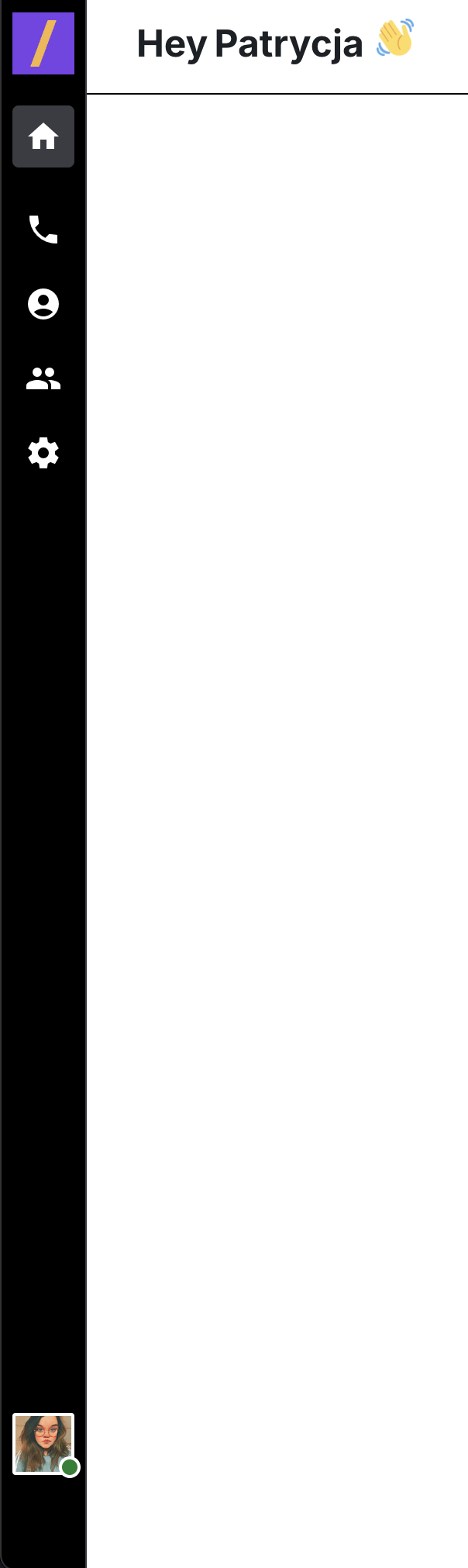
The sidebar contains a set of icons representing the main functions of the system. Below you'll find a description of each:
Home
Icon: A house silhouette.
Action: Clicking this icon takes you to the main dashboard or homepage of the application, providing an overview of key metrics and quick links.
Calls
Icon: A telephone handset.
Action: Clicking this icon will take you to the call list. Here, you can:
Listen to call recordings (if available).
Filter the call history by various criteria (e.g., date, status, number).
Manage the call history (e.g., archive, delete).
Contacts
Icon: A person's silhouette with a business card.
Action: Selecting this icon allows you to manage the contacts added to your account. You can:
Add new contacts.
Edit existing contact information.
Delete contacts.
Organize contacts into groups (if this feature is available).
Team / Users
Icon: Two people's silhouettes.
Action: Clicking this icon takes you to the team or user management section. Here, you can:
View a list of all team members or account users.
Add new users to the system.
Assign roles and permissions to individual users.
Monitor user activity (e.g., status, last login).
Settings
Icon: A gear icon.
Action: Selecting this icon opens the general application settings. In this section, you can configure various aspects of the system, such as:
Notification settings (e.g., email, push).
Integrations with other tools (if available).
General account policies and preferences.
Your Status (Bottom Profile)
Location: Located at the bottom of the sidebar. It usually displays your profile picture or initials and your current status.
Action: Clicking this area expands a menu that allows you to:
Change Status: Set your current status (e.g., Available, Busy, Invisible), informing other users of your availability.
Log Out: Securely log out of the application.
Profile Settings: Go to your individual profile settings, where you can edit your information, etc.
Where can I find the Manager Panel?
The Manager Panel is located on the left side of the screen in your application. It contains icons that give you quick access to key system features.
How can I listen to a call recording?
Click the 📞 Calls icon to access the call list. If a recording is available, you'll see an option to play it next to the relevant call entry.
Can I filter the call history?
Yes. In the Calls section, you can filter call records by date, status, number, and other criteria.
How do I manage my contacts?
Click the Contacts icon. There, you can:
Add new contacts,
Edit existing contact details,
Delete contacts,
Organize contacts into groups (if the feature is enabled).
How can I add a new user to the system?
Go to the Team / Users section and click the option to add a user. Then, fill in the required information.
Can I assign different roles to users?
Yes. In the Team / Users section, you can assign specific roles and permissions to each user individually.
Where can I configure application settings?
Click the Settings icon to manage:
Notification preferences (email, push),
Integrations with external tools (if available),
General account policies and preferences.
How can I change my status or log out?
Click your profile icon or initials at the bottom of the sidebar. In the expanded menu, you can:
Change your status (e.g., Available, Busy, Invisible),
Access your Profile Settings,
Securely log out of the app.
How do I return to the main dashboard?
Click the 🏠 Home icon to navigate back to the main dashboard or homepage.
Term | Term Definition |
Manager Panel | The main navigation area located on the left side of the screen. It gives users quick access to core features such as calls, contacts, team management, and settings. |
Sidebar | Another name for the Manager Panel. It's the vertical menu on the left with icons representing different sections. |
Home | A section accessible via the 🏠 icon, leading to the main dashboard or homepage with an overview of key metrics and quick links. |
Calls | A section accessible via the 📞 icon. It displays the call history, including options to listen to call recordings, filter calls, and manage (archive/delete) them. |
Contacts | A section (👤 icon) where users can add, edit, delete, and group contact entries. |
Team / Users | The 👥 icon leads to this section, where users can manage team members, including adding users, assigning roles and permissions, and monitoring their activity status. |
Settings | Accessible via the ⚙ icon. This section lets users configure system preferences, including notifications, integrations, and account-wide settings. |
Status | The user's current availability (e.g., Available, Busy, Invisible). Displayed at the bottom of the sidebar, where users can also change it. |
Profile Settings | A personal settings section where users can edit their account info (and optionally, change passwords if supported). Accessible by clicking the user profile at the bottom of the sidebar. |
Log Out | An option found in the profile menu that allows the user to securely exit the application. |
Role | A set of permissions assigned to a user, determining what actions they can perform within the system. |
User Activity | Information about each user’s status and last login, helping managers monitor engagement and usage. |
Integration | A connection between the system and external tools or platforms (e.g., CRMs, communication tools), usually configured in Settings. |
Found a mistake or missing article? Contact PhoneHQ Support and let us know!
