This section allows you to manage the phone numbers available in the application.
On the left side of the screen, you'll see the menu. The currently selected tab is "Settings", indicated by the gear icon. Within "Settings," you'll see the sub-tabs "Groups" and "Phone Numbers". The "Phone Numbers" sub-tab is currently selected.
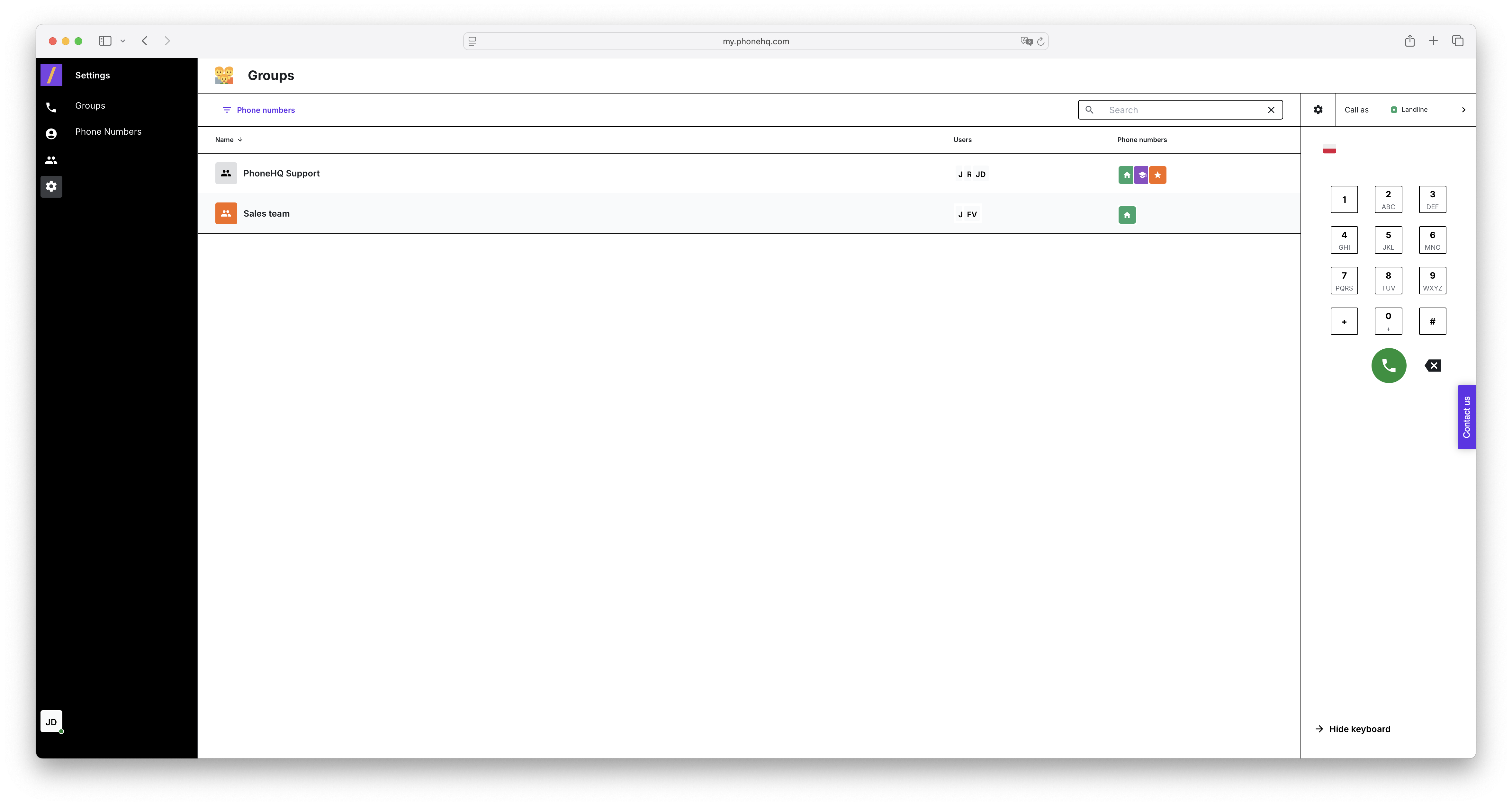
The main part of the screen displays a list of phone numbers in a table format.
The list includes the following columns for each number:
Name: The descriptive name assigned to the phone number.
Phone Number: The phone number itself, along with the country flag indicating its origin.
Country: The flag of the country from which the number originates (e.g., Poland, Australia, USA).
Category: The group to which the number is assigned (e.g., "My numbers").
Additional labels: Special labels or designations assigned to some numbers (e.g., "SC 1").
Above the list of numbers, you'll find a "Search" field, which allows you to quickly find a number by its name or digits.
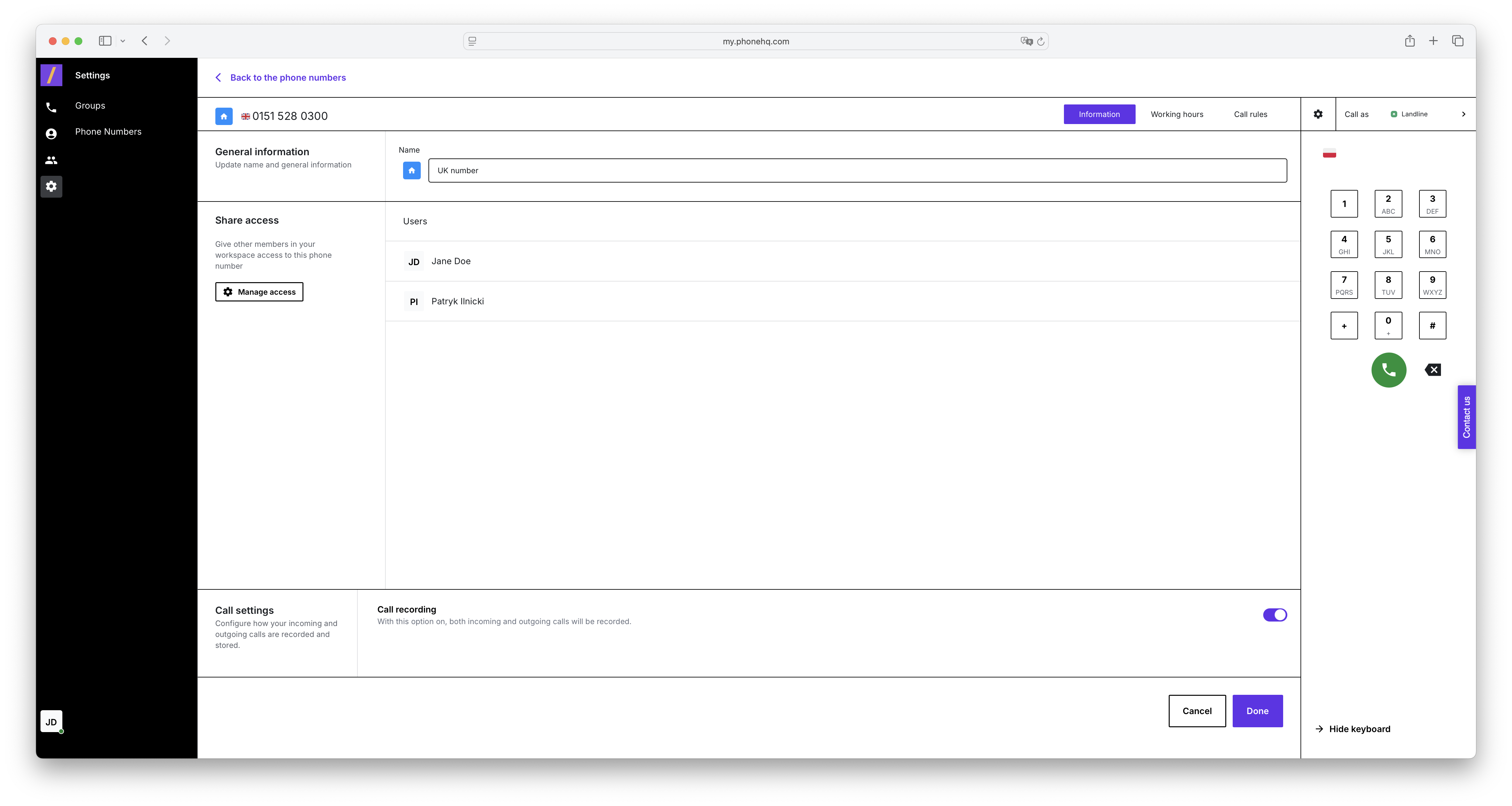
When you click on a specific phone number in the list (e.g., +732 220 001), a settings panel for that number will open on the right side of the screen. This panel contains three tabs:
Information
Working hours
Call rules
General Information Section:
"Name" field: Allows you to change the displayed name for this number (e.g., "Ania Legut SALES").
Share access Section:
"Manage access" option: Allows you to assign this number to specific groups (e.g., "ShopperConnect") or users, defining who has the right to use this number.
Call settings Section:
"Call recording" toggle: Turning this option on activates the recording of all calls (both incoming and outgoing) made through this number.
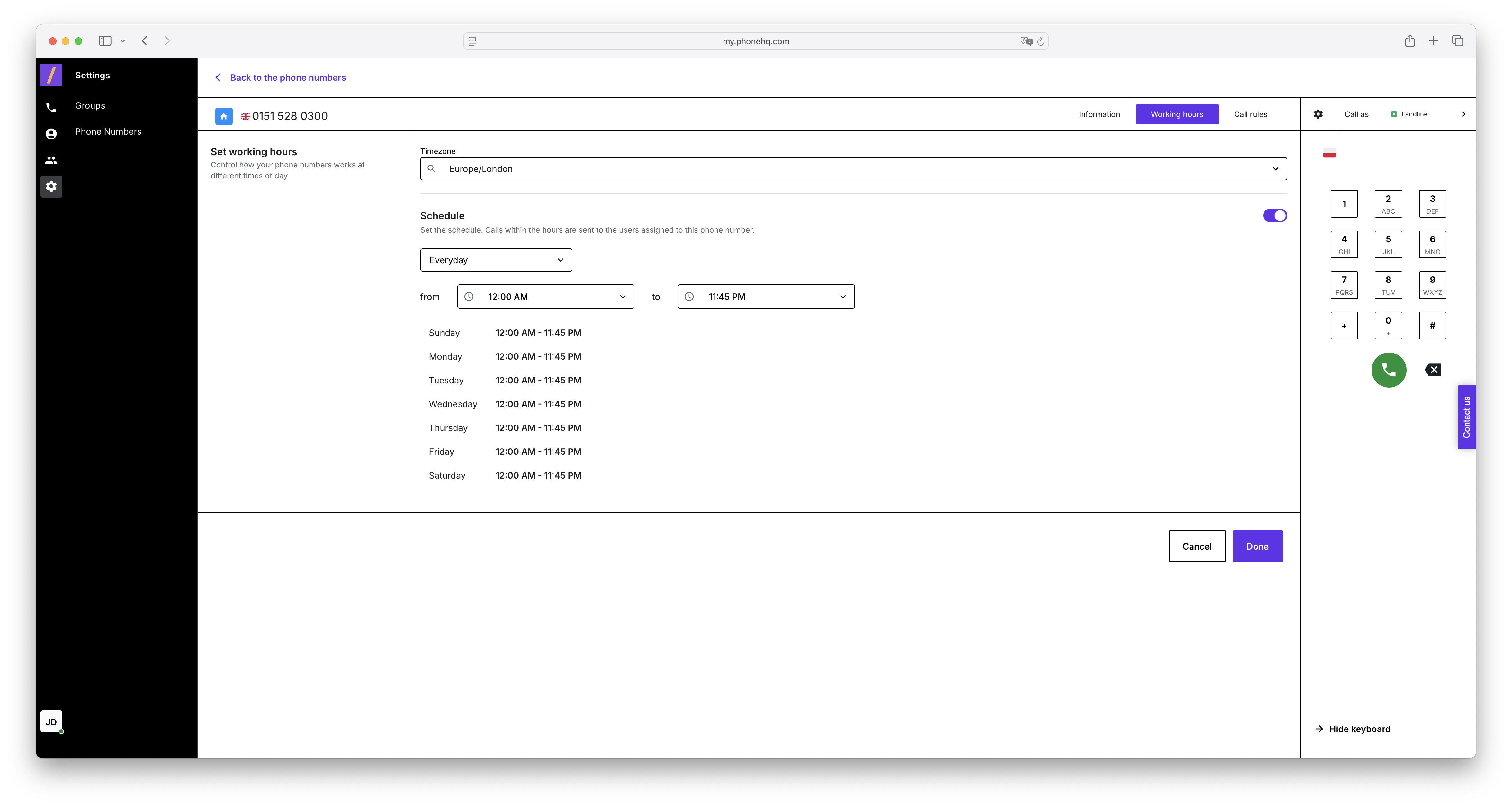
Timezone Section:
Timezone selection field: Allows you to set the timezone that will apply to this number (e.g., "Europe/London").
Schedule Section:
"Set the schedule" toggle: Turning this option on allows you to define the working hours for the number. Once activated, you can specify the days of the week and times when the number is active, and calls will be routed to the assigned users during these hours.
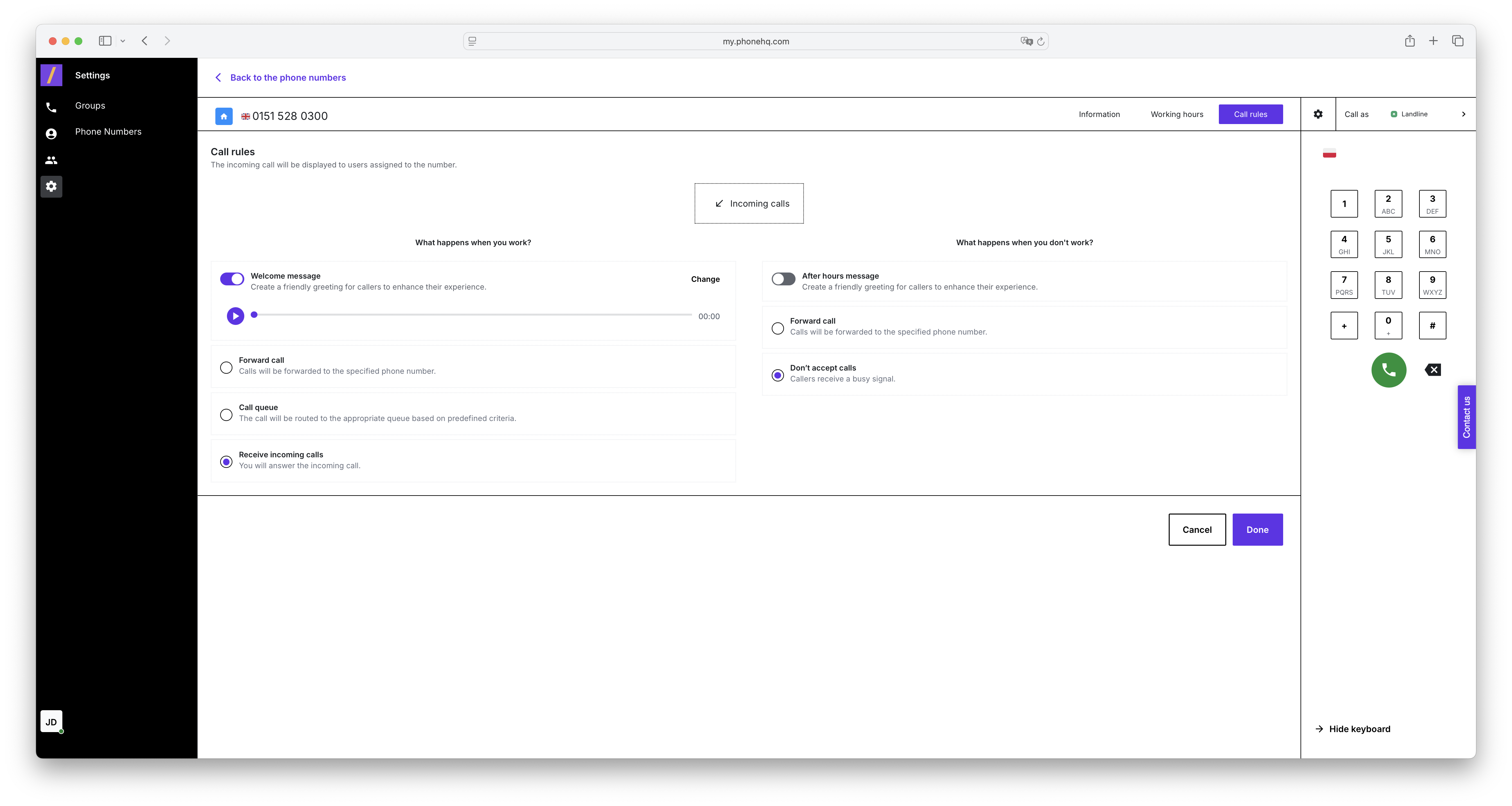
What happens when you work? Section:
"Welcome message" toggle: When enabled, allows you to set up an automated welcome message that will be played to callers during working hours.
"Forward call" option: Allows you to redirect incoming calls to another specified phone number.
"Call queue" option: Allows you to configure a call queue that will handle callers according to specific rules (e.g., order of arrival, agent availability).
"Receive incoming calls" option: Checking this option means that users assigned to this number will be able to receive incoming calls during working hours.
What happens when you don’t work? Section:
"After hours message" toggle: When enabled, allows you to set up an automated message informing callers that they are calling outside of working hours.
"Forward call" option: Allows you to redirect incoming calls outside of working hours to another specified phone number.
"Don’t accept calls" option: When selected, callers outside of working hours will hear a busy signal.
After making the desired changes to the number's settings, click the "Done" button at the bottom of the panel to save them. Clicking "Cancel" will discard any unsaved changes.
Go to the "Settings" tab: In the left-hand menu, click the gear icon ("Settings").
Select the "Phone Numbers" sub-tab: Within the "Settings" section, click the "Phone Numbers" option to display the list of available phone numbers.
Browse the list of phone numbers: On the screen, you'll see a list of numbers along with their names, country flags, and categories. You can use the "Search" field to quickly find a specific number by typing its name or part of the number.
Edit phone number settings: Click on the phone number whose settings you want to change (e.g., +732 220 001) to open the configuration panel for that number.
Information:
Change the number's name by entering a new value in the "Name" field.
To manage user or group access to the number, click "Manage access" and follow the instructions.
Turn call recording on or off by toggling the "Call recording" option.
Working hours:
Select the appropriate timezone from the dropdown list in the "Timezone" field.
To set a work schedule for the number, turn on the "Set the schedule" toggle and define the days and hours of activity.
Call rules:
In the "What happens when you work?" section, configure the options for incoming calls during working hours (e.g., enable a welcome message, set up call forwarding, configure a call queue).
In the "What happens when you don’t work?" section, set up options for calls outside of working hours (e.g., enable an after-hours message, set up call forwarding, choose the option to not accept calls).
Save changes: After configuring the settings, click the "Done" button at the bottom of the panel to save your changes. If you want to discard your edits, click "Cancel".
Manage number assignments: Remember that you can also assign numbers to user groups in the "Groups" sub-tab within "Settings."
Manage phone numbers:
View a list of all phone numbers configured in the application, along with their names and countries of origin.
Organize numbers by assigning them to categories (e.g., "My numbers," "Channels").
Configure phone number settings:
Information: Change the number's name for better identification and manage access to the number by individual users or groups. Enable and disable call recording.
Working hours: Set the timezone and define the working hours for the number, allowing you to control when the number is active and when calls should be handled.
Call rules: Configure the system's behavior for incoming calls during and outside of working hours, including setting up welcome and after-hours messages, forwarding calls, and configuring call queues.
Search for numbers:
Quickly locate numbers in the list using the built-in search function.
Assign numbers:
Assign numbers to specific users or groups, providing control over who can use a particular number (access management is also available in the "Groups" sub-tab).
Call handling:
The numbers configured in this section are used in the "Calls" tab for making and receiving calls and viewing call history.
Resource organization:
Categorizing numbers (e.g., Channels, PHQ Business) allows for logical separation of numbers based on their purpose (e.g., support, sales, customer calls).
Can I assign the same phone number to multiple users or groups?
Yes. In the “Information” tab of a phone number’s settings, use the “Manage access” option to assign the number to multiple users or groups.
What happens if no working hours are set for a number?
If no working hours are defined, the number is considered active 24/7. All incoming calls will follow the rules defined under the “What happens when you work?” section.
Will calls still be recorded if call forwarding is enabled?
Yes, if calls are forwarded outside of the application (e.g., to a mobile number), they will be recorded by the system.
How can I disable a number temporarily?
You can disable incoming calls by setting the working hours toggle off and selecting “Don’t accept calls” in the “After hours” section of the "Call rules" tab.
Can I have different call handling rules for different days?
Yes. Once you enable the “Set the schedule” option in the “Working hours” tab, you can define different active hours for each day of the week.
Where do recorded calls appear?
Recorded calls can be accessed through the “Calls” tab, where you can view call history and playback recordings if recording was enabled.
Is it possible to use the same number in multiple time zones?
No. Each number can only be assigned to a single time zone at a time. However, you can configure call routing based on user availability in different regions.
What are ‘labels’ and how are they used?
Labels help tag or categorize numbers with custom identifiers like “SC 1” for internal reference or segmentation.
Term | Definition |
Access Management | The process of assigning a phone number to specific users or groups to control who is allowed to use it. |
Call Queue | A system that places incoming callers in a waiting line based on specific rules (e.g., order of arrival, agent availability). |
Call Recording | A feature that enables automatic recording of inbound and outbound calls made through the selected phone number. |
Call Rules | Settings that define how incoming calls are handled both during and outside of working hours (e.g., forwarding, automated messages). |
Forward Call | Redirecting an incoming call to another specified phone number, either during or outside of working hours. |
Labels | Custom tags or identifiers assigned to phone numbers for internal organization or quick reference (e.g., "SC 1", "Marketing EU"). |
Phone Number Category | A classification used to group phone numbers by purpose or department (e.g., "My numbers", "Channels", "PHQ Business"). |
Timezone | The time zone applied to a phone number, affecting its working hours and scheduling behavior. |
Welcome Message | An automated voice message played to callers during working hours when they call the number. |
After Hours Message | An automated voice message played to callers outside of defined working hours, informing them the number is currently unavailable. |
Working Hours | The specific days and times during which a phone number is active and able to receive incoming calls. |
Found a mistake or missing article? Contact PhoneHQ Support and let us know!
