Open the PhoneHQ application.
Ensure that you are logged in to your account.
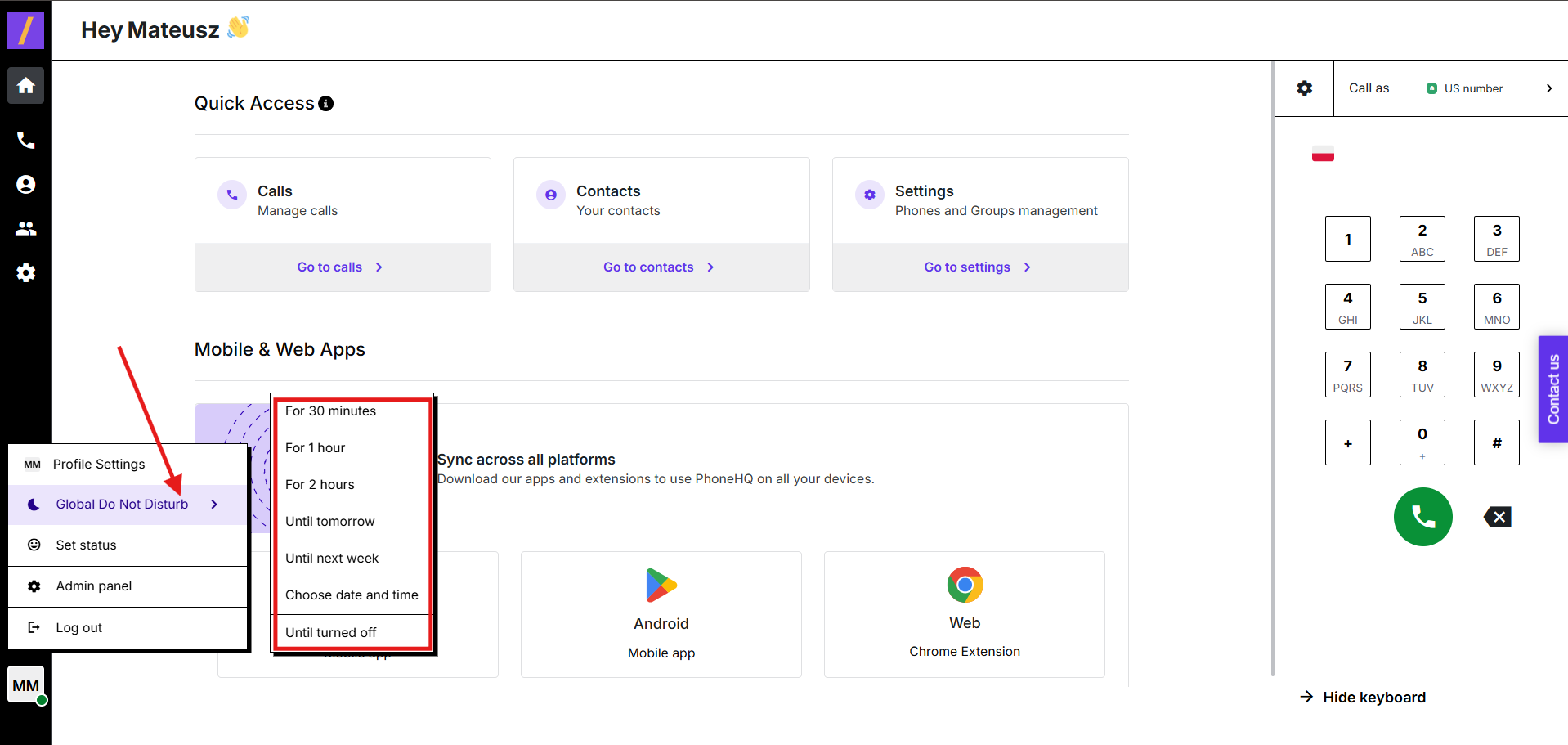
Click on your profile picture, located in the bottom-left corner of the app.
In the dropdown menu that appears, find the “Do not disturb” option. It will have a toggle switch next to it.
Click the toggle switch to turn “Do not disturb” on.
Choose how long you want DND to be active. The available options include:
For 30 minutes
For 1 hour
For 2 hours
Until tomorrow
Until next week
Choose date and time
Until turned off – stays on until you manually disable it.
Once activated, you will no longer receive any notifications for incoming calls.
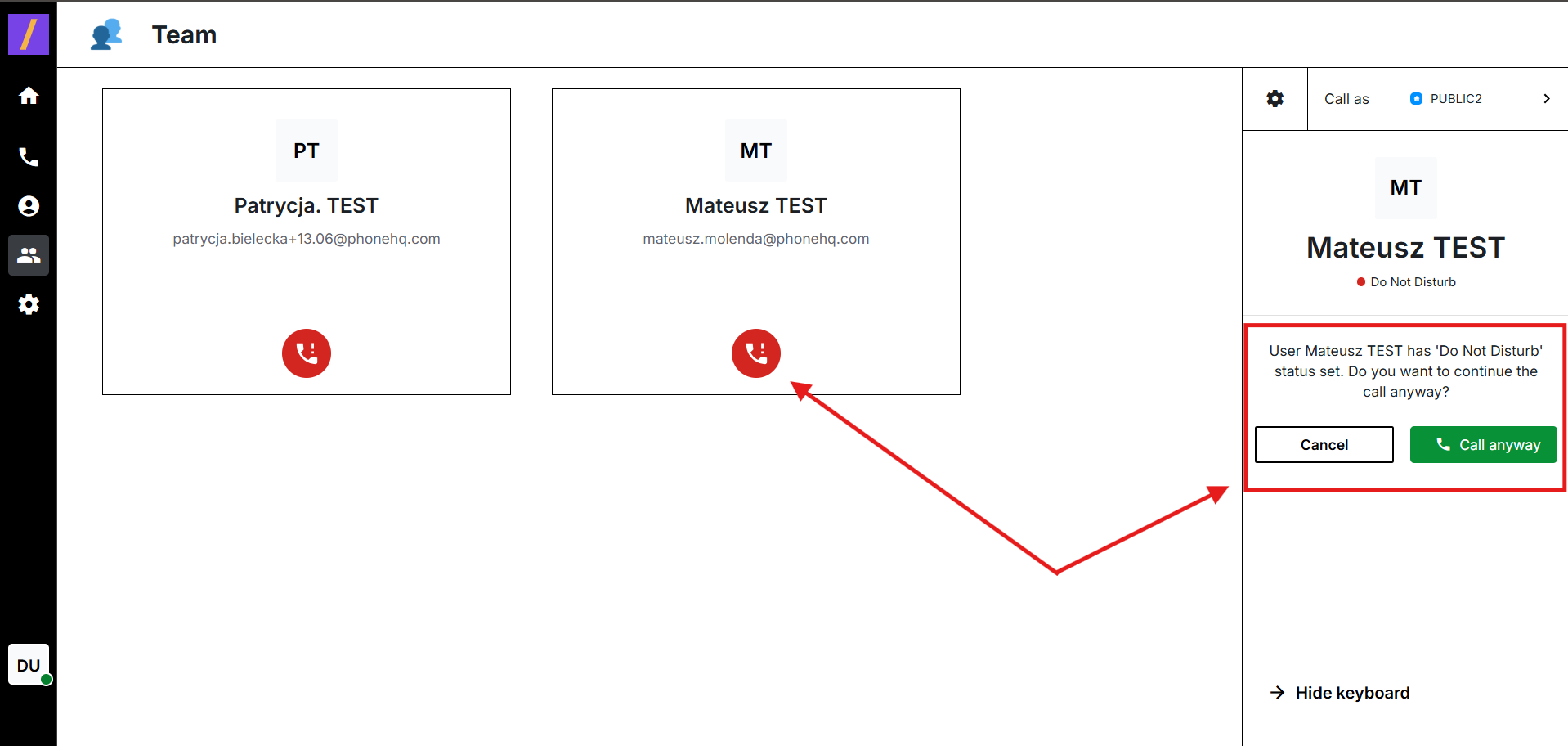
It’s possible that you may receive an incoming call even when the Do Not Disturb option is enabled. This can happen if one of your Team members initiates an internal call.
Before placing a call to a user with Do Not Disturb turned on, you will be notified of their status. If you still wish to proceed, simply click the Call anyway button.
Click on your profile picture again, located in the bottom-left corner of the app (the same step as turning on “Do not disturb”).
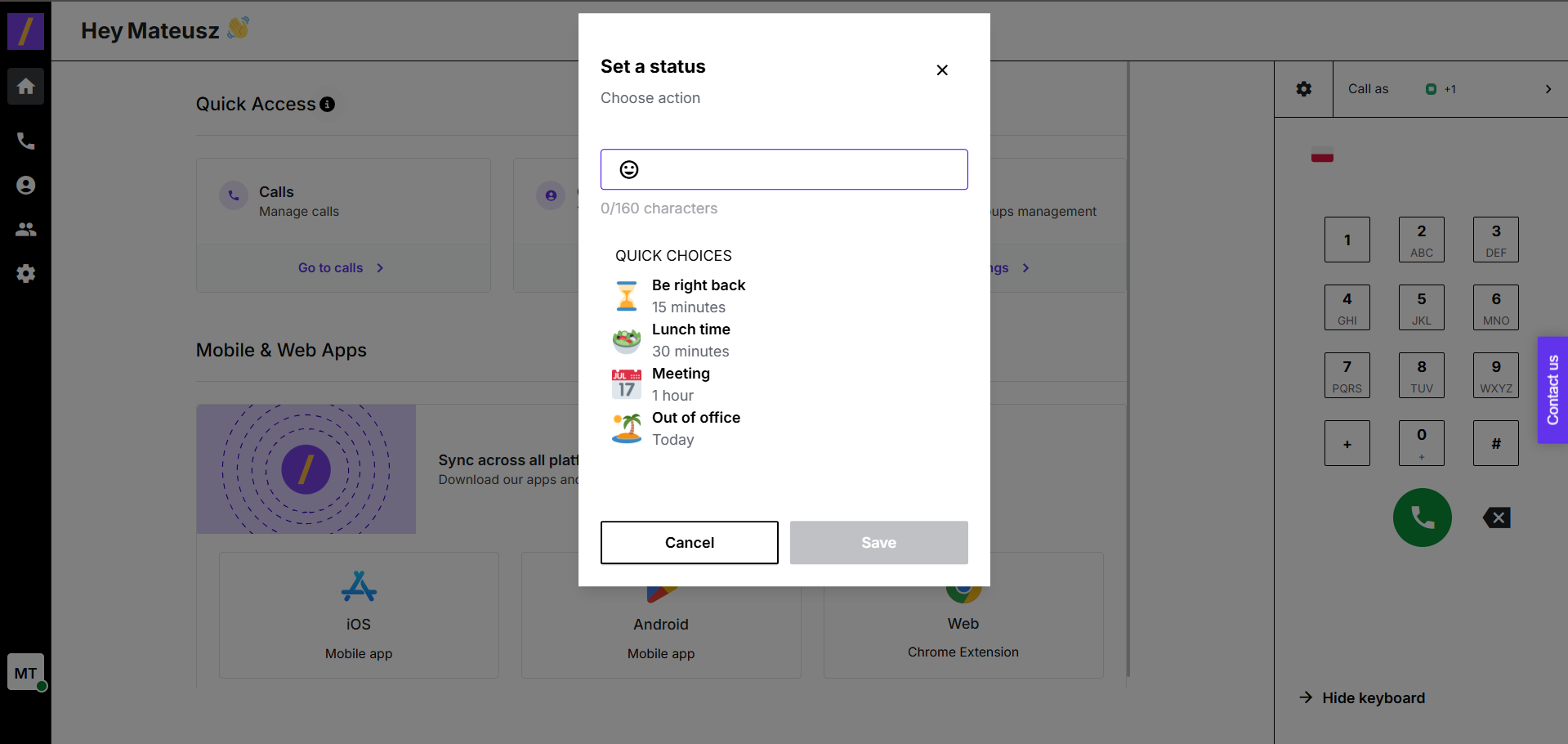
From the dropdown menu that appears, select “Set status”.
A new window titled “Set a status” will pop up.
Choose your desired status:
Select one of the quick choices provided (for example, “Lunch time”, “Meeting”, “Out of office”).
Alternatively, you can type a custom status message (up to 160 characters) in the text box.
Click the “Save” button to apply your chosen status.
Example of a custom status:
"Working remotely until 2 PM — feel free to message me."
In the app, users can have one of the following activity statuses, each represented by a specific color:
Active (Online) – displayed in green
The user is currently active and available.
Away (Offline) – displayed in gray
The user is not currently logged into the app.
Do Not Disturb (DND) – displayed in red
The user does not want to be interrupted. Notifications for incoming calls are suppressed.
However, internal calls from Team members may still go through if the caller chooses to proceed.
Talking – displayed in orange
The user is currently on a call.
The process for viewing the missed call summary is the same across the desktop and mobile applications.
Turn off DND: If you had the Do Not Disturb mode enabled, first, you need to turn it off. This can usually be done by clicking or tapping the DND icon (often a crescent moon or similar symbol) and choosing the option to disable it.
Go to "Recent Calls": Navigate to the main application screen or the "Recent Calls" tab.
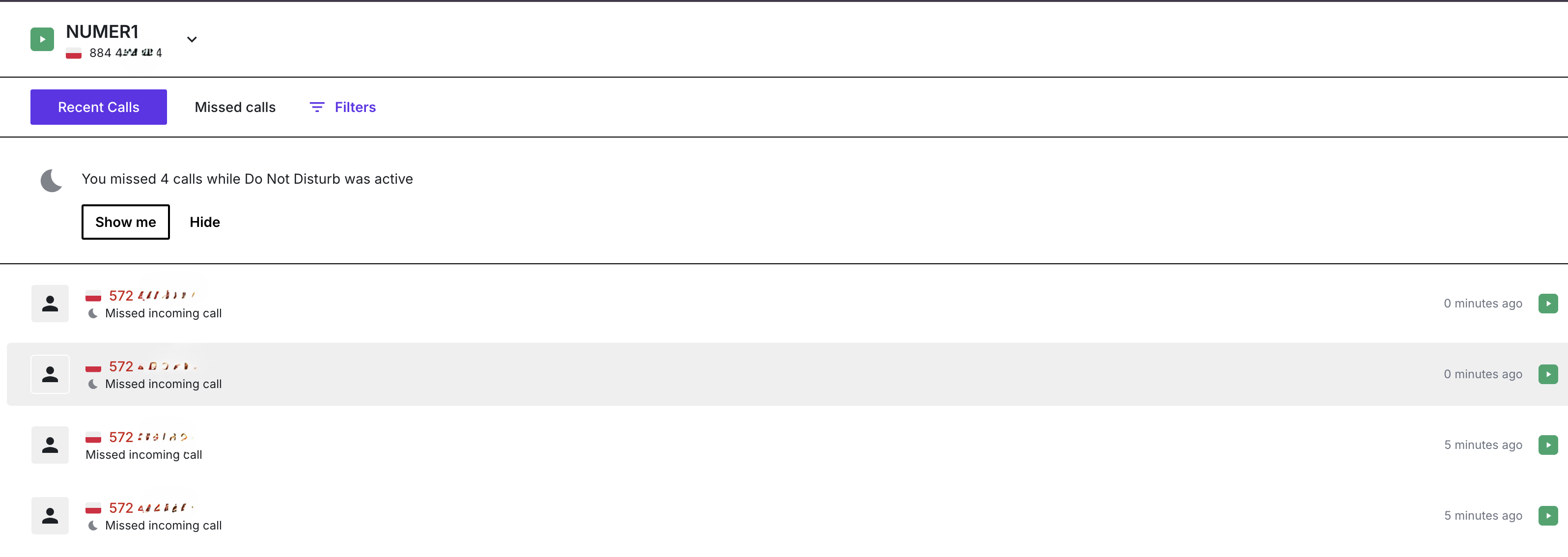
View the summary message: Immediately after the DND period ends and you are active again, a clear message will appear on your screen, in the "Recent Calls" section.
The message will look like this:
“You missed X calls while Do Not Disturb was active” (where 'X' is the total number of calls you missed).
Review call history: Scroll down the "Recent Calls" list to see the details of the calls.
All calls missed during the DND period are clearly marked with the contact number and the time they were attempted.
Final Result
After following these steps, you will immediately see a notification summarising all missed incoming calls during the time the Do Not Disturb mode was active. All these calls will also be clearly marked in your "Recent Calls" history, allowing you to quickly identify who tried to reach you.
1. What happens when I turn on “Do Not Disturb”?
When Do Not Disturb is enabled, you will stop receiving notifications for incoming calls — your device won’t ring or display pop-up alerts.

2. Will calls be recorded while “Do Not Disturb” is enabled?
Yes. If call recording is enabled on the number, the system will still record calls, even if you don’t receive them.
3. Can I still make outgoing calls while “Do Not Disturb” is on?
Yes. “Do Not Disturb” affects only incoming call notifications. You can still place calls or view the call history.
4. Will my team see that I have “Do Not Disturb” on?
Yes. It will be visible in the “Team” tab
5. What’s the difference between a status and “Do Not Disturb”?
“Do Not Disturb” blocks incoming notifications. Status is a visible message that lets others know what you’re doing (e.g., "On a call", "Lunch break").
6. Can I set both a status and “Do Not Disturb” at the same time?
Yes. You can enable “Do Not Disturb” and set a custom status message simultaneously.
7. Can I remove a status once it’s set?
Yes. Open the status window again and click “Clear status” or delete the custom message.
8. How long does a custom status last?
Custom statuses remain active until you manually change or clear them.
9. Where can I see the missed call summary?
The summary message, such as "You missed X calls while Do Not Disturb was active", appears in the "Recent Calls" section right after you turn off the DND mode.
10. Are the missed calls permanently marked in the history?
Yes, the individual missed calls that occurred during the DND period are clearly marked in the "Recent Calls" history, along with the contact number and the time of the call attempt.
Term | Definition |
Do Not Disturb | A personal setting that silences all incoming call notifications. Calls still go through, but the user won't be notified. |
Status | A user-defined message or preset label that lets others know your current availability or activity (e.g., “In a meeting”, “Working remotely”). |
Custom Status | A manually typed message (up to 160 characters) that describes your current state. Visible to other users in the app. |
Quick Status | A pre-defined status option you can select quickly (e.g., “Lunch time”, “Meeting”). |
Profile Menu | A dropdown menu accessed by clicking your profile picture in the bottom-left corner. It includes options like “Set status” and “Do Not Disturb”. |
Save Button | The confirmation action to apply a selected or written status. |
Status Window | The pop-up modal titled “Set a status” that appears when setting a new status in PhoneHQ. |
Found a mistake or missing article? Contact PhoneHQ Support and let us know!
