This section allows you to view and manage the phone numbers available in the application.
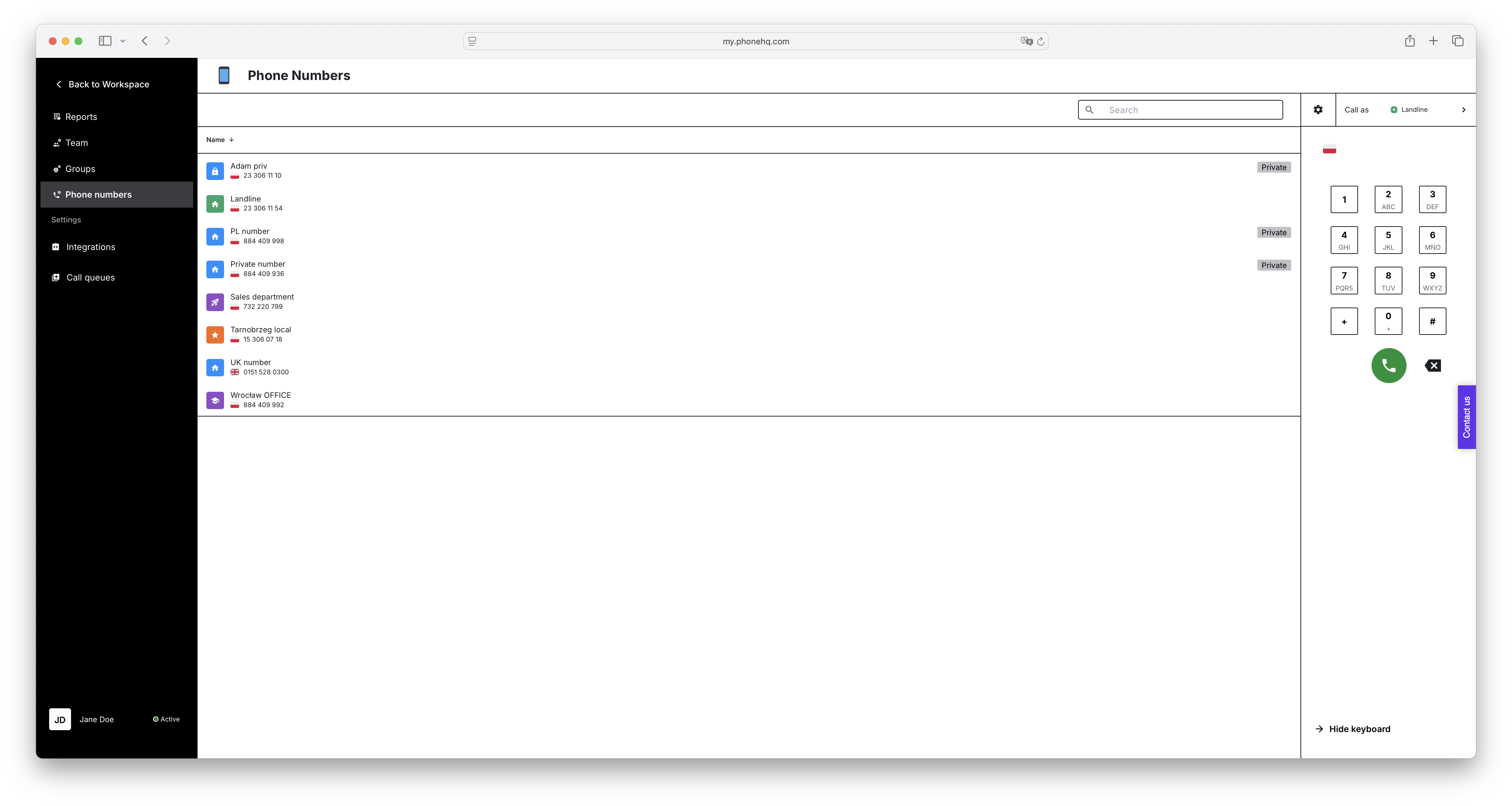
On the left side of the screen, you'll see the menu. The currently selected tab is "Phone Numbers".
The main part of the screen displays a list of phone numbers, containing the following information for each number:
Name: The descriptive name assigned to the number.
Phone Number: The phone number itself, along with the country flag indicating its origin.
Categories: The group to which the number is assigned.
Above the list of numbers, you'll find a "Search" field, which allows you to quickly find a number by its name or digits.
Go to the "Phone Numbers" tab: In the left-hand menu, click "Phone Numbers".
Browse the list of numbers: On the screen, you'll see a list of all phone numbers configured in the application, along with their names, country flags, and categories.
Use the "Search" field: Type the name or part of the phone number you're looking for in the "Search" field located above the list. The list will be filtered to display only matching numbers.
Manage numbers: Click on any phone number in the list to open its settings panel. A detailed description of the available options (Information, Working hours, Call rules) can be found in the dedicated "Settings" section of this guide.
Manage numbers:
View all phone numbers configured in the application.
Display numbers organized into defined categories.
Search for numbers:
Quickly locate specific numbers using the "Search" field.
Edit number settings:
Access the detailed settings for each phone number by clicking on it. The available options include "Information" (change name, manage access, call recording), "Working hours" (set timezone and work schedule), and "Call rules" (configure incoming call handling at different times), which are described in detail in the "Settings" section.
1. What is the purpose of the "Phone Numbers" tab?
It allows you to view, search, and manage all phone numbers configured in your PhoneHQ application.
2. Can I change the settings of a phone number from this tab?
Yes. Clicking on any phone number opens a detailed settings panel where you can configure name, access, working hours, call rules, and more.
3. What happens if I change the name of a phone number?
Changing the name only updates how the number is labeled inside the app (e.g., “Sales Line” or “Customer Support”). The actual number stays the same.
4. What does the country flag next to a number mean?
It indicates the country of origin for the phone number (e.g., 🇺🇸 for a U.S. number, 🇵🇱 for a Polish number).
5. Can I search for numbers by digits or full number?
Yes. Use the search field above the list to find numbers by typing their name or part of the digits.
6. What does the "Categories" column show?
It shows the group (category) that the number belongs to, such as “My Numbers,” “Support,” or “Sales.”
7. Where do I configure call forwarding, queues, or working hours for a number?
These options are available after you click on the number. You'll be taken to the detailed settings panel found in the Settings → Phone Numbers section.
Term | Definition |
Phone Numbers Tab | A section in PhoneHQ that lists all the phone numbers configured in the system, including their names, countries, and assigned categories. |
Phone Number | A telecommunications number configured for use within PhoneHQ, used for making and receiving calls. |
Name | A user-defined label for the phone number, such as “Support Line” or “HQ Sales.” It helps with internal identification. |
Country Flag | A visual icon next to each phone number showing its country of origin (e.g., 🇺🇸 for the U.S., 🇬🇧 for the U.K.). |
Category | A group or label that a number belongs to (e.g., “My Numbers,” “PhoneHQ Support”). It helps organize numbers based on purpose or team. |
Search Field | A search bar above the list of numbers allowing you to filter and find numbers quickly by typing a name or digits. |
Number Settings Panel | The interface that appears when you click a number, allowing you to manage its detailed settings such as name, access, and call behavior. |
Call Rules | A set of options that determine how incoming calls are handled depending on working hours (e.g., welcome messages, queues, forwarding). |
Working Hours | The schedule you set for when a phone number is active. Calls are routed only during these defined hours. |
Information Tab | Part of the number settings where you can rename the number, manage who has access, and toggle call recording. |
Found a mistake or missing article? Contact PhoneHQ Support and let us know!
