The Welcome Page serves as the initial screen you see upon logging into our browser application. Designed to provide a personalized greeting, it addresses you directly with "Hey, [User's Name]" and offers easy navigation to various sections of the application, along with quick links to our mobile apps.
Immediately after logging in, you'll be greeted by the Welcome Page, featuring key areas for quick access and app downloads.
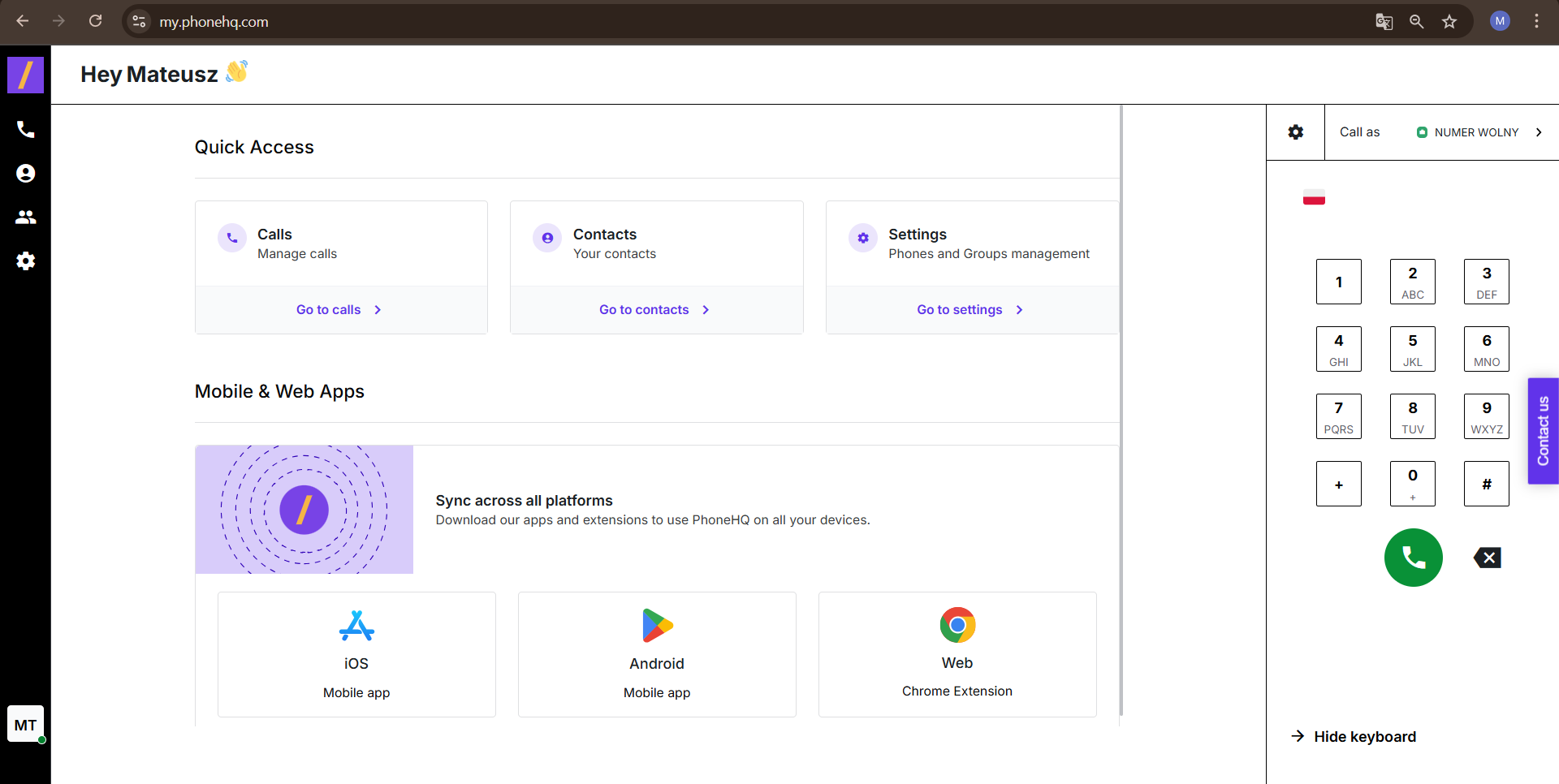
In the Quick Access section, you'll find the following shortcuts:
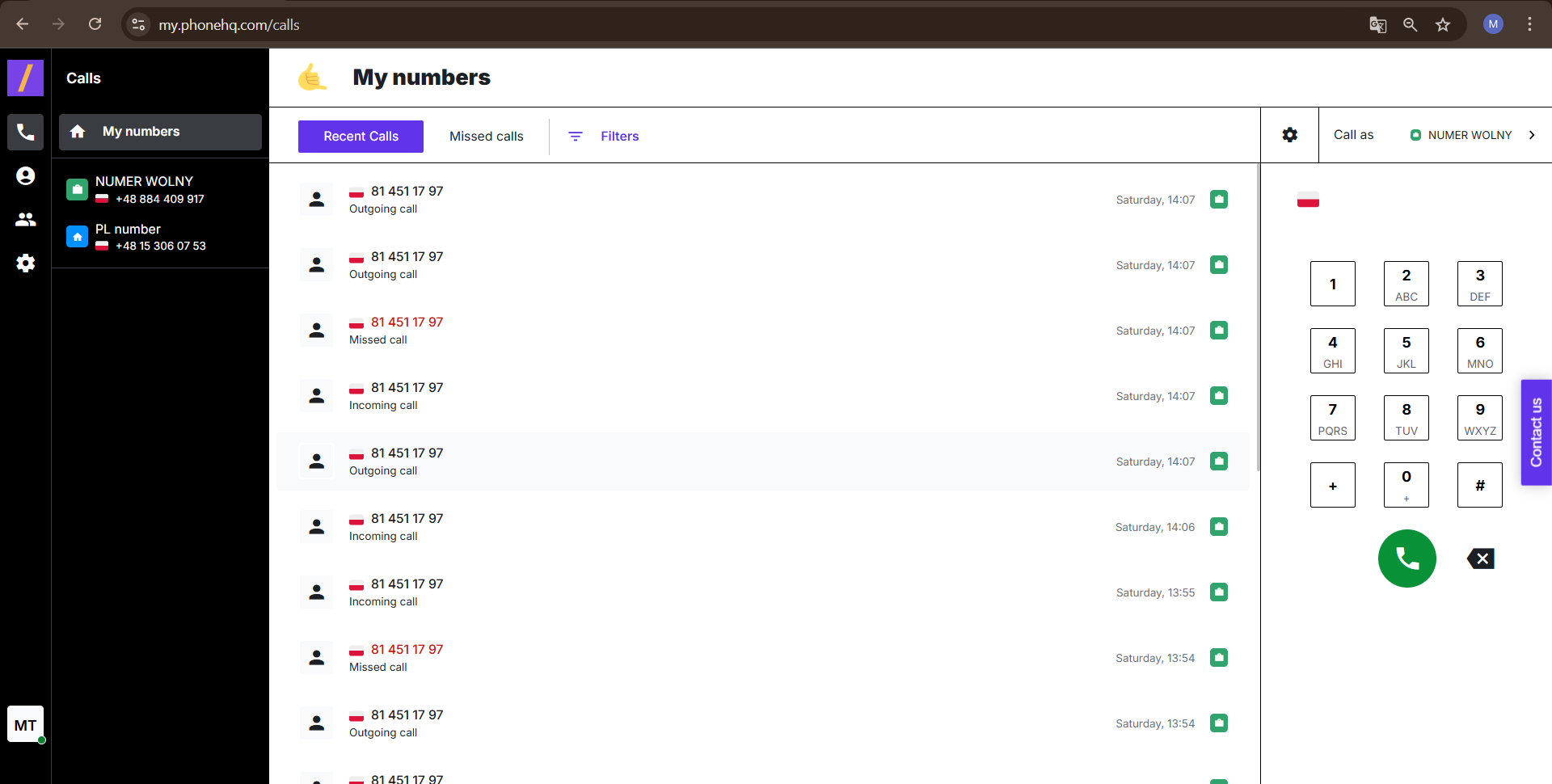
Calls: Clicking this option takes you directly to the Calls tab, where you can view your call history, among other features.
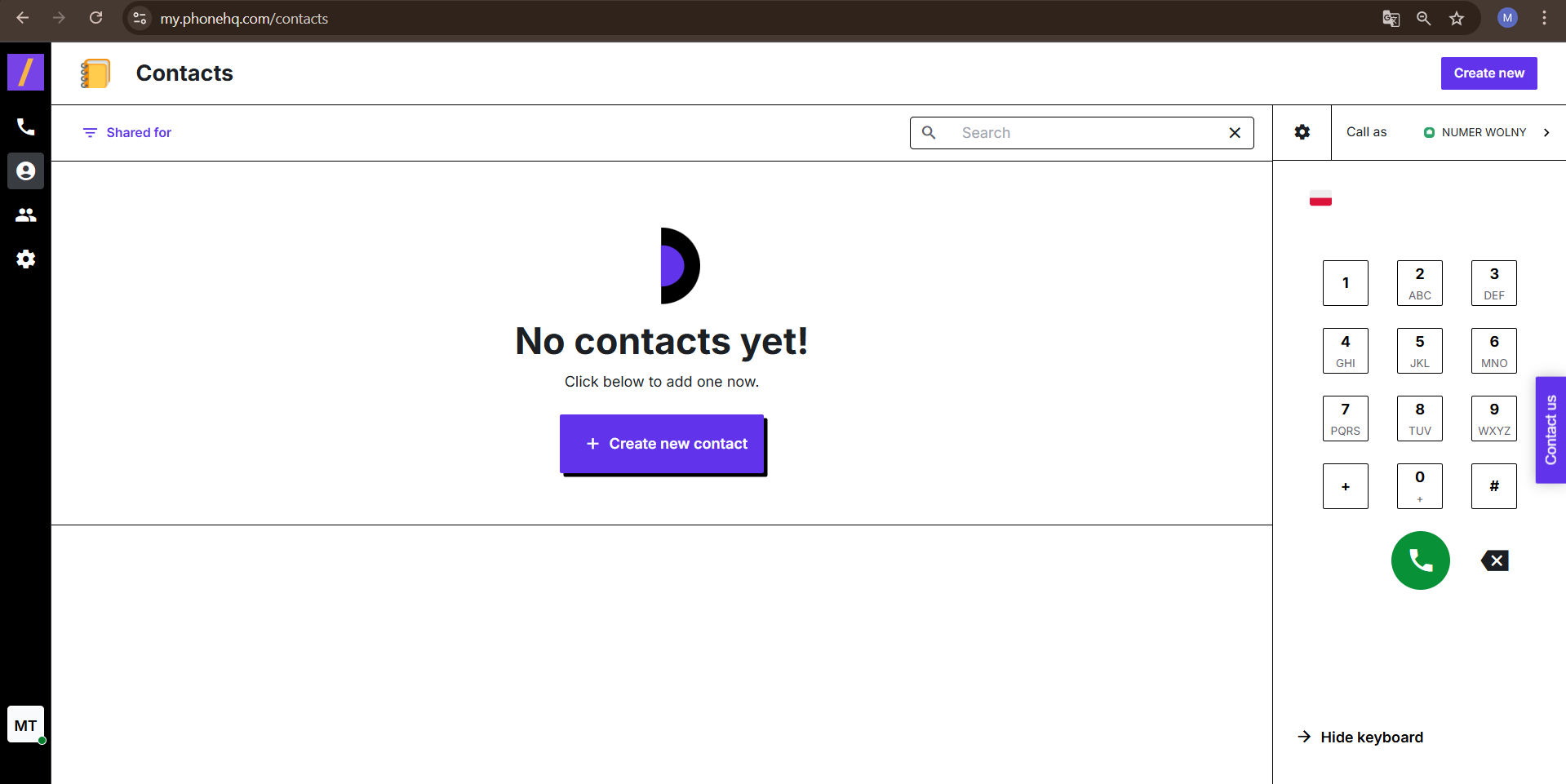
Contacts: This link directs you to the Contacts tab, allowing you to manage your contacts efficiently.
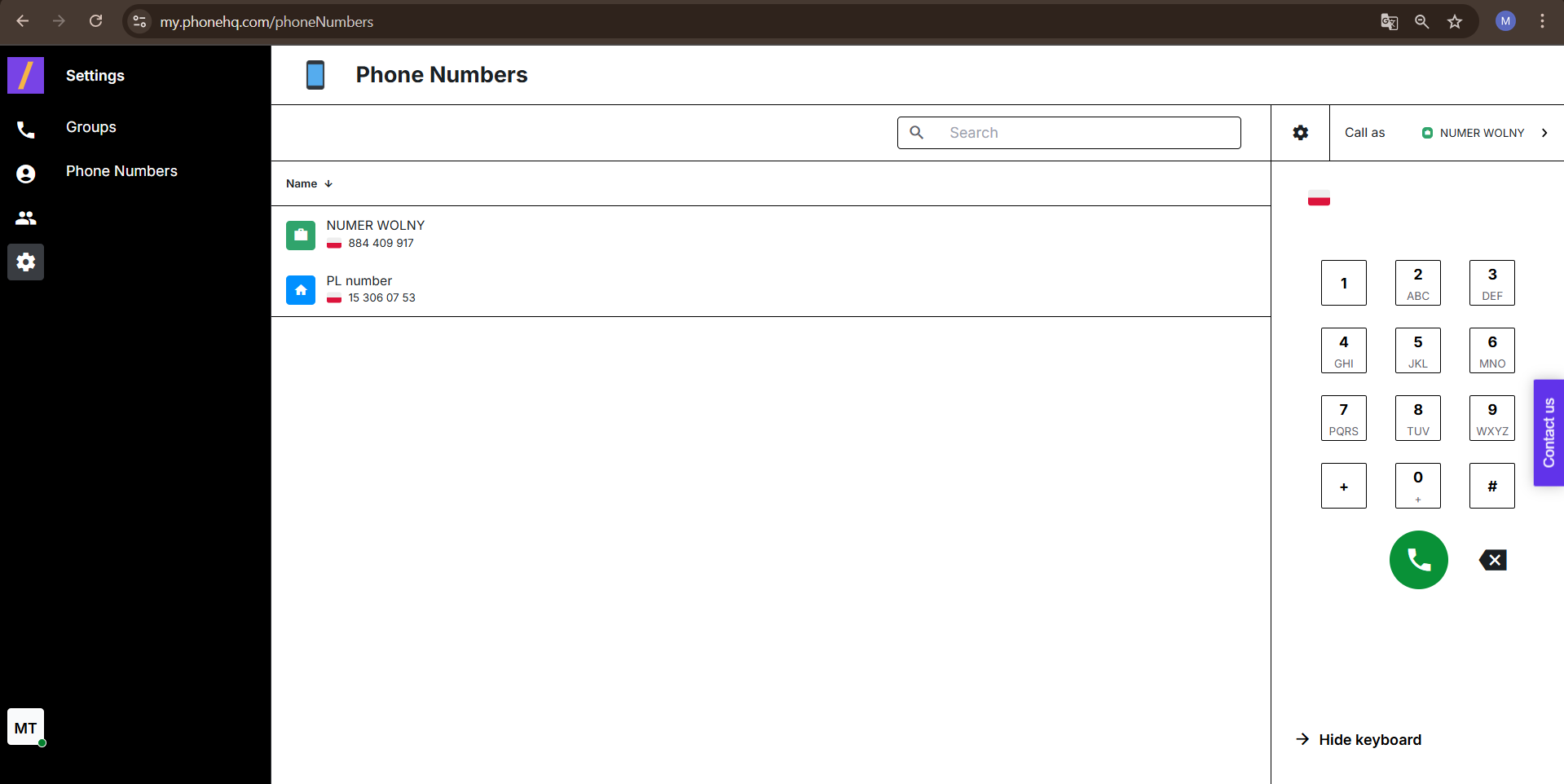
Settings: Selecting this option brings you to the Settings section, where you can adjust preferences for shared numbers or view group details.
This section provides easy access to install our mobile apps and add the "Click to Call" Chrome extension:
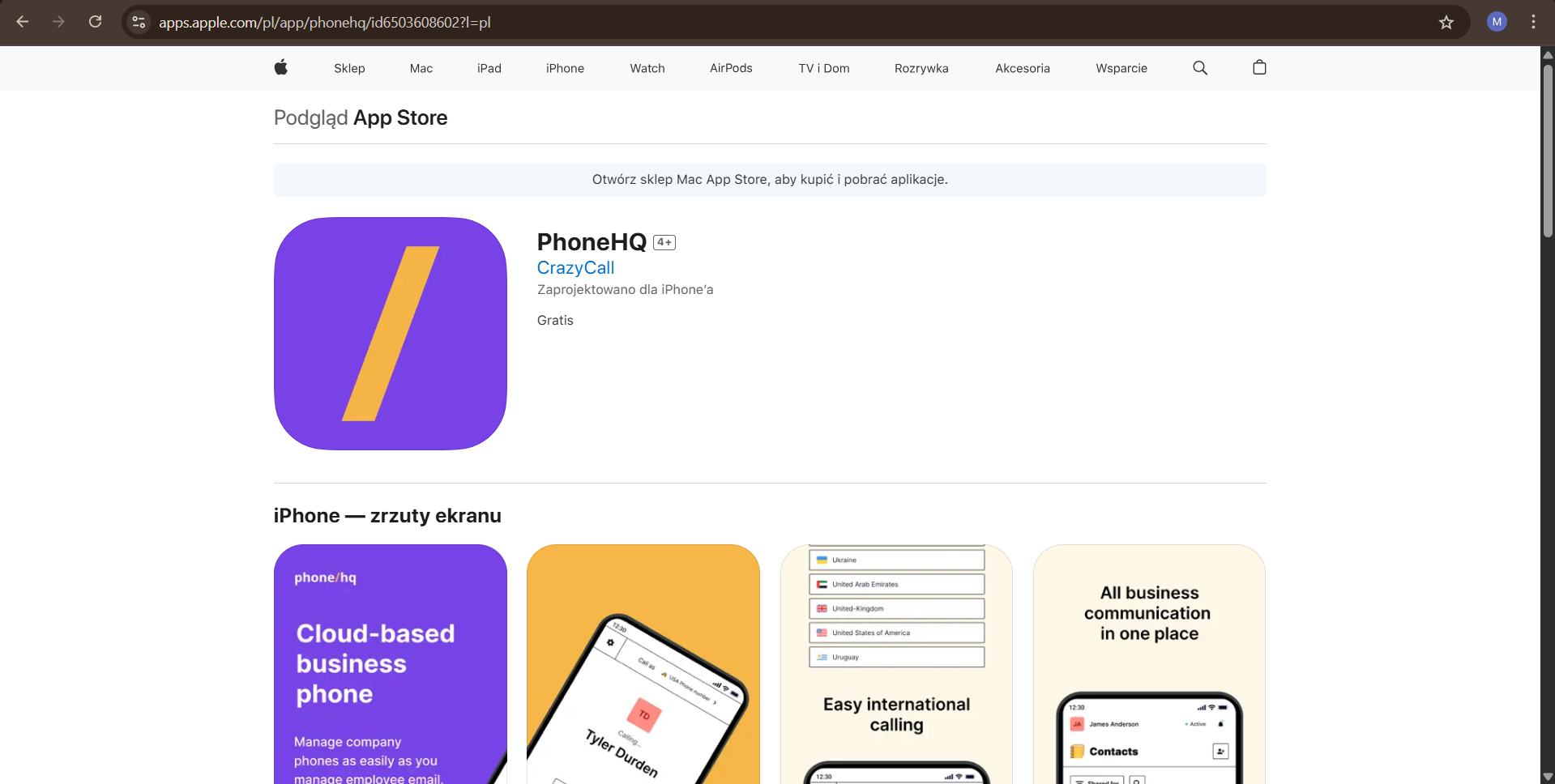
iOS: Clicking this option redirects you to the App Store, where you can download and install the PhoneHQ mobile app on your iOS devices.
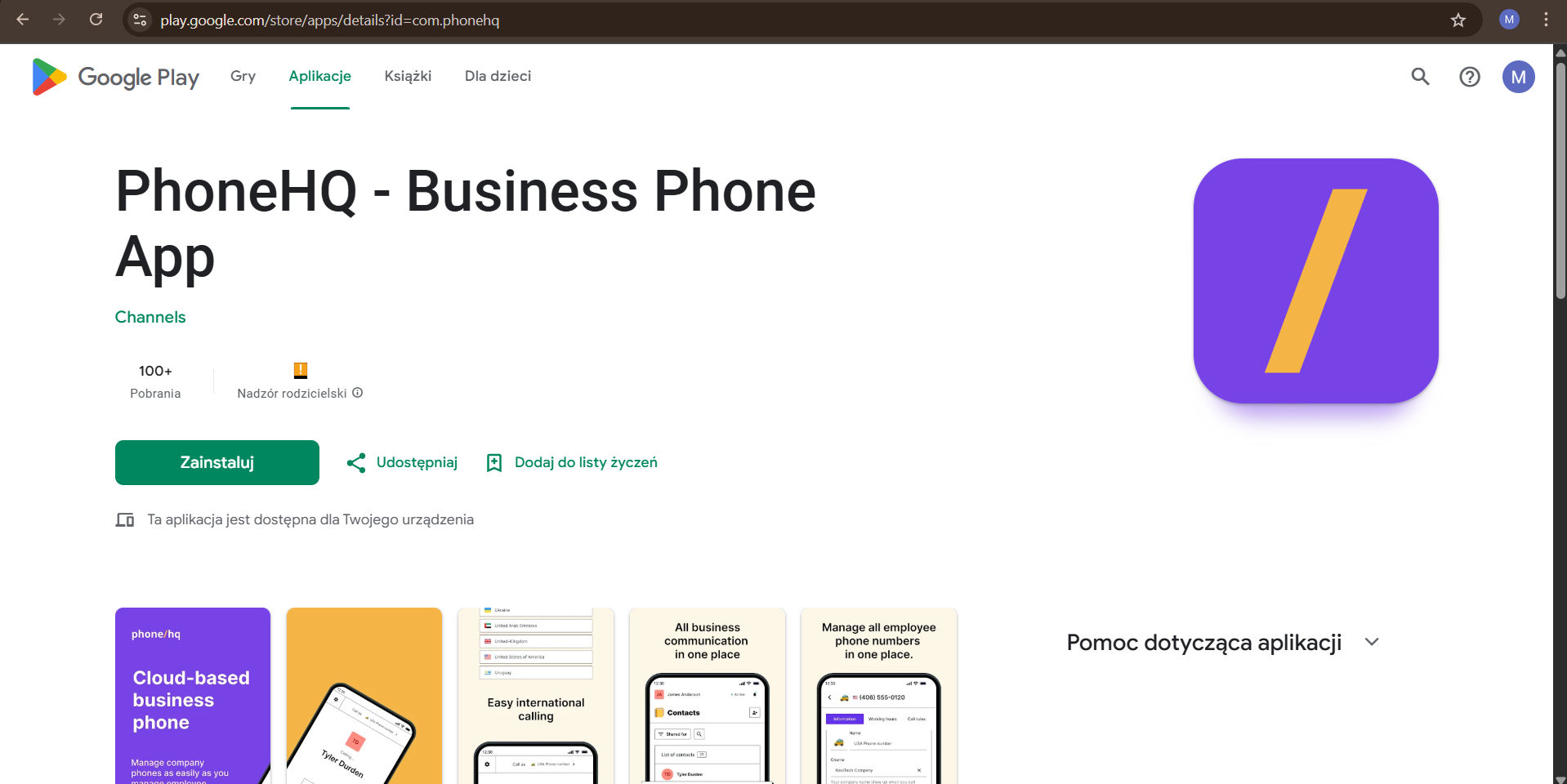
Android: This link takes you to the Play Store, enabling you to download and install the PhoneHQ mobile app on your Android devices.
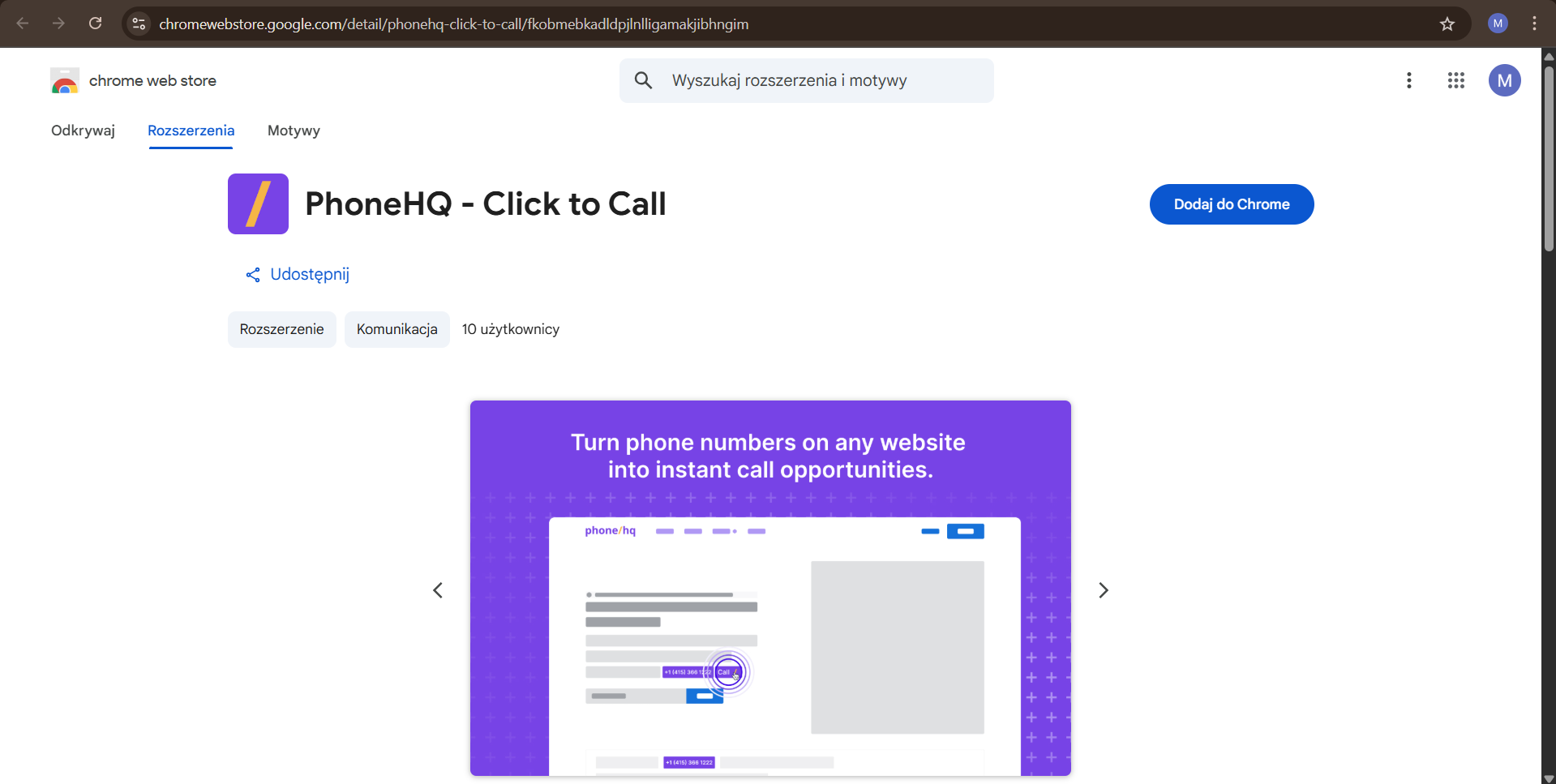
Web: Selecting this option redirects you to the Chrome Web Store, where you can add the PhoneHQ - Click to Call extension to your Google Chrome browser.
What will I see after logging into the browser application?
After logging in, you will see the Welcome Page.
Where can I find my call history?
On the Welcome Page, click "Calls" to go to the tab with your call history.
How can I manage my contacts?
On the Welcome Page, click "Contacts" to go to the contact management section.
Where can I change the application settings?
On the Welcome Page, click "Settings" to go to the settings section.
How can I download the mobile app on my iPhone?
On the Welcome Page, in the "Mobile & Web Apps" section, click "iOS".
How can I download the mobile app on my Android phone?
On the Welcome Page, in the "Mobile & Web Apps" section, click "Android".
What is the "Click to Call" extension?
The "Click to Call" extension for Chrome browser allows you to easily make phone calls directly from websites. You can find the link to install it on the Welcome Page after clicking "Web" in the "Mobile & Web Apps" section.
Term | Definition |
Welcome Page | The first screen displayed after logging into the browser application |
Tab | A section within the application interface, usually accessed by clicking on a name or icon. In this article, we refer to the "Calls" and "Contacts" tabs |
Shortcut | A link or icon that allows quick access to a specific function or section of the application |
Browser extension (Click to Call) | Click to Call is a Chrome extension that makes it easier to call phone numbers directly from any website. |
Found a mistake or missing article? Contact PhoneHQ Support and let us know!
