This article explains what contact synchronisation is in the PhoneHQ mobile app and how to transfer contacts saved on your phone to the app. This gives you quick access to your contacts in PhoneHQ.
Contact synchronisation involves uploading the list of contacts saved on your mobile device to the PhoneHQ app. This allows you to quickly and easily access the necessary contacts in the app.

To synchronise contacts from your mobile device to the PhoneHQ app, follow these steps:
Download and install the PhoneHQ mobile app.
Launch the app and grant the necessary permissions.
Important: In this step, ensure you grant the PhoneHQ app permission to manage contacts saved on your mobile device.
Go to the "Contacts" section in the PhoneHQ mobile app.
When the “Sync Contacts” message appears, click the Sync button to start synchronising your contacts.
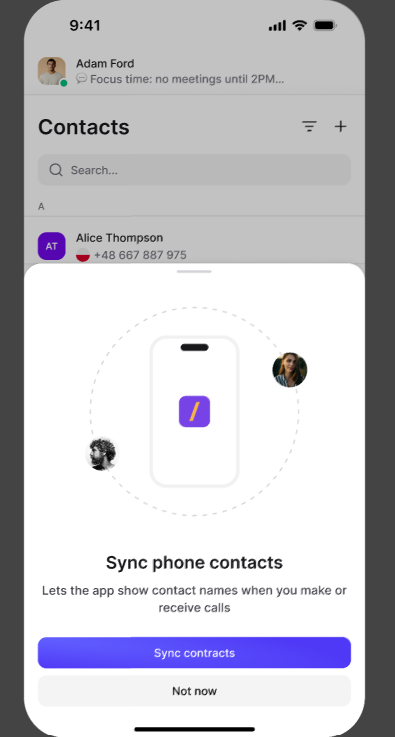
Remember to allow the app to sync the contacts
Choose the default phone number prefix for the contacts saved on your mobile device.
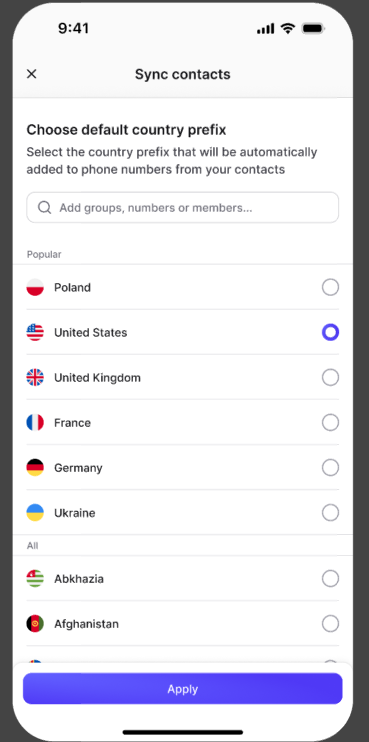
After completing the steps above, all contacts saved on your mobile device should now be visible in the PhoneHQ app's Contacts section. Remember that, by default, these contacts are set to "Private," and only you will be able to see them.
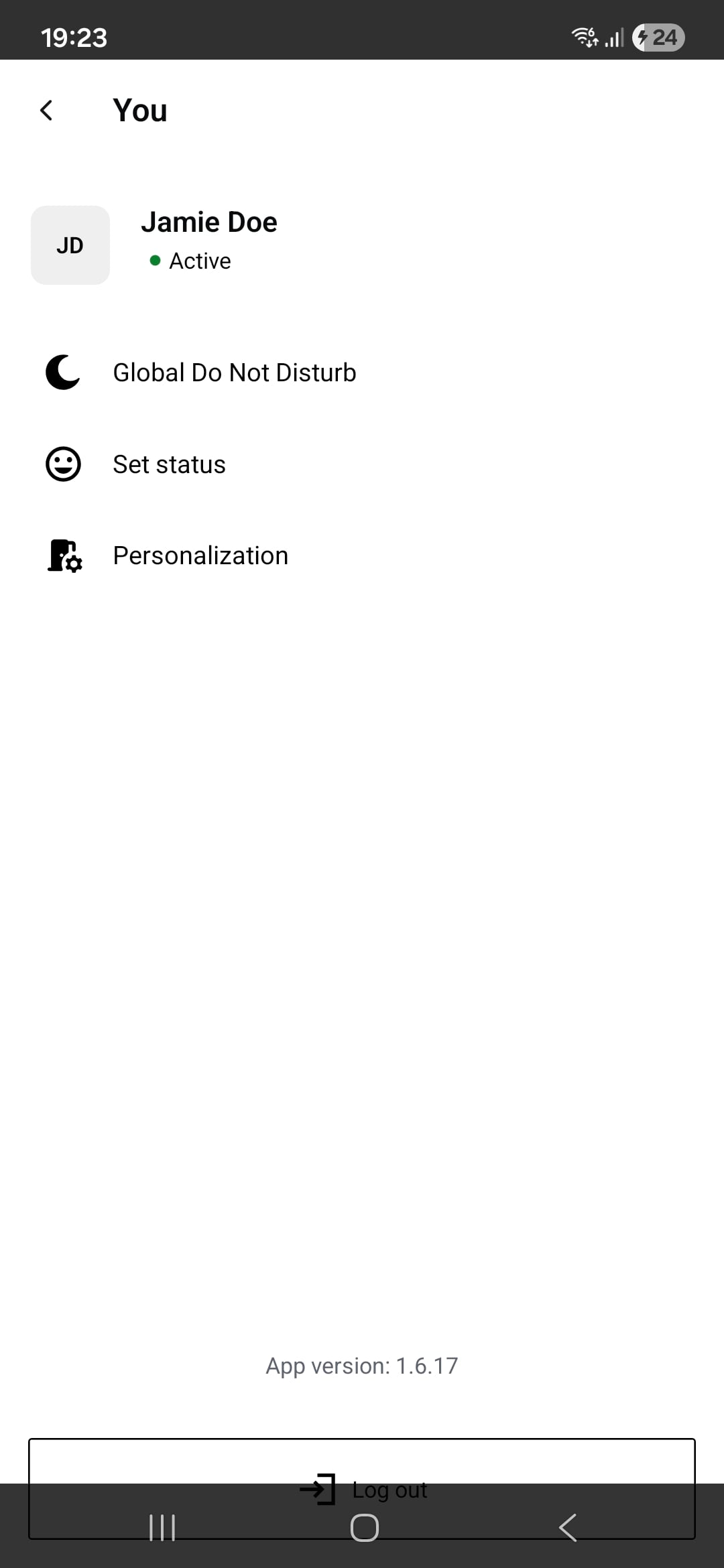
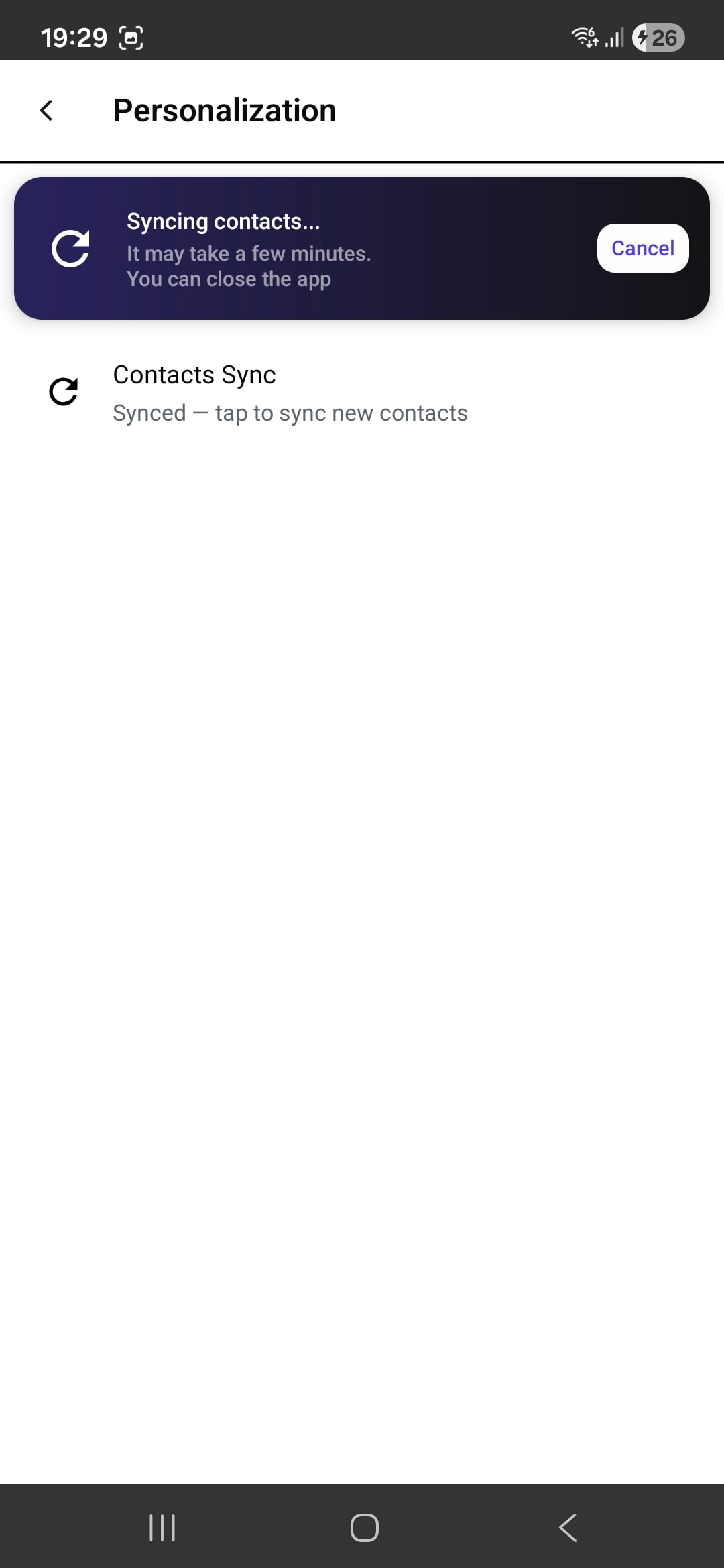
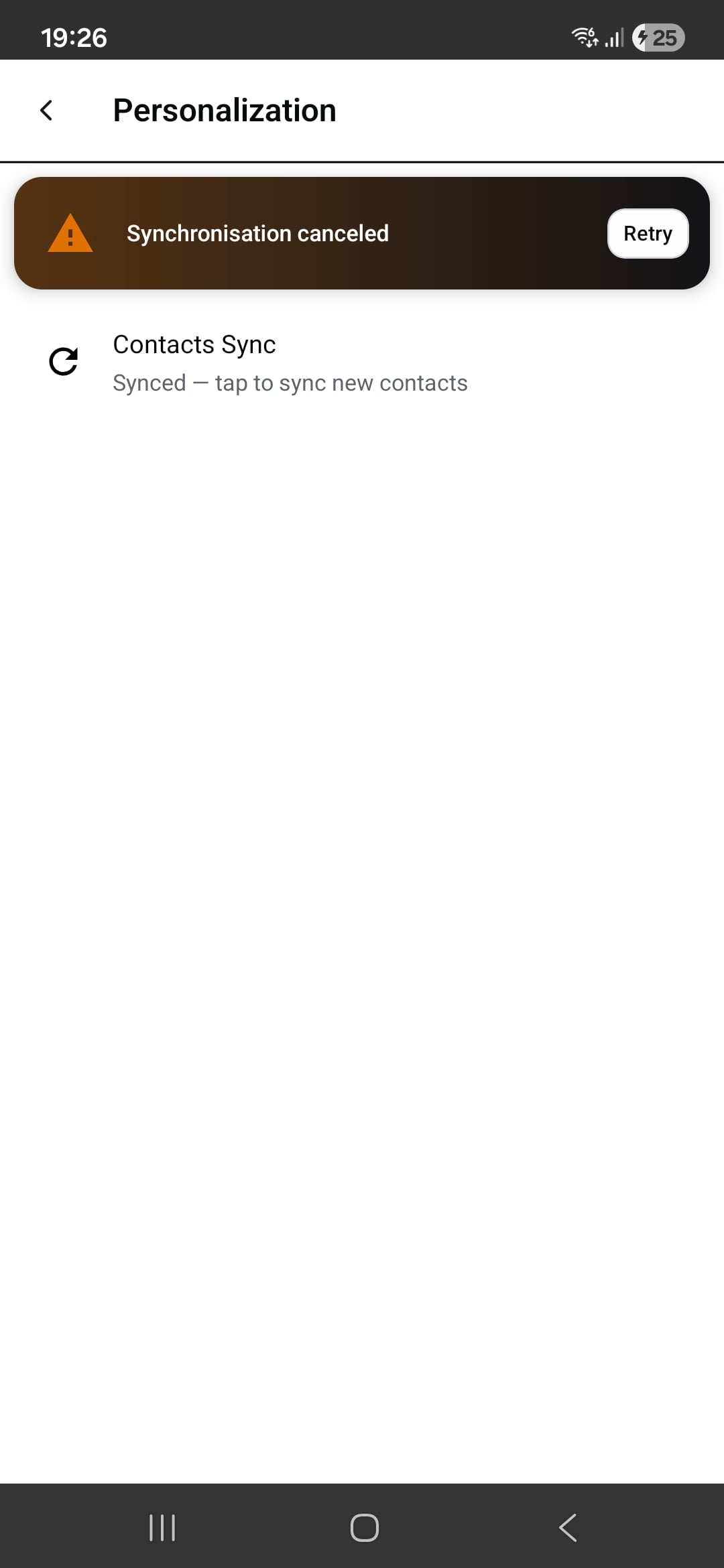
You can re-sync contacts on your account at any time. Go to Settings by clicking your avatar icon in the PhoneHQ app, then navigate to the Personalisation tab. To re-sync your contacts, click Contacts Sync.
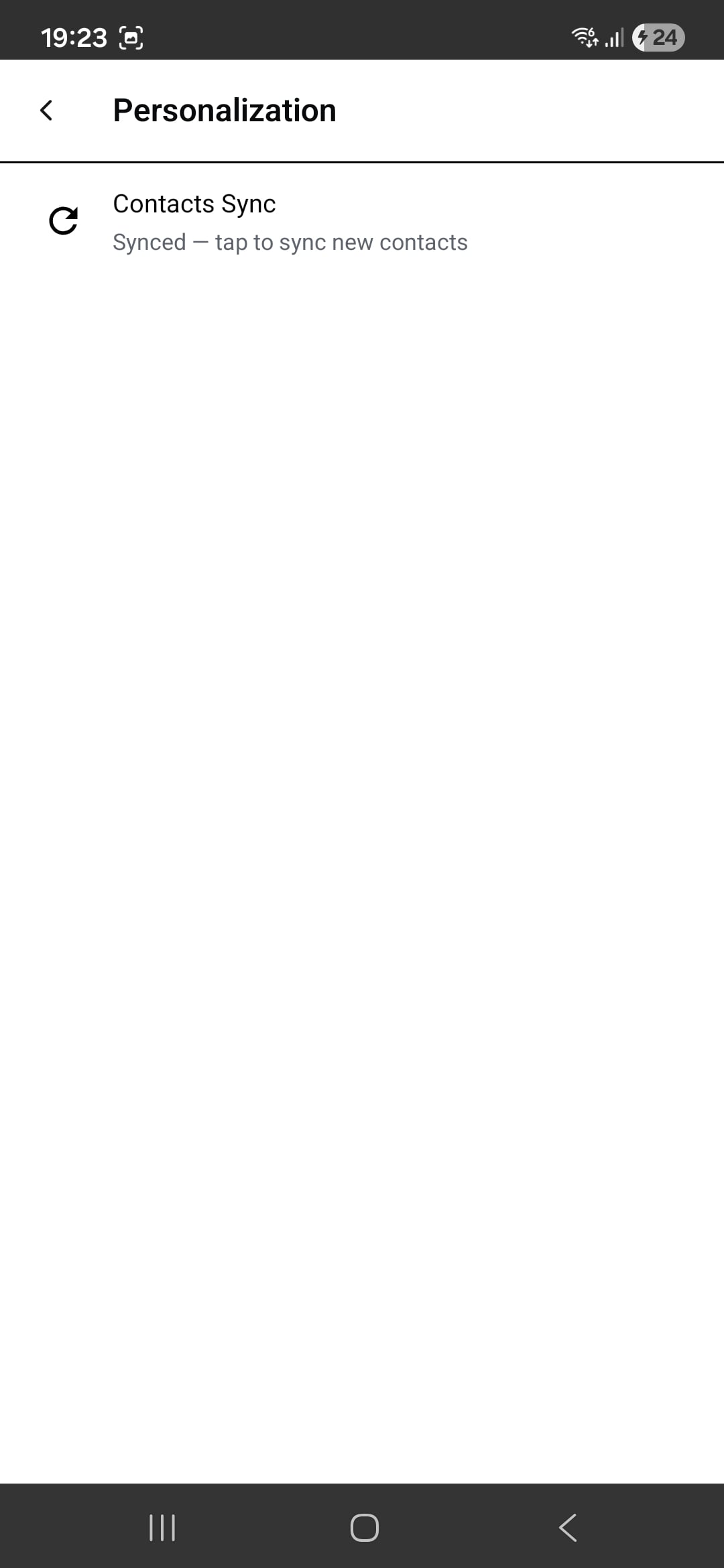
You can also cancel an ongoing synchronisation by clicking Cancel on the sync notification.
Q: Will other users on my account see my synced contacts?
A: By default, no. Synced contacts are saved as "Private," meaning they are only visible to you.
Q: Do I need to grant contact access to sync them?
A: Yes, you need to grant the PhoneHQ app permission to manage contacts on your mobile device to synchronise them with the app.
Q: What happens if I already have contacts saved in the PhoneHQ app?
A: Syncing contacts from your phone will add new contacts to the app. It will not delete existing contacts unless there are identical entries on your phone and in the app.
Q: Can I re-sync my contacts?
A: Yes, you can do that by going to the Settings → Personalisation.
Contact Synchronization | The process of copying a list of contacts saved on a mobile device to the PhoneHQ app. |
Private | A contact visibility setting that means it is only visible to that user. |
User | An individual who has access to a PhoneHQ account or application. In the context of this article, "User" refers to another member of your PhoneHQ account. |
