After logging in to PhoneHQ, click the home icon at the top of the left sidebar to open the Home tab.
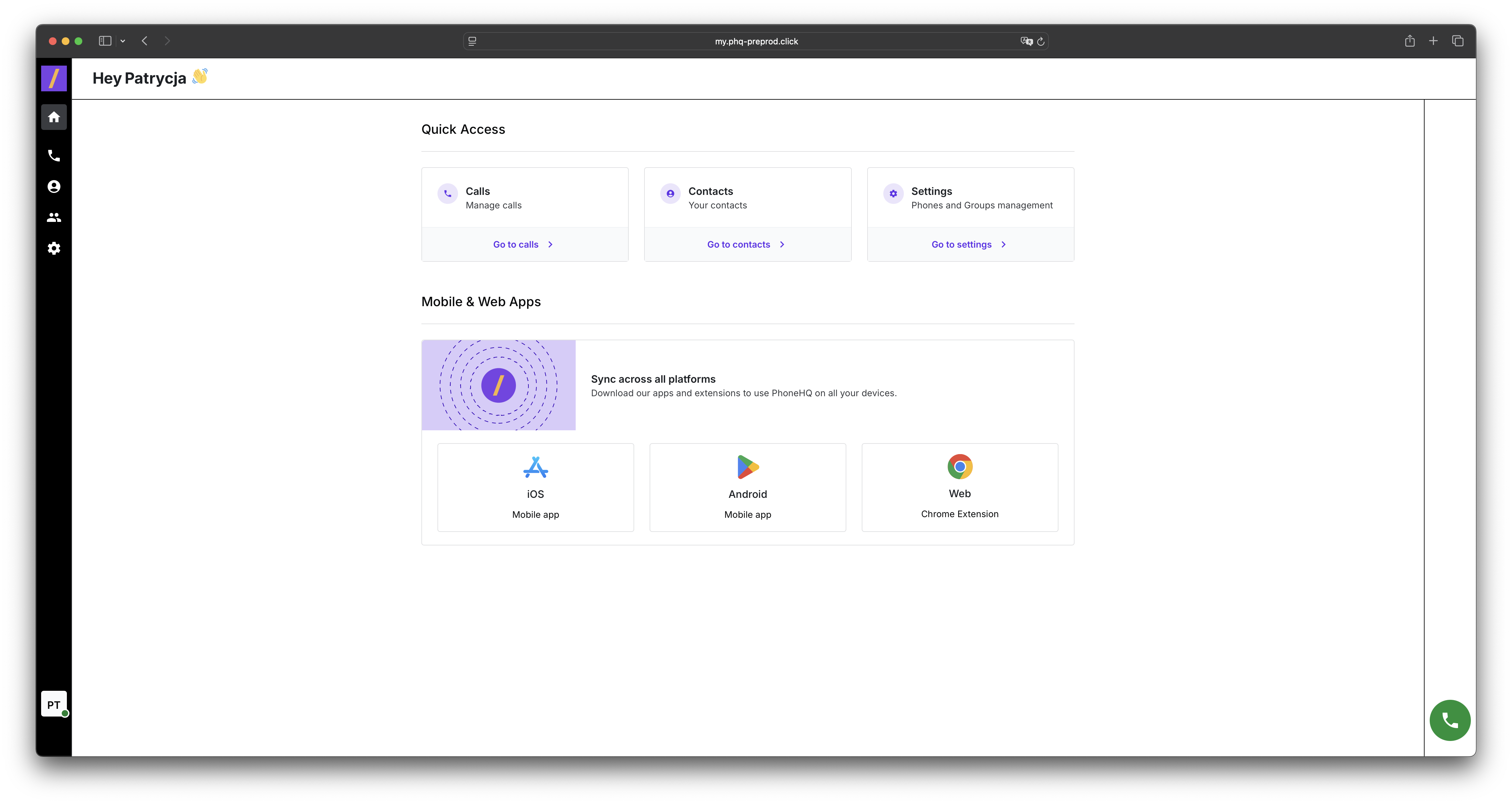
You’ll see three main cards:
Calls
Manage your calls. Click “Go to calls” to:
view your call history,
make a call,
listen to voicemails.
Contacts
Manage and organize your contact list. Click “Go to contacts” to:
add new contacts,
edit existing ones,
group your contacts.
Settings
Manage phones and groups. Click “Go to settings” to:
configure phone numbers,
set call preferences,
manage users and groups.
Download PhoneHQ on different platforms to stay connected everywhere:
iOS – Link to the App Store.
Android – Link to Google Play.
Web – Install the Chrome extension.
These apps keep everything synced across devices.
Use the numeric dialpad to make calls directly:
Enter the number using the keypad.
Click the green phone icon to place a call.
Use the flag icon to change the country code (e.g., PL for Poland).
Click the X icon to clear the number.
Use “Hide keyboard” to collapse the dialpad.
1. Can I make calls directly from my browser?
Yes, use the dialpad or click on a contact in the “Calls” section.
2. Do I need to install the mobile app?
Not necessarily, but it’s helpful if you want to make or receive calls when you're not at your desk.
3. What does the green status dot mean?
It shows that you’re currently online and available.
4. How do I add a new contact?
Click “Go to contacts” → “Add Contact” and fill in the details.
5. How do I change the country code when dialing?
Click on the flag next to “Call as” and select the correct country.
Term | Description |
Call as | The caller ID – choose which number you’re calling from. |
Dialpad | The on-screen numeric keypad used for dialing phone numbers. |
Contact | A person saved in your PhoneHQ address book. |
Group | A collection of users or contacts grouped together. |
Chrome Extension | A browser add-on that allows using PhoneHQ in Chrome. |
Mobile app | The PhoneHQ app for iOS or Android devices, allowing you to make and receive calls, manage contacts, and sync data on the go. |
Quick Access | The top section with shortcuts to the most-used features. |
