If you experience call-related issues, you can send an in-app problem report in just a few taps. The flow, screenshots, and button labels have been refreshed in the latest release — follow the steps below.
From the left-hand menu, click on the Calls icon to access your list of you connections.
Click on the number you used to make or receive the call (e.g., Number 1).
Then, in the middle panel, select the specific call that had the issue (e.g., Missed outgoing call or Incoming call).
In the right-hand panel with the call details, scroll to the bottom and click the link:
Connection notes? Report Problem
A window titled Connection Problems will appear:
The Issue category screen appears → tap the option that best matches your problem and click Next
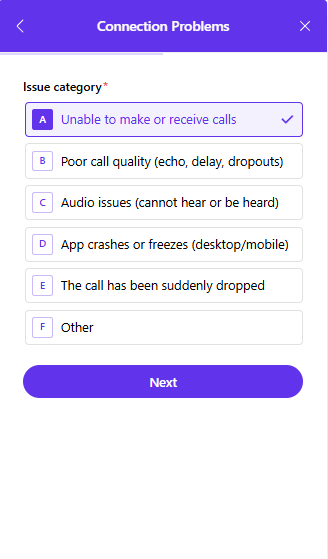
Here you can write more details about the current issue you’re reporting.
Optionally, click Mark the bug to visually highlight where the problem occurred on the interface.
Once the form is filled out, click Submit to send your report to the technical team.
Your issue has been reported. The support team will investigate and follow up if needed.
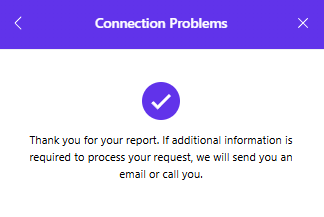
Additionally, you can report any connection issue to the support team, who will analyze it and respond as quickly as possible.
