Instructions for granting phone account permissions to the PhoneHQ application, including problem scenarios, causes, and ways to diagnose and resolve them - for all Android versions and popular phone brands (Samsung, Xiaomi, Huawei, Oppo, OnePlus, Motorola, Sony, Realme, etc.).
If you don't enable phone account permissions for the PhoneHQ app, you won't be able to make or receive calls within the app, preventing it from functioning correctly.
Problems with granting permissions are not due to the PhoneHQ app itself but arise from differences in the Android system and manufacturer modifications. Below are specific examples of how the operating system or manufacturer's skin can hinder the app's operation, even if it has been installed correctly.
Xiaomi (MIUI) – nothing happens after clicking “OK”
What happens: You click “OK” on the permission request prompt, but nothing opens. Calls don't work.
Why: The MIUI system does not automatically redirect to settings. The app lacks auto-start access and cannot run in the background without additional settings.
Solution: You need to manually enable auto-start and grant background permissions in: Settings > Apps > Manage apps > PhoneHQ > Battery saver > No restrictions
Huawei (EMUI) – “Phone accounts” option doesn't exist
What happens: You don't see the “Phone accounts” option even though you follow all the steps.
Why: EMUI hides or renames options – sometimes integrating them with “Phone Manager” or “Permission management.”
Solution: Use the search function in settings and type: VoIP, account, SIP, or grant permissions through “Phone Manager.”
Android 11 (e.g., Sony, Motorola) – no system reaction
What happens: After clicking “OK,” no window opens, and you cannot continue.
Why: Older Android versions (11 and lower) do not support dynamic redirects to app settings – the system simply ignores the app's request.
Solution: Manually go to: Settings > Apps > PhoneHQ > Permissions and grant all necessary permissions.
Oppo/Realme – phone account switch is grayed out
What happens: In the Phone accounts settings, the PhoneHQ option is visible, but the switch is inactive.
Why: ColorOS (Oppo/Realme's system skin) by default blocks VoIP apps from running in the background and integrating with calls.
Solution: Go to: Settings > App management > PhoneHQ > Permissions and activate the “Manual permission management” option and disable any power restrictions.
Android is an open system that manufacturers can freely modify – and this means:
Different settings names on different brands
Different ways of granting the same permissions
Blocks for apps running in the background (especially VoIP)
Inconsistencies between Android versions (e.g., 11 vs. 13)
PhoneHQ works correctly – but it needs the appropriate permissions, which, depending on the phone, must be granted manually.
Open the PhoneHQ app.
When prompted with:
Permissions required – This application needs to access your phone accounts,
tap OK.

Note:
Some devices will automatically open the settings screen.
On others, nothing may happen - in that case, proceed to Step 2.
Open your device settings.
Go to:
Apps > PhoneHQ > Permissions
Ensure the following are enabled:
Phone permissions
Contacts permissions
Phone account permission (if available)
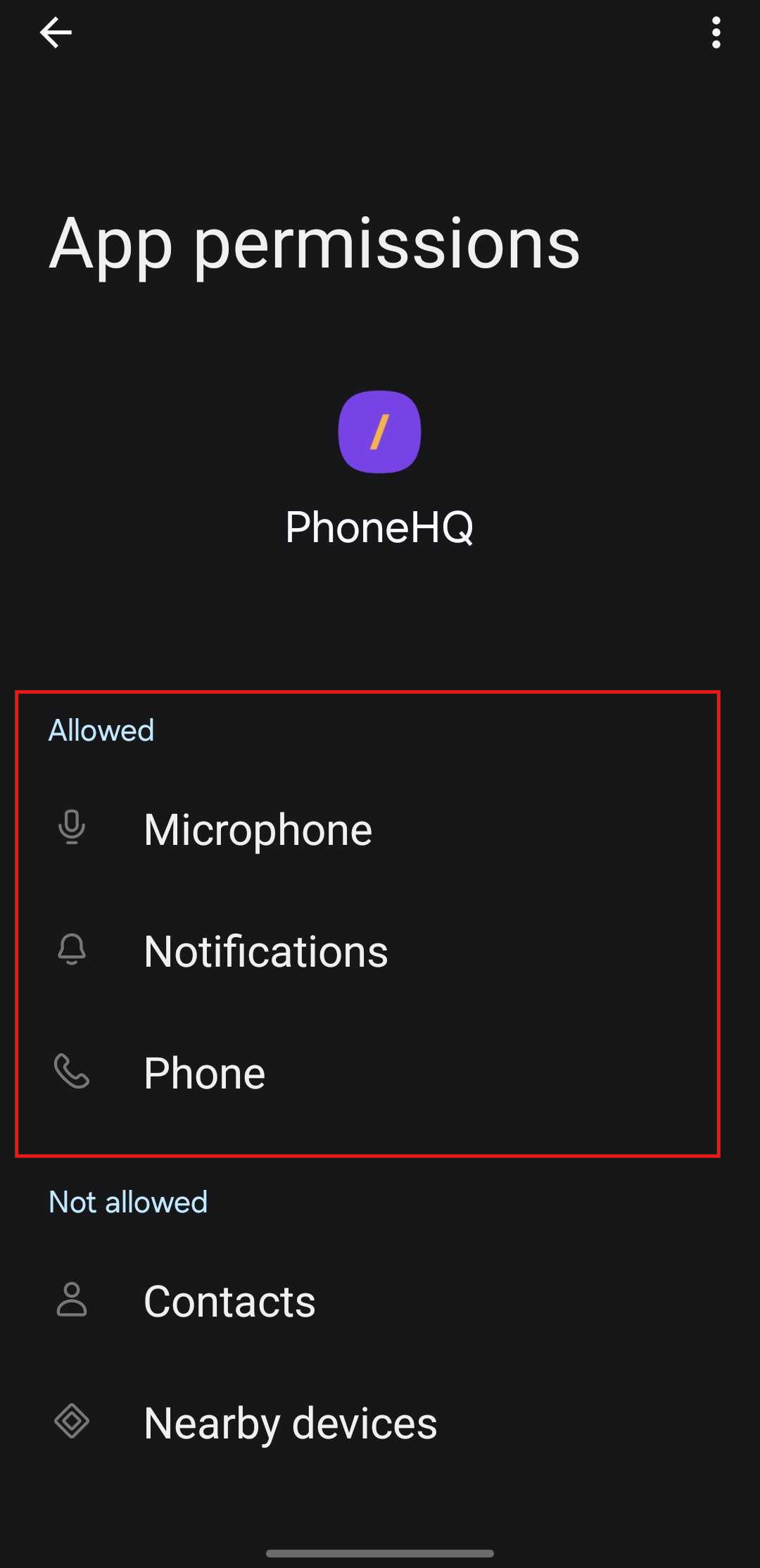
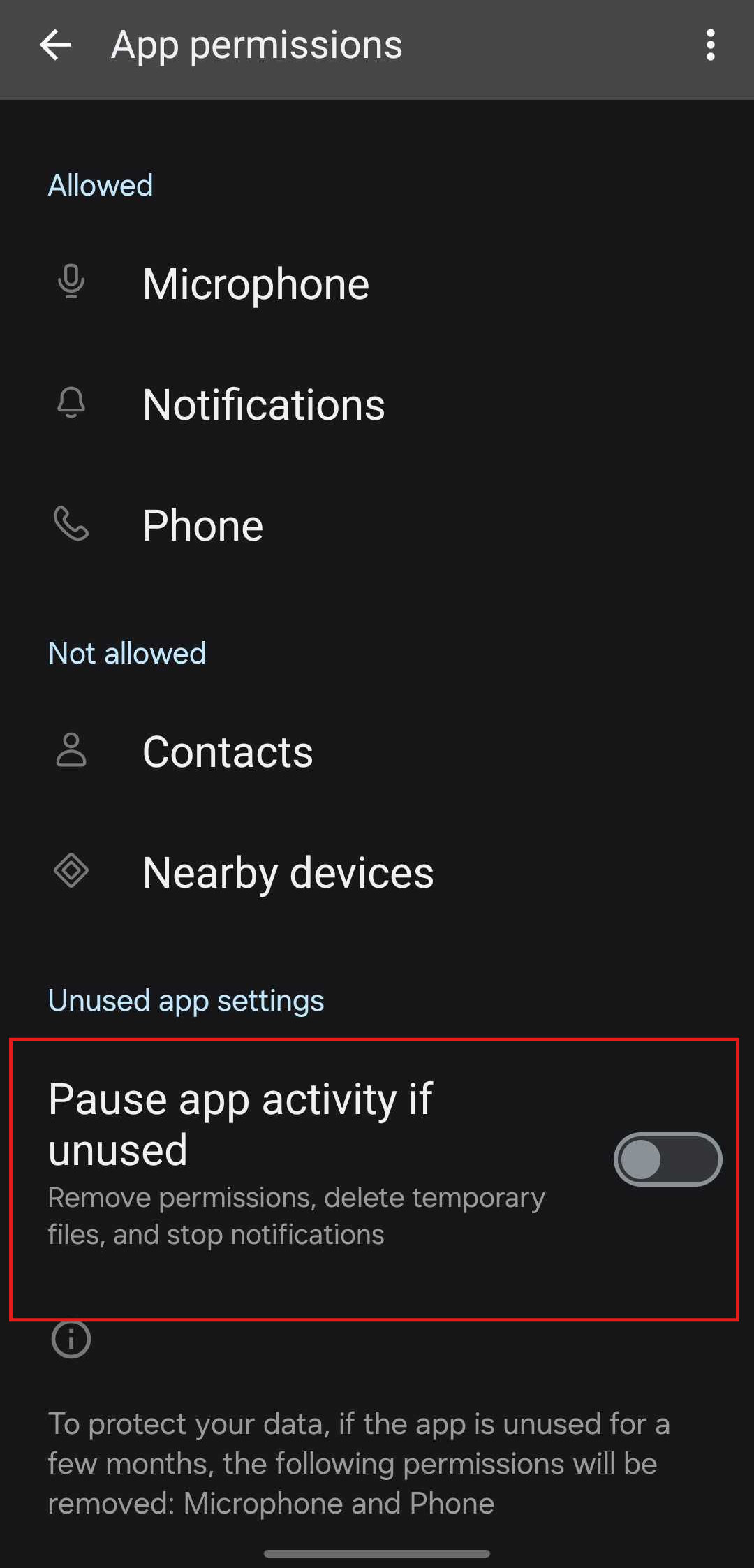
Go back to the main system settings.
Navigate to:
Network & Internet > SIMs & Mobile Networks > Calling Accounts / Phone Accounts
(The path may vary depending on device brand.)
Find PhoneHQ and turn the toggle ON.
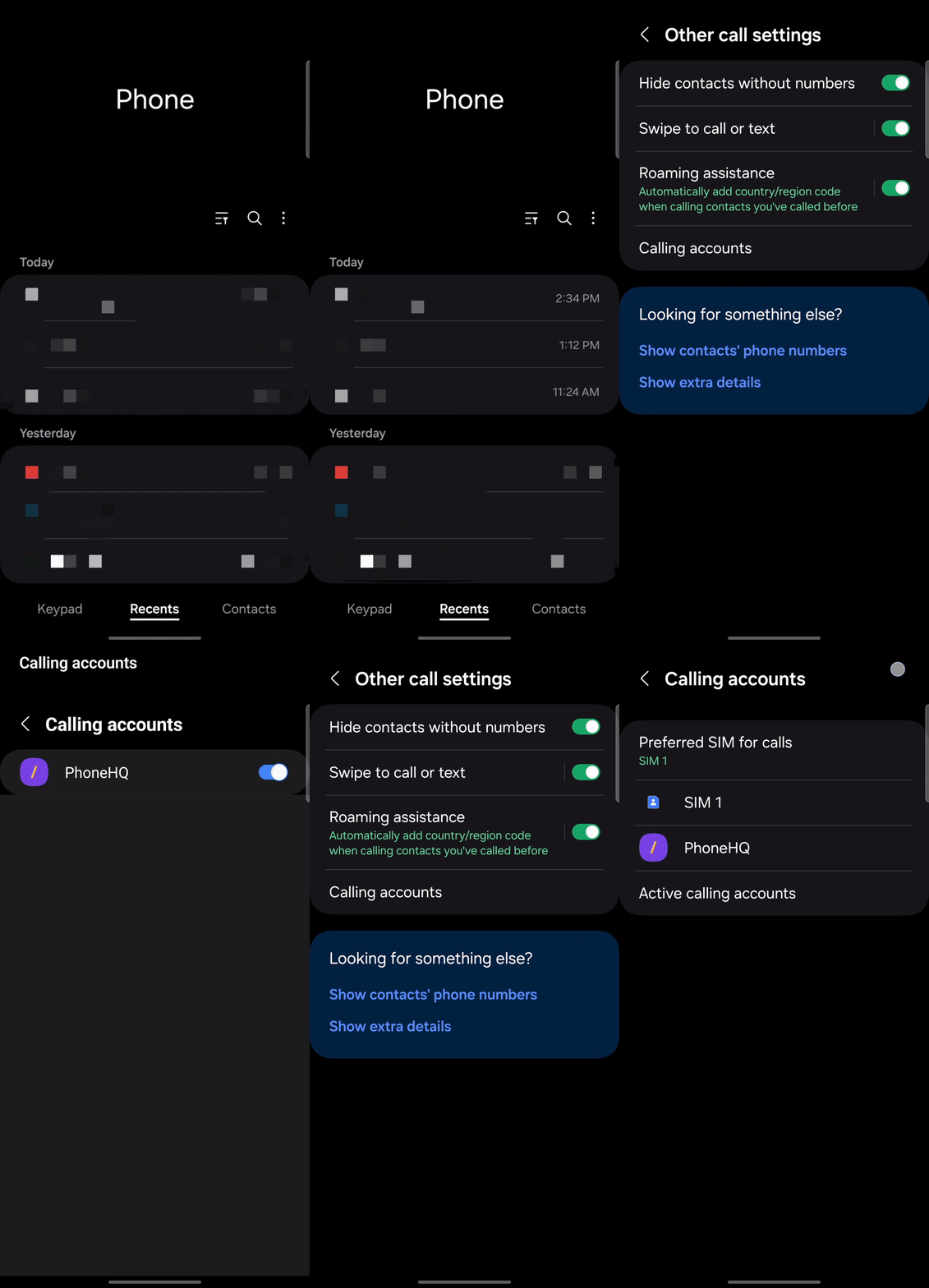
Android Version | What Happens After Clicking "OK"? | Action |
Android 13+ | Opens settings or shows a prompt | Usually works automatically |
Android 12 | Sometimes opens, sometimes doesn't | Use Step 2 if no response |
Android 11 or older | Typically does nothing | Manual setup required |
The described issues with granting permissions for the PhoneHQ app to phone accounts mainly stem from differences in Android versions and manufacturer interfaces. Here are the main reasons why "nothing happens" after clicking "OK" on the permissions prompt:
Why this happens: Older Android versions (11 and below) do not support automatically opening specific settings screens from within an app. Even on newer versions, some manufacturer skins (MIUI, EMUI, ColorOS) block such redirects or require additional user confirmation. Effect: You click "OK" but see no reaction – the app cannot open the relevant permissions screen.
Cause: No system integration (common on Android 11 and below)
Solution:
Go to: Settings > Apps > PhoneHQ > Permissions & Phone Accounts
Cause: Path names vary by device/OS
Solution:
Use the search function in Settings.
Try keywords like: account, calling, VoIP, SIP
Alternate paths:
Calls > SIP Accounts
SIM Management > Accounts
Default Apps > Phone App
Possible Causes:
System restrictions (battery saver, app management)
System launchers blocking access (e.g., MIUI, EMUI, ColorOS)
Solution:
Check and disable battery saver mode
Set PhoneHQ as:
Always allowed to auto-start
No background restrictions
Trusted app (if available)
Restart your device
Cause: PhoneHQ is not set as the default phone app
Solution:
Go to: Settings > Default Apps > Phone App
Select PhoneHQ
Cause: Custom UI from manufacturer (e.g., Xiaomi, Huawei, Realme)
Solution:
Check Android version:
Settings > About Phone
Update your system if possible
Brand | Special Notes / Issues | What to Check or Set |
Samsung | Path: Calls > Call Settings > Accounts | Enable under Default Apps |
Xiaomi (MIUI) | Requires manual auto-start + disable battery saver | App Management > PhoneHQ → No Restrictions |
Huawei (EMUI) | Background restrictions; sometimes missing account option | Grant all permissions via Phone Manager |
Oppo (ColorOS) | VoIP access often blocked by default | Enable Manual Permission Management |
Realme | Similar to Oppo — check power & permission settings | Set to No restrictions |
Motorola | "Phone Services" may interfere with PhoneHQ | Change default app to PhoneHQ |
Sony | Settings have unusual names (e.g., “Call Apps”) | Use Search in Settings |
OnePlus | Near-stock Android, but needs manual account config | Go to Accounts & Calling manually |
What should I do if nothing happens after tapping “OK” in Step 1?
Proceed to Step 2 and manually grant the permissions in your phone's system settings.
I can't find the “Phone accounts” option in the network settings. Where should I look?
The name of this option may vary. Try searching your settings for terms like "account," "calling," "VoIP," or "SIP." Alternatively, it might be located in sections like "Calls," "SIM management," or under "Default apps" as "Phone app."
The switch next to PhoneHQ in “Phone accounts” is grayed out. How do I enable it?
Check if battery saver mode is enabled on your device. Turn it off and try again. Also, ensure that the PhoneHQ app has settings like "Always run in the background" and "No restrictions" in the app management settings. On some systems (e.g., MIUI, EMUI, ColorOS), you might need to grant these permissions manually in their dedicated phone managers.
I still can't make calls through the PhoneHQ app.
Ensure that PhoneHQ is set as the default phone app in your system settings under "Default apps."
My settings interface looks different from what's described.
The settings interface can vary depending on the phone manufacturer and Android version. Check your Android version in "About phone." If you're having trouble, contact PhoneHQ support with your phone model and Android version.
Found a mistake or missing article? Contact PhoneHQ Support and let us know!
