Webhooks are a mechanism that allows one application to send automatic notifications to another application in real-time when a specific event occurs. For example, if an unanswered call is registered in our application, a webhook can immediately notify another application, providing details such as the caller's number, call time, or its status. This enables systems to synchronize and respond to events without manual intervention, improving management and process integration.
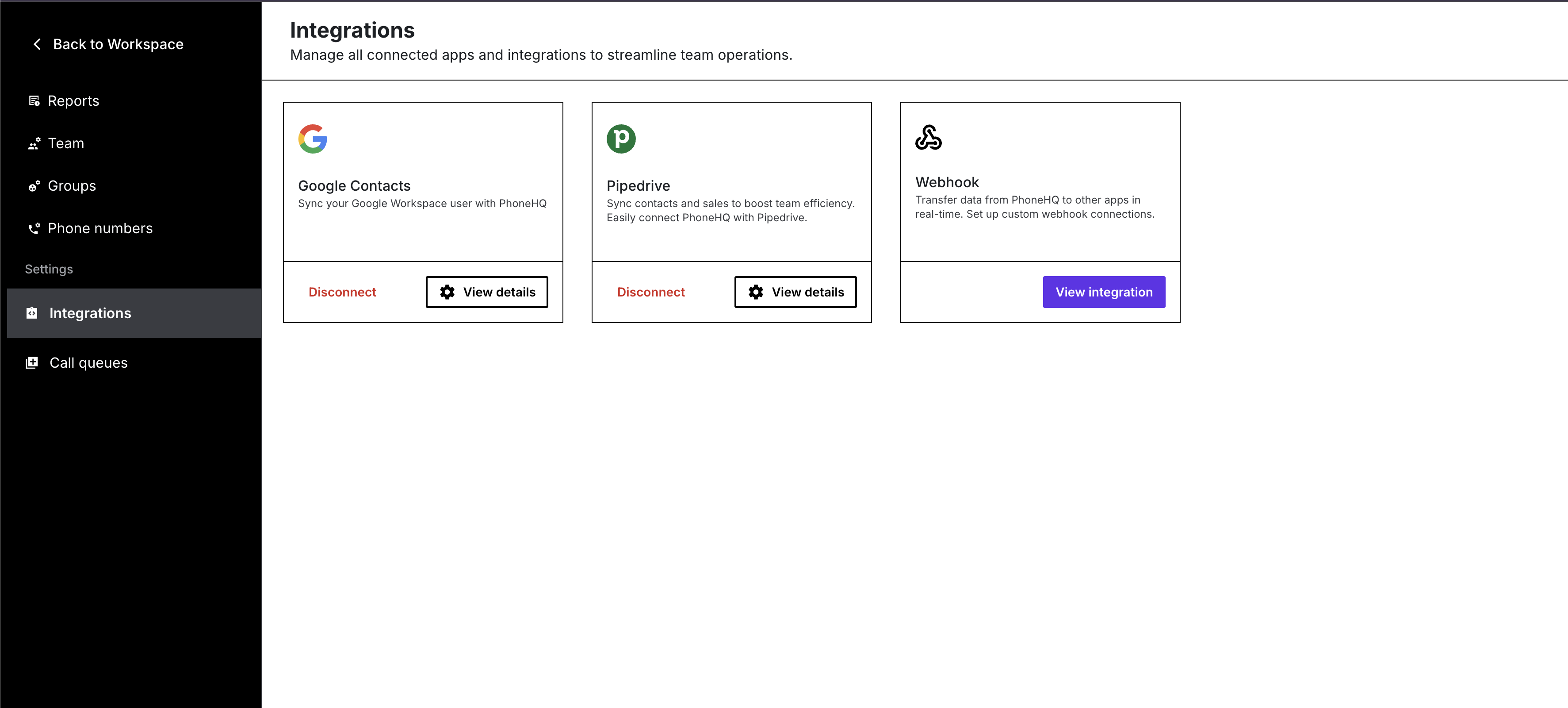
Log in and navigate to integrations settings
Log into PhoneHQ and click "Admin panel" to open more options
In the left-hand menu, select "Integrations".
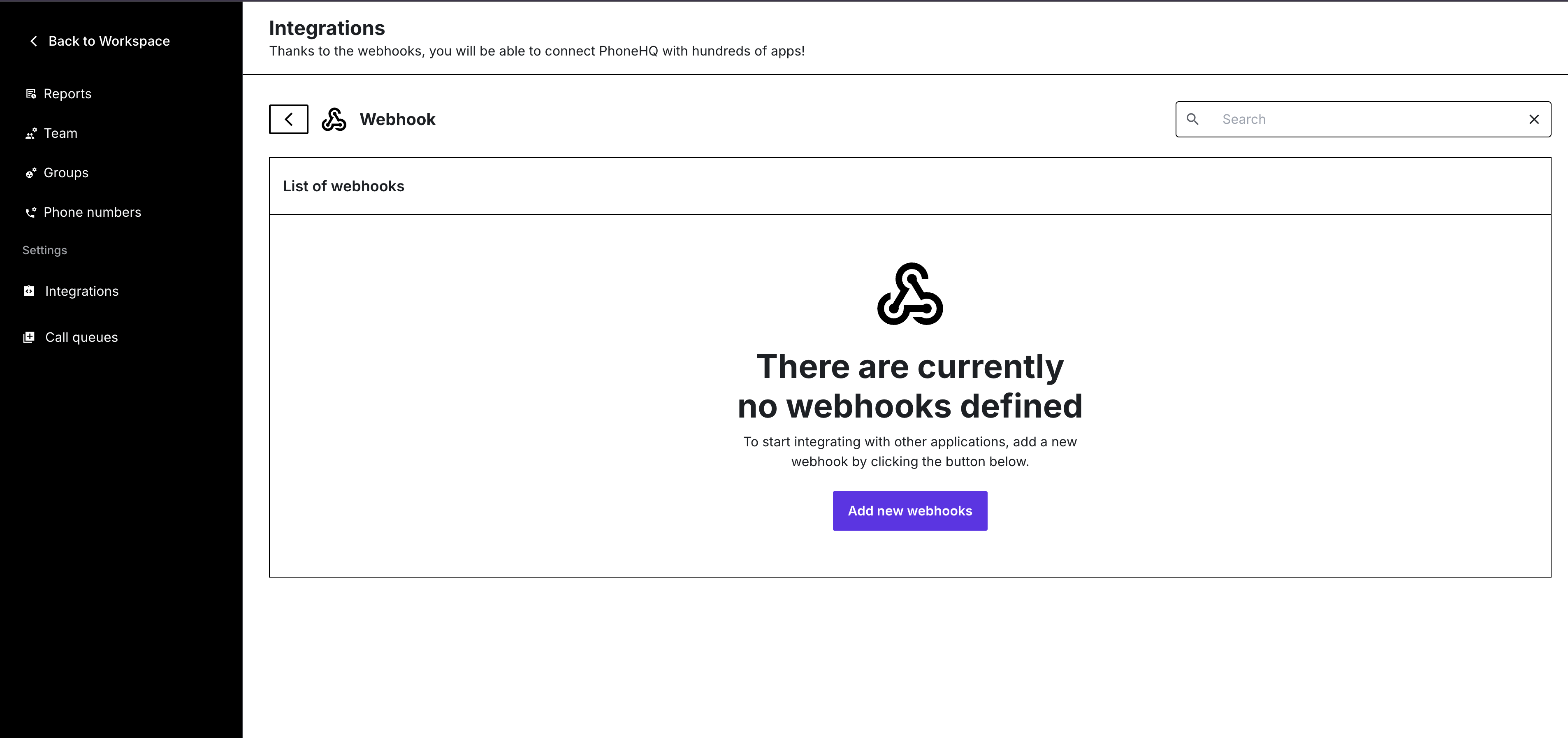
Go to the Webhook section
In the "Integrations" section, find and click on "Webhook"
If no webhooks are defined yet, you’ll see a message "There are currently no webhooks defined" and a button "Add new webhooks". Click this button.
Create a new webhook
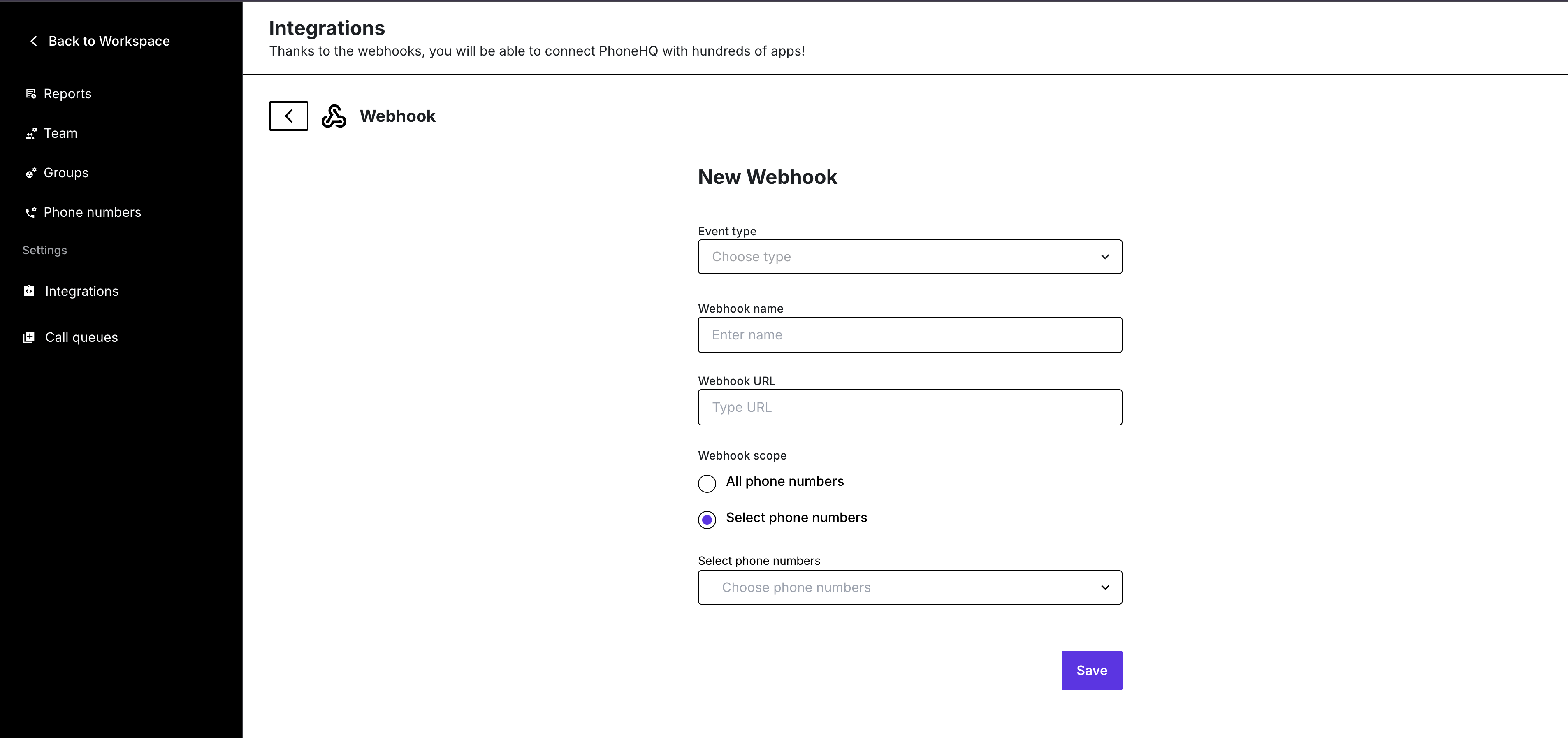
After clicking "Add new webhooks", a "New Webhook" form will appear.
Fill in the fields:
Event type: Select an event type from the dropdown, e.g., "Call answered" or "Call missed".
Webhook name: Enter a unique name, e.g., "Webhook1".
Webhook URL: Input the full URL where data will be sent (e.g.https://webhook.site/).
Webhook scope: Check "Select phone numbers" and choose the relevant phone numbers from the dropdown.
Save the configuration
After filling in all fields, click the "Save" button to create the webhook.
If an "Invalid phone number" message appears, check and correct the entered phone numbers.
Verify the integration status
Return to the "Webhook" section and ensure the new webhook appears on the list. You can click "View details" to verify the settings.
Done! Your webhook is now integrated with PhoneHQ and will process the selected events according to the provided URL.
A webhook is a way for PhoneHQ to automatically send data (e.g., about answered or missed calls) to an external system or app via a specified URL.
You can choose from events like:
Call answered
Call missed
Call finished
The full list of event types is available in the dropdown when creating a webhook.
Yes, you can create multiple webhooks for different events or phone numbers.
You can:
Use tools like Webhook.site to test and inspect payloads.
Check your server logs to see incoming webhook requests.
Click “View details” in the Webhook section to verify settings.
Term | Definition |
PhoneHQ | The application/service for managing phone calls. |
Webhook | A mechanism to automatically send data to a specified URL when events occur. |
Event type | The specific trigger for the webhook, such as a missed or answered call. |
Webhook URL | The endpoint where PhoneHQ will send the data. |
Webhook scope | Defines which phone numbers the webhook will apply to. |
Integrations | The section in PhoneHQ where integrations (like webhooks) are managed. |
Call answered | Event type – the call was successfully answered. |
Call missed | Event type – the call was not answered. |
Voicemail | A voice message left by the caller. |
View details | Option to inspect the configuration of an existing webhook. |
