This article will show you how to easily manage and create new API keys in your PhoneHQ account. You'll learn where to find the relevant settings and how to activate a newly generated key.
Access to a PhoneHQ account with Admin permissions.
An active integration for which you want to create or manage an API key.
Log in to your PhoneHQ account.
Navigate to the Admin Panel. You'll find it at the bottom of the screen after logging in.
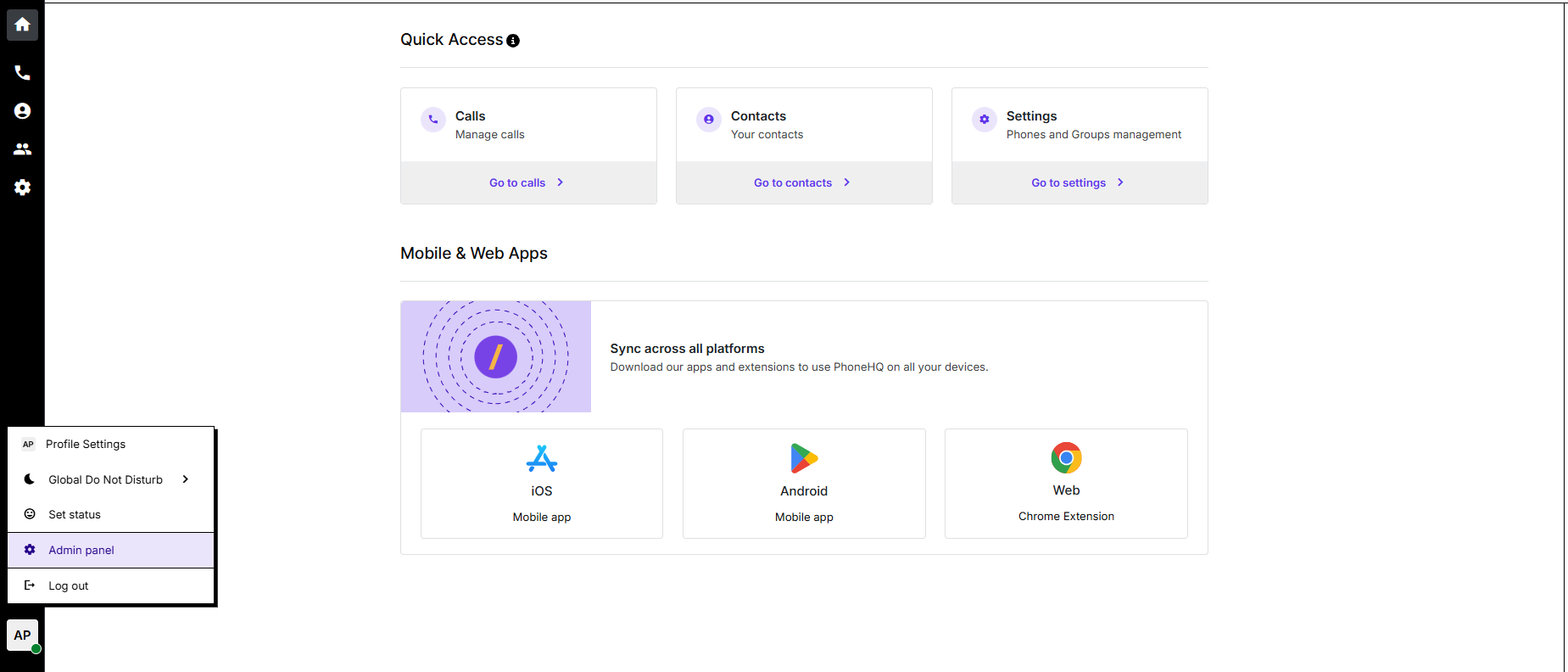
In the left navigation menu, select the "Integrations" option.
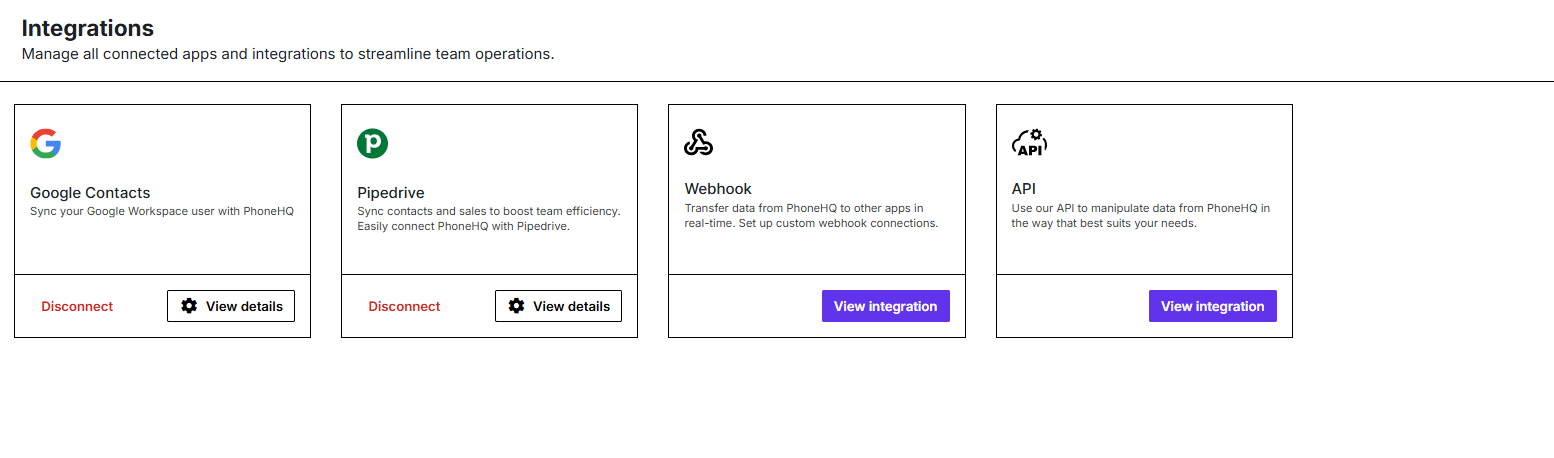
In the "Integrations" section, find the relevant integration and click the "View Integration" button.
To create a new API Key, click "Create New".
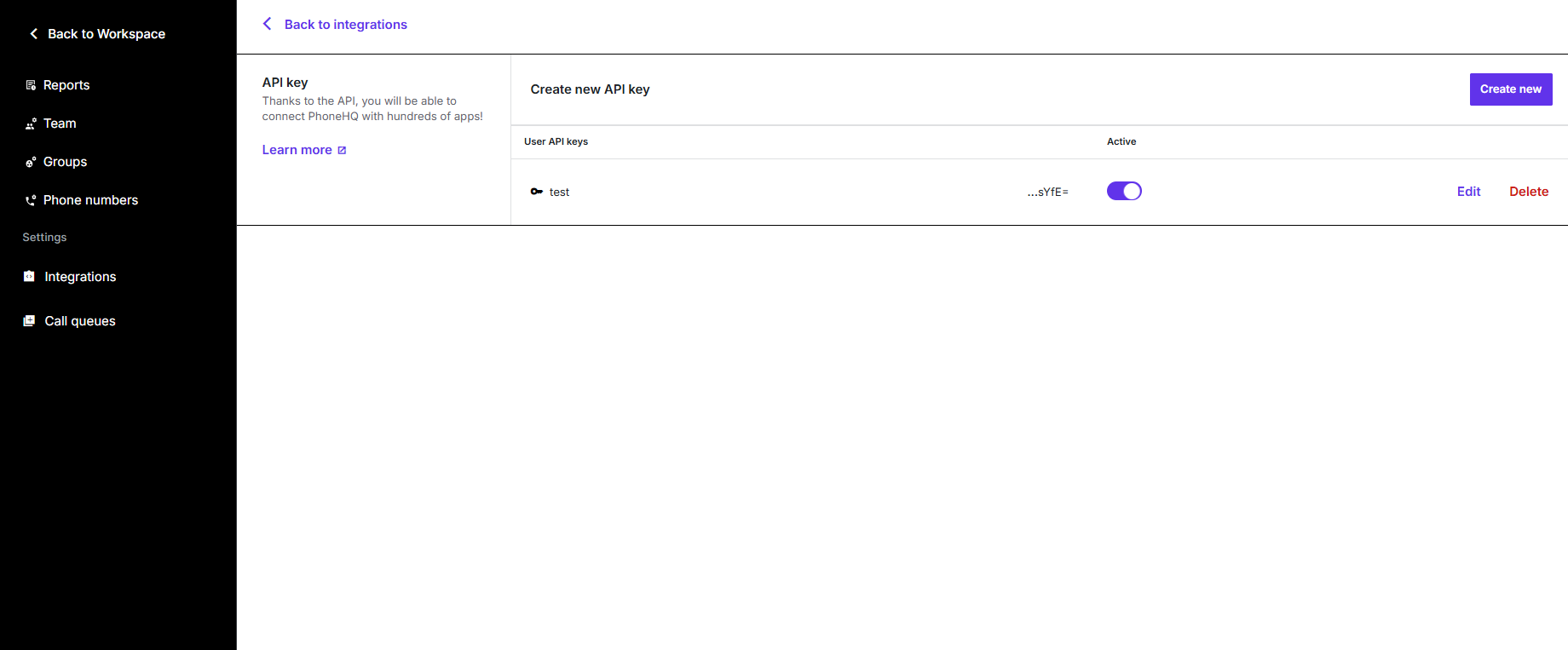
You will be prompted to assign a name to your API Key. Enter a unique and easily identifiable name.
Once the name is provided, the API Key will be automatically generated.
Important: The API Key can only be copied once. Please make sure to immediately click "Copy API Key" and store it securely. After closing this window, you will not be able to view the key again.
After this step, the API Key will be considered created.
For the key to be active and usable, the toggle switch must be set to "Active".
After following these steps, a new API Key will be created and activated for the chosen integration. You will be able to use it for authentication with external applications and services.
Q: Where can I find my existing API keys?
A: You can find existing API keys in the "Integrations" section of the Admin Panel, after clicking "View Integration" for the selected integration.
Q: What happens if I forget to copy the API Key after it's generated?
A: The API Key is displayed only once after it's generated. If you don't copy it immediately, you'll need to generate a new API Key.
Q: Can I edit the name of an existing API Key?
A: This article focuses on creating and activating keys. For detailed information on managing existing keys, please refer to the documentation available via the "Learn more" link in the PhoneHQ application.
Q: Do I need to activate the API Key after creating it?
A: Yes, for the API Key to be active and functional, you must set the toggle switch to "Active".
Q: Are API keys specific to certain integrations?
A: Yes, API keys are created and managed within the context of specific integrations. This means a key created for one integration will not work for another.
