To send an email from the PhoneHQ application, follow these simple steps:
Go to the “Contacts” tab and select the contact you want to send a message to.
If the contact has a saved email address, you will see an envelope icon. Click on it.
Your device’s default email application will open automatically, allowing you to compose and send an email to the selected contact.
You can also send an email from the “Calls” tab:
Go to the “Calls” section and select the call for which you want to send an email.
In the call details, click on the envelope icon.
Your device's default email app will open, allowing you to compose an email to the selected recipient.
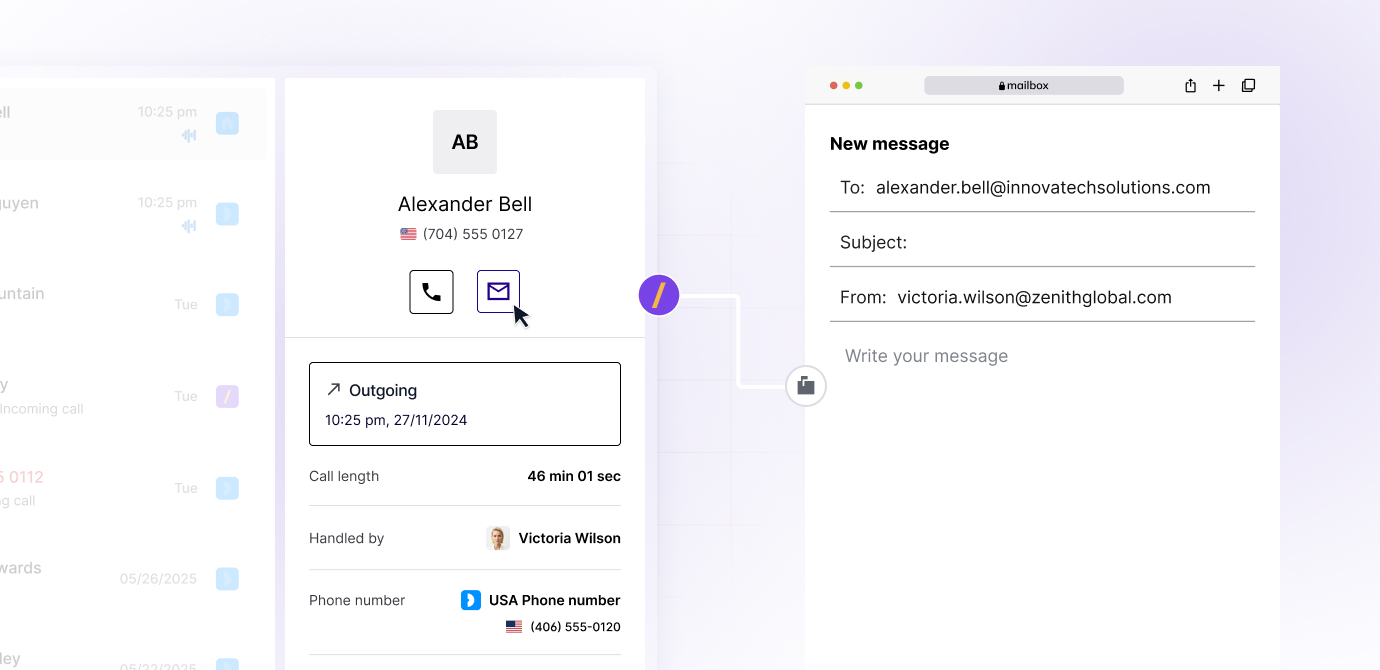
After clicking the envelope icon, your email application will open automatically, with the recipient's email address already filled in. You can then compose and send your message.
Q: What do I do if I don't see the envelope icon?
A: The envelope icon only appears if the contact has a saved email address. Please make sure the contact's details are complete.
Q: Can I send an email from the mobile app?
A: No, this feature works on the web version of the application.
Q: What happens if I don't have a default email application set on my device?
A: In this case, your device may ask you to choose which email application you want to use to send the message.
Term | Explanation |
Contacts | The tab in the PhoneHQ app where all your contacts are saved. |
Calls | The tab in the PhoneHQ app where the history of all your calls is located. |
