Last update: 28/03/2025
To integrate both accounts, you need to have:
Fully active PhoneHQ account.
Fully active Pipedrive account.
Admin permissions for both services (Check PhoneHQ Admin articles).
All company users accounts active in both services (accounts must be registered for the same e-mail address, first and last name).
If you have all items listed above, you can start an integration process:
Log in to your PhoneHQ account on the Web Portal.
Open your profile menu (bottom-left corner of the screen).
Click on the “Admin” tab.
In the Admin panel, navigate to “Integrations”.
Under Pipedrive, click the “Connect” button.
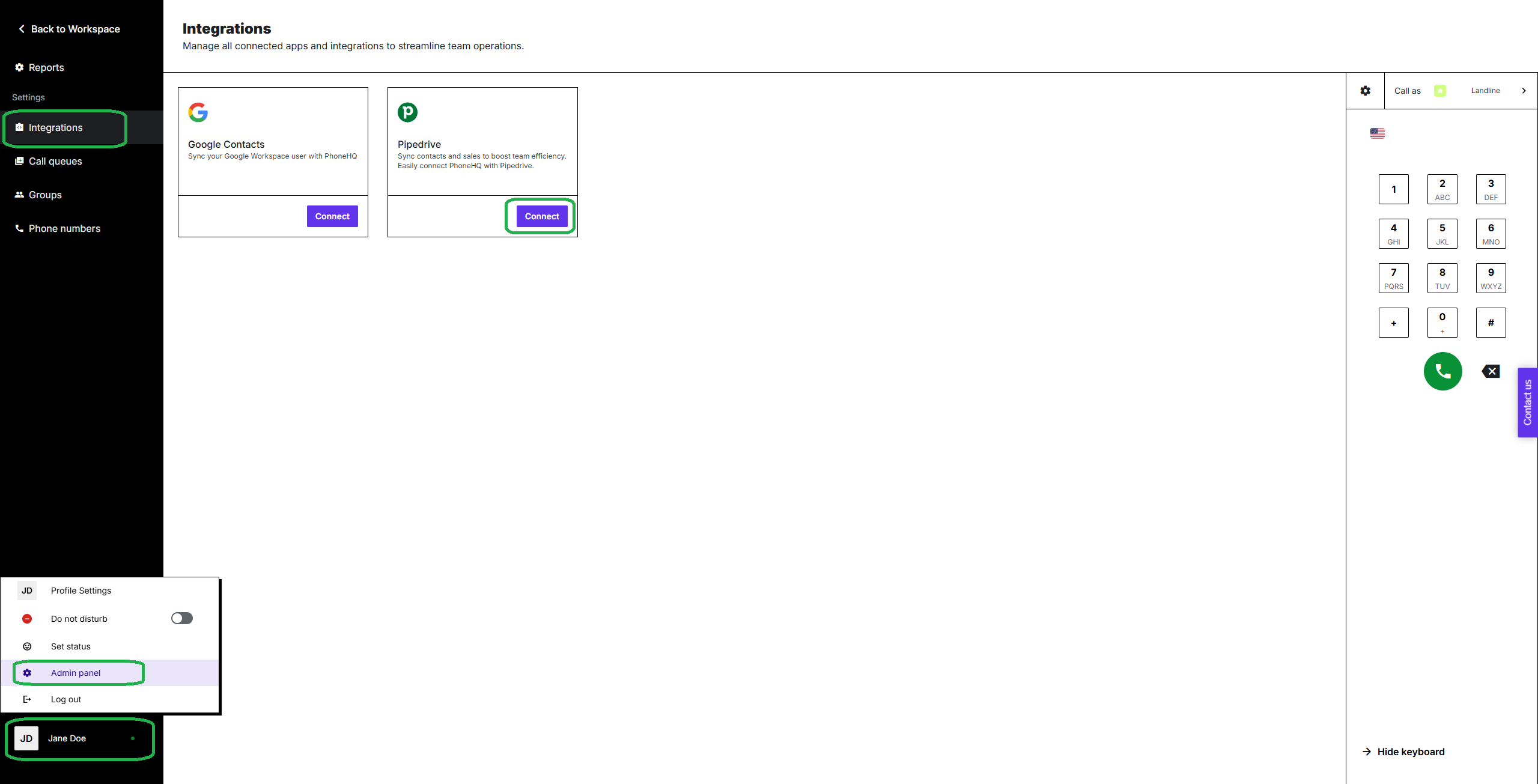
You will be redirected to the Pipedrive panel, where you might need to log in before proceeding. Please, keep in mind that you need Admin permissions in Pipedrive to successfully proceed with the integration.
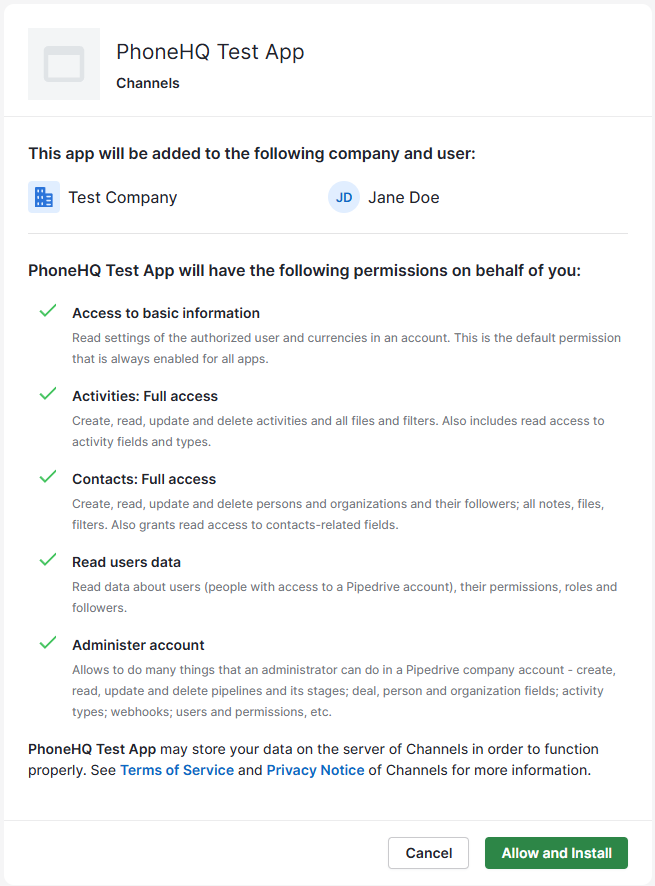
Once logged in to Pipedrive, the permissions screen will be presented. Click the "Allow and install" button to proceed.
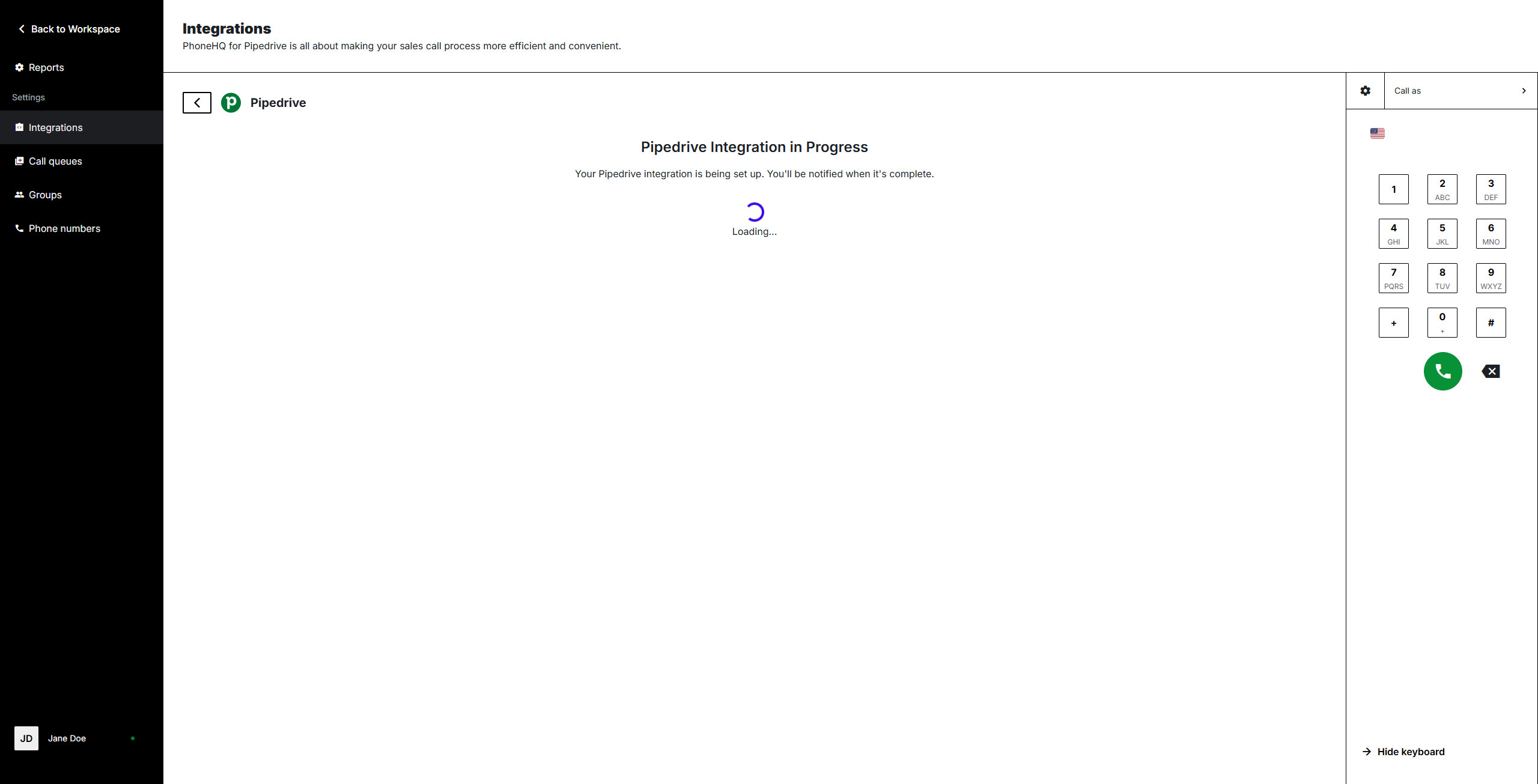
You will be returned to PhoneHQ, where the loading screen will be presented. It usually takes a few minutes to process.
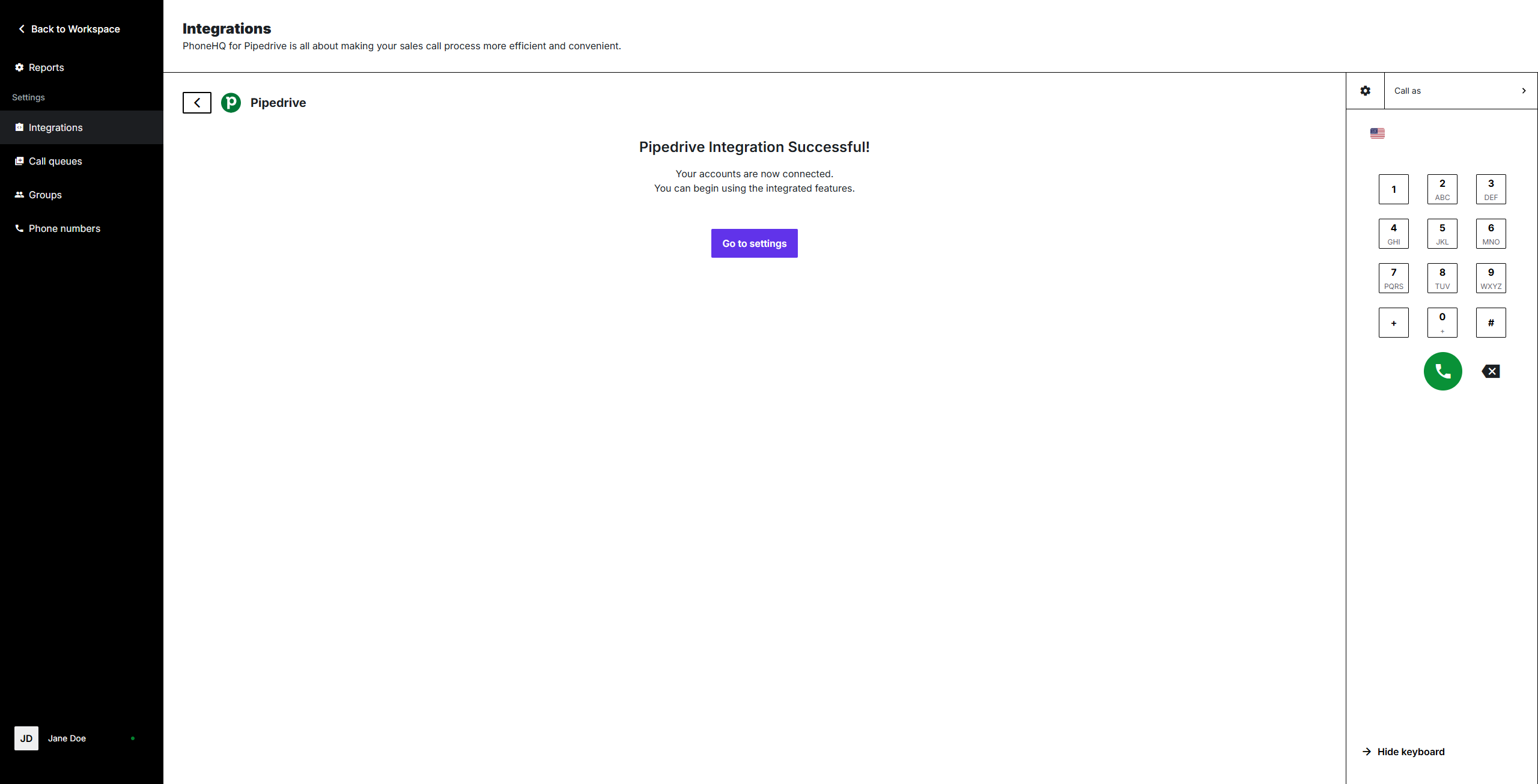
After the process is finished, the system will present a success screen. You can go to settings, by clicking the button.
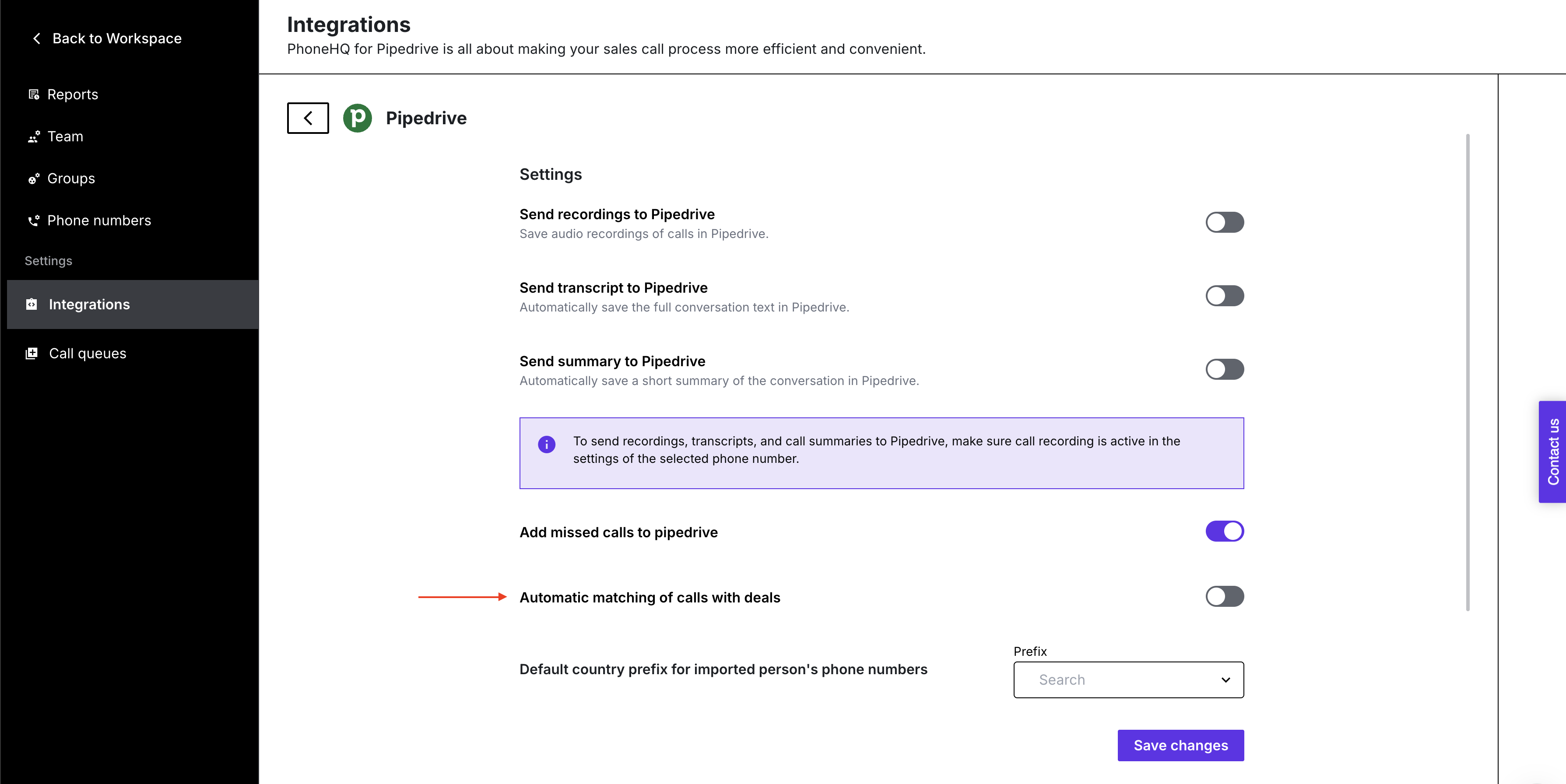
On the Pipedrive Integration settings screen, there are the following options available:
Send recordings to Pipedrive - turning on this option will result in adding for each call a note in Pipedrive contact details. A note will include performed call date and duration, information on who (which user) answered or performed the call, whether it was an incoming or outgoing call, and what numbers called and has been called. Only calls with existing Pipedrive contacts are exchanged.
Send transcripts to Pipedrive - turning this on will allow our AI supported voice-to-text system to write a detailed transcript of your recording and add it as a note in Pipedrive contact details.
Send summary to Pipedrive - turning this on will allow our AI supported voice-to-text system to write a conversation summary based on the call recording and add it as a note in Pipedrive contact details.
Add missed calls to Pipedrive - should it happen that you are unable to pick up on time or your contact calls you outside your working hours, such information will be added to Pipedrive profile. Only calls from existing Pipedrive contacts will be added.
Default country prefix for imported person's phone numbers - in case that phone numbers are not saved in Pipedrive with international prefixes, you can choose the most popular country of origin of your contacts. The system will verify each contact separately, and in the event of prefix absence, it will be added automatically based on this choice.
Automatic matching of calls with deals - The integration with Pipedrive includes an option for automatic matching of phone calls with deals (calls with deals). This is a toggle switch in the integration settings section, which allows for the automatic linking of recorded calls (including recordings, transcripts, and summaries) with the corresponding deals in the Pipedrive system.
What is it for?
This feature streamlines the synchronization of sales data by eliminating the need for manual searching and assignment of calls to specific deals. It enables the sales team to access the full context of a conversation directly in Pipedrive – for example, a client’s recording will automatically appear with the associated deal. This facilitates faster progress analysis, better tracking of interactions, and more efficient sales pipeline management, ultimately boosting productivity and report accuracy. If a contact is assigned to multiple deals, the call will always be added to the most recently edited deal. To use this feature, simply enable the option and save the changes in the settings
Please, keep in mind to click the "Done" button once everything is set up, so no progress is lost. You can return to this screen anytime you want, from the main Integrations screen in the Admin panel.
Found a mistake or missing article? Contact PhoneHQ Support and let us know!
