In the “Profile Settings” section of the Web Portal, you can update your general information, such as your first and last name and job position. This section also provides a view of the phone numbers assigned to your profile and the groups you belong to. Additionally, you can manage missed call notifications and switch the Web Portal's visual theme.
Click on your name in the bottom-left corner of the screen.
Click on the “Profile settings” bar.
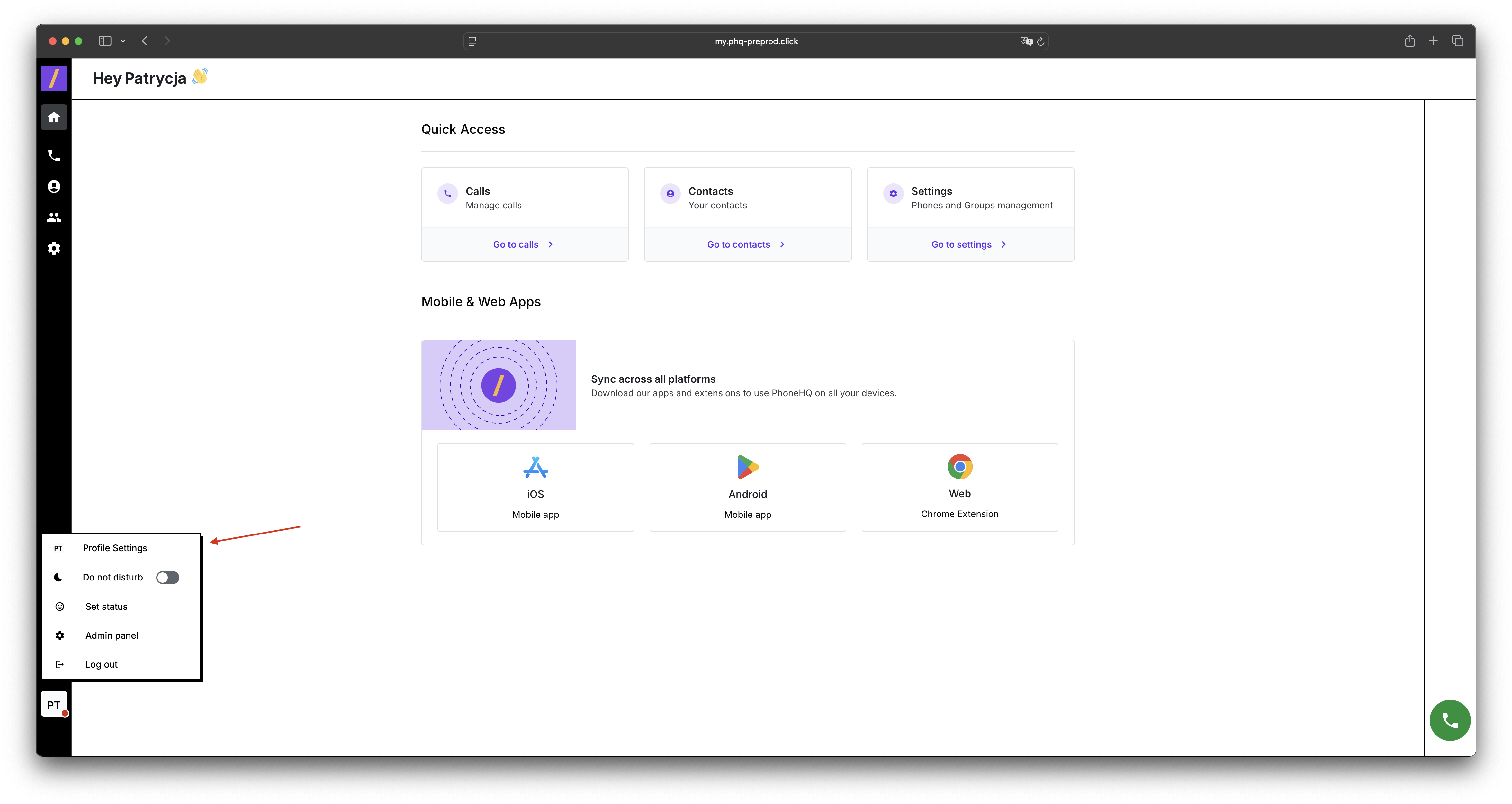
Once you are in the profile settings panel, you can choose a few options from the menu:
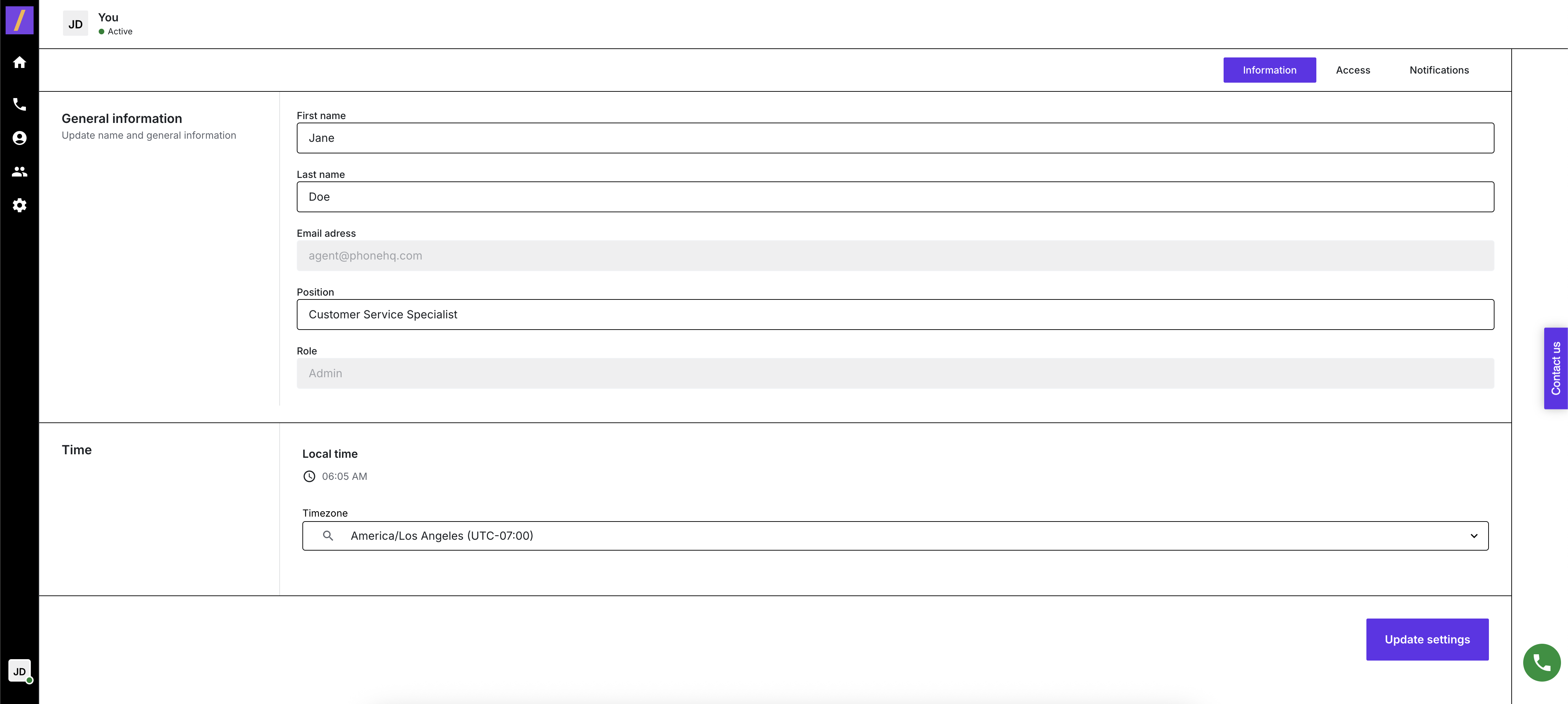
Information
Edit your first name and last name.
Check the email address associated with your profile.
Edit your position (job title).
Edit your local time
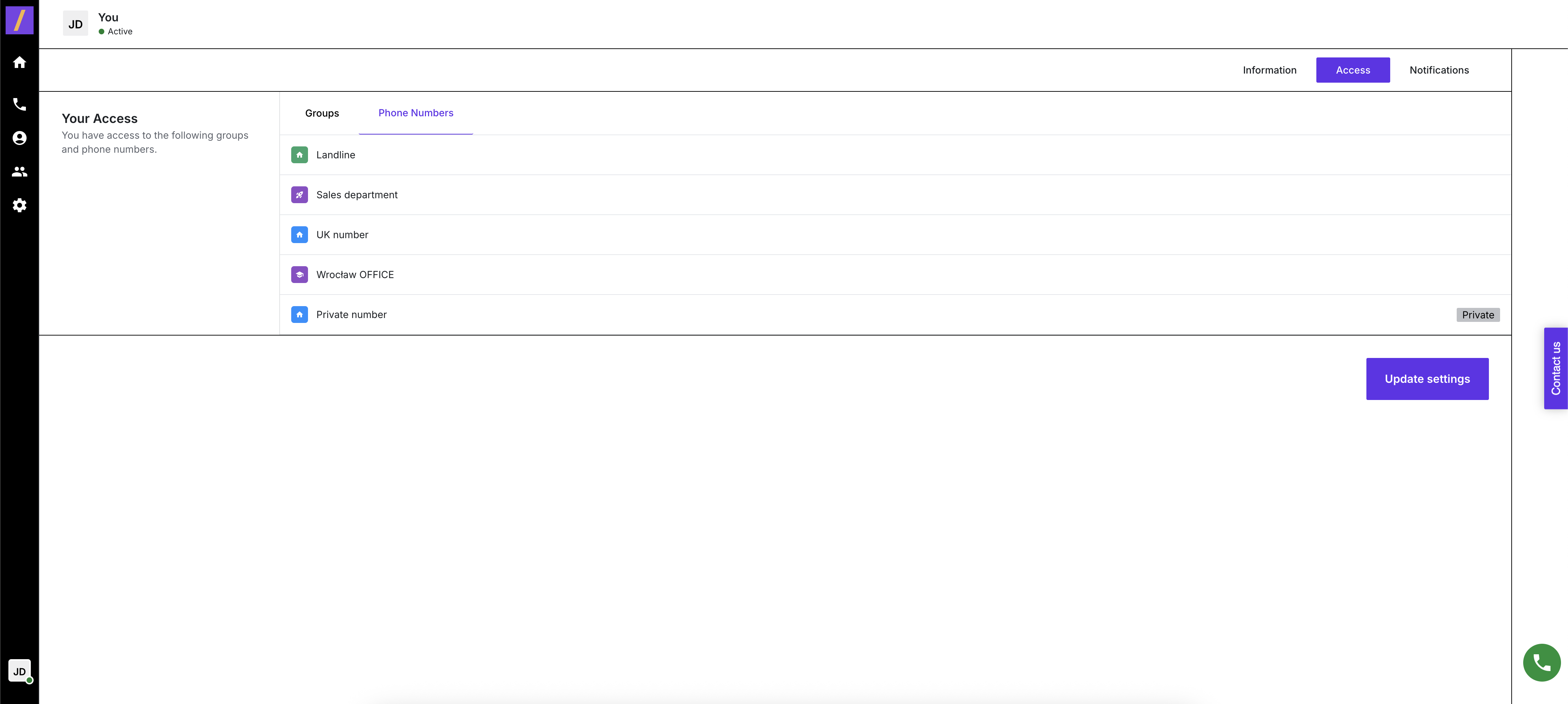
View the Access assigned to your user profile.
See which groups you are assigned to
What phone numbers are assigned to you
Turn email notifications about missed calls on or off. Notifications are sent to the email address associated with your profile.
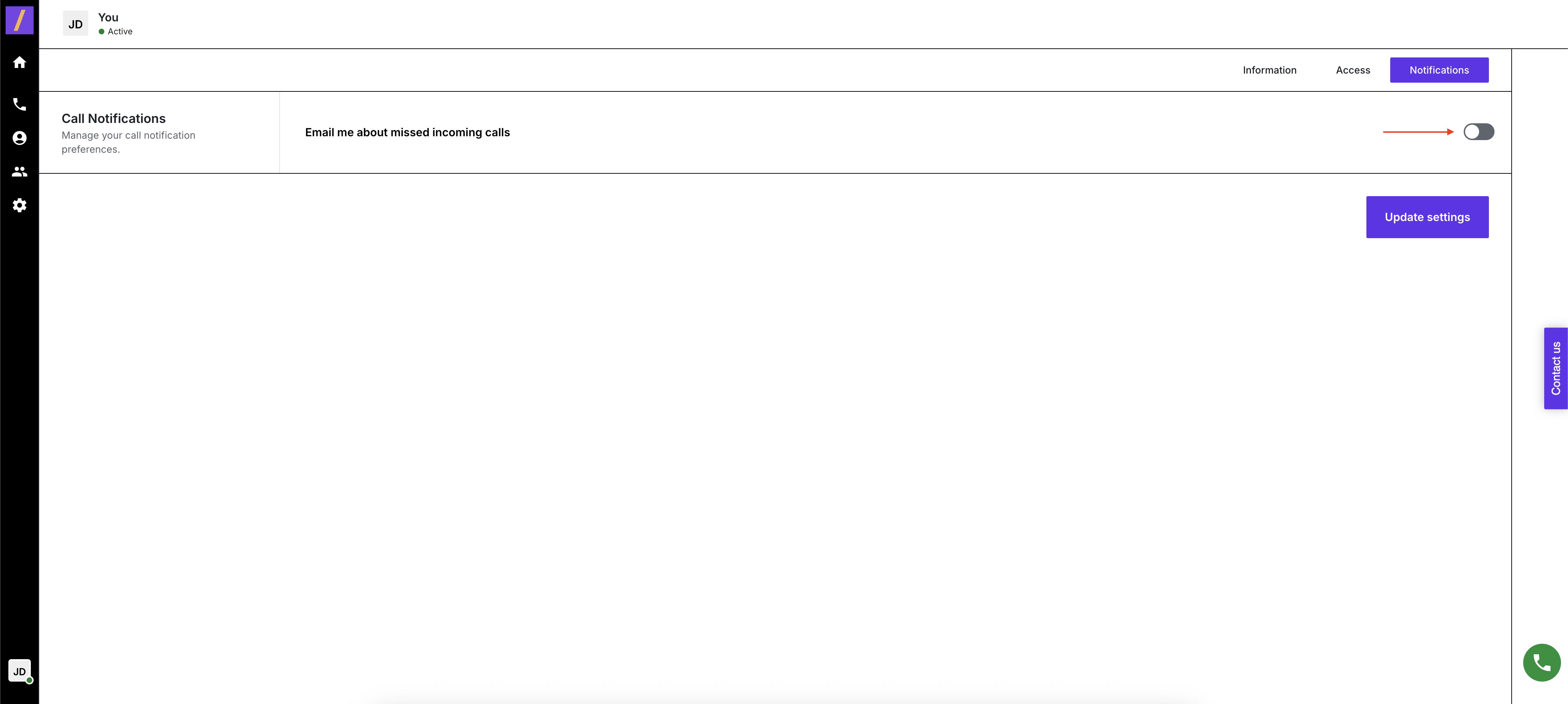
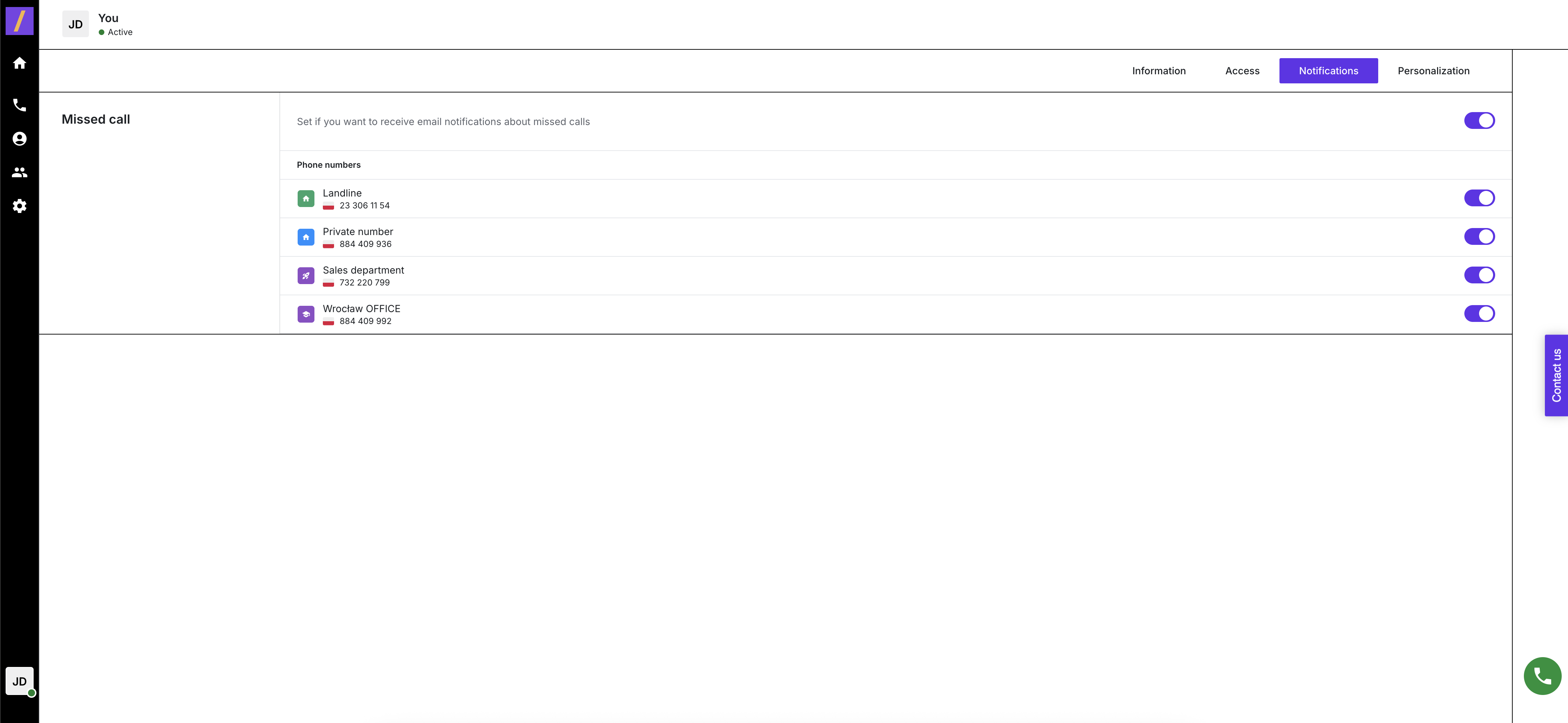
To enable or disable notifications, click the switch button in this section and choose which phone number assigned to you should be notified about missed calls
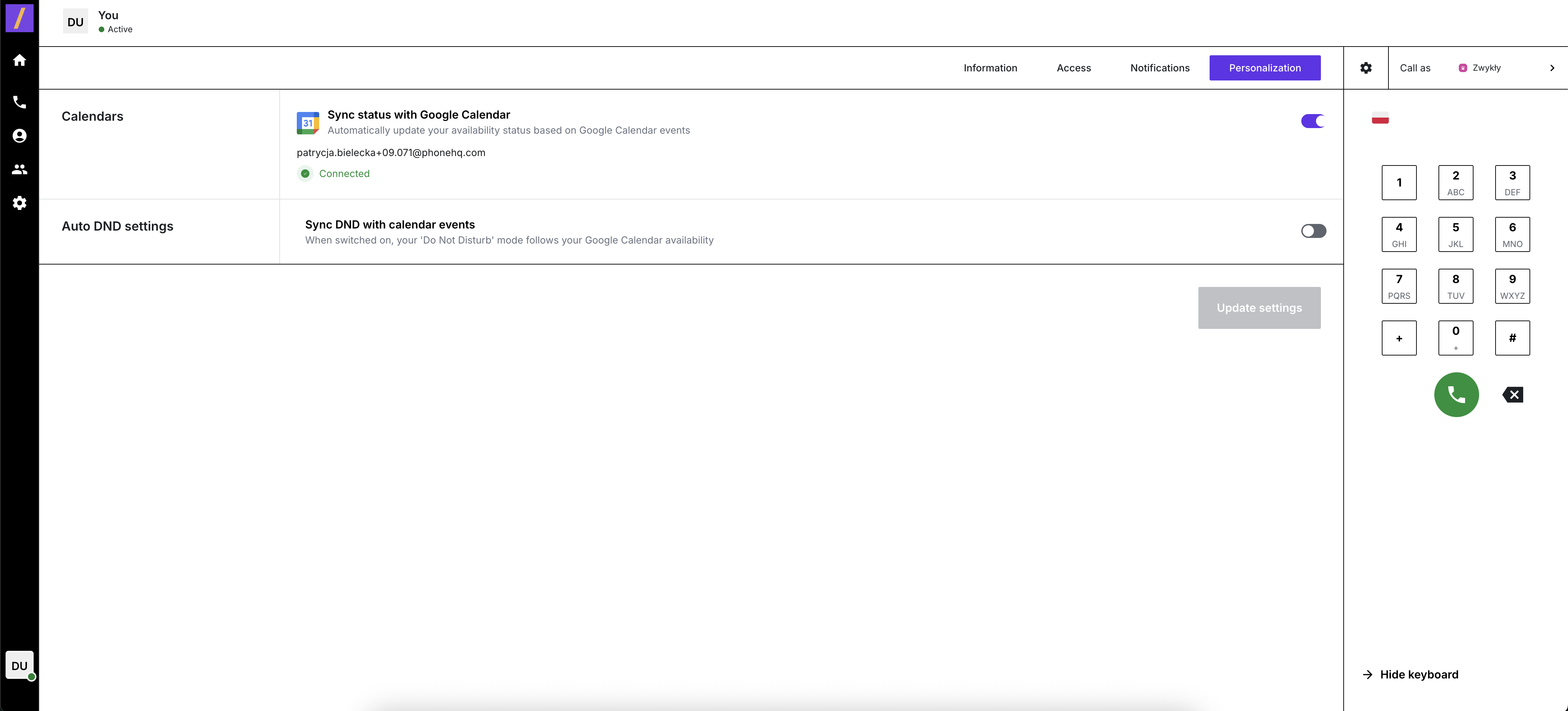
In the Personalization tab, you can connect your Google Calendar and enable the automatic Do Not Disturb (Auto DND) mode.
To do this:
In the left sidebar, click your profile icon at the top.
From the top menu, select Personalization.
In the “Calendars” section, click “Sync status with Google Calendar” if it is not already enabled.
Log in to your Google account and grant the required permissions.
Once connected, the status will display as “Connected” along with your email address.
In the Auto DND settings section, toggle the switch next to “Sync DND with calendar events”.
Click “Update settings” to save and apply the changes.
Your availability and DND status will now automatically adjust based on your Google Calendar events, so you won’t receive calls during scheduled meetings.
Remember to click the “Update Settings” button at the bottom of the page after making any changes to save them in the system.
1. Will changes to my profile be applied immediately?
Yes, once you click "Update Settings," changes take effect instantly.
2. Can I change my registered email address?
No, your email is set by your administrator. Contact support if it needs to be updated.
3. Where do missed call notifications go?
They are sent to the email address associated with your profile.
4. What are “groups” in my profile?
Groups are used to organize users (e.g., Support, Sales) and manage call routing or permissions.
5. Can I customize how notifications look?
Not at the moment. Notification format is system-defined.
Term | Definition |
Profile Settings | A section in the Web Portal where users can manage personal and notification settings. |
Job Title | The professional role or position listed in your profile. |
Missed Call Notification | An email alert sent when you miss a call on your assigned phone number(s). |
Groups | Teams or departments you belong to within the organization, used for routing and permissions. |
Update Settings | A button that must be clicked to save any changes made in the Profile Settings panel. |
Visual Theme | The appearance mode of the Web Portal (e.g., light mode or dark mode). |
Found a mistake or missing article? Contact PhoneHQ Support and let us know!
