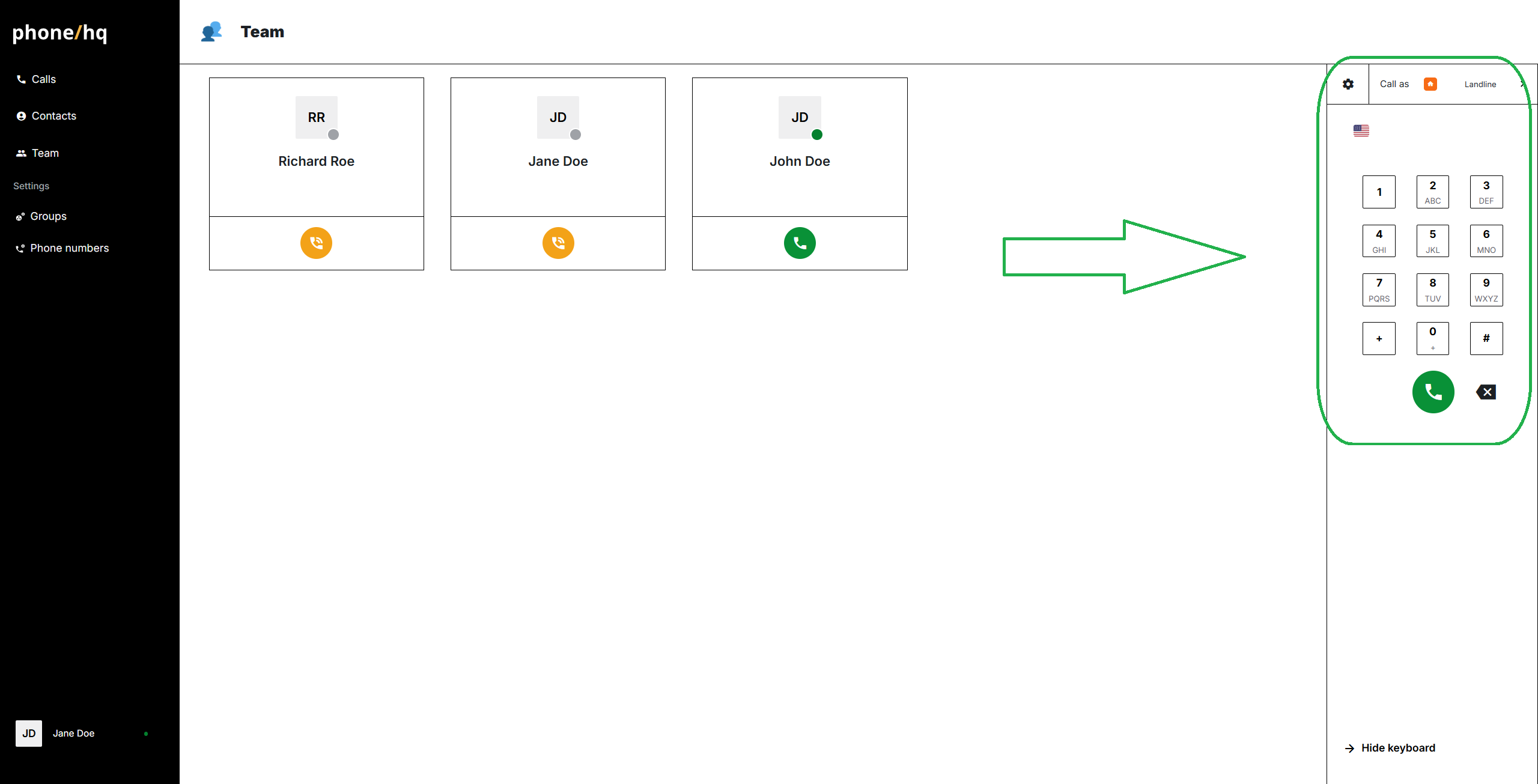
Locate the dialer panel on the right side of the page.
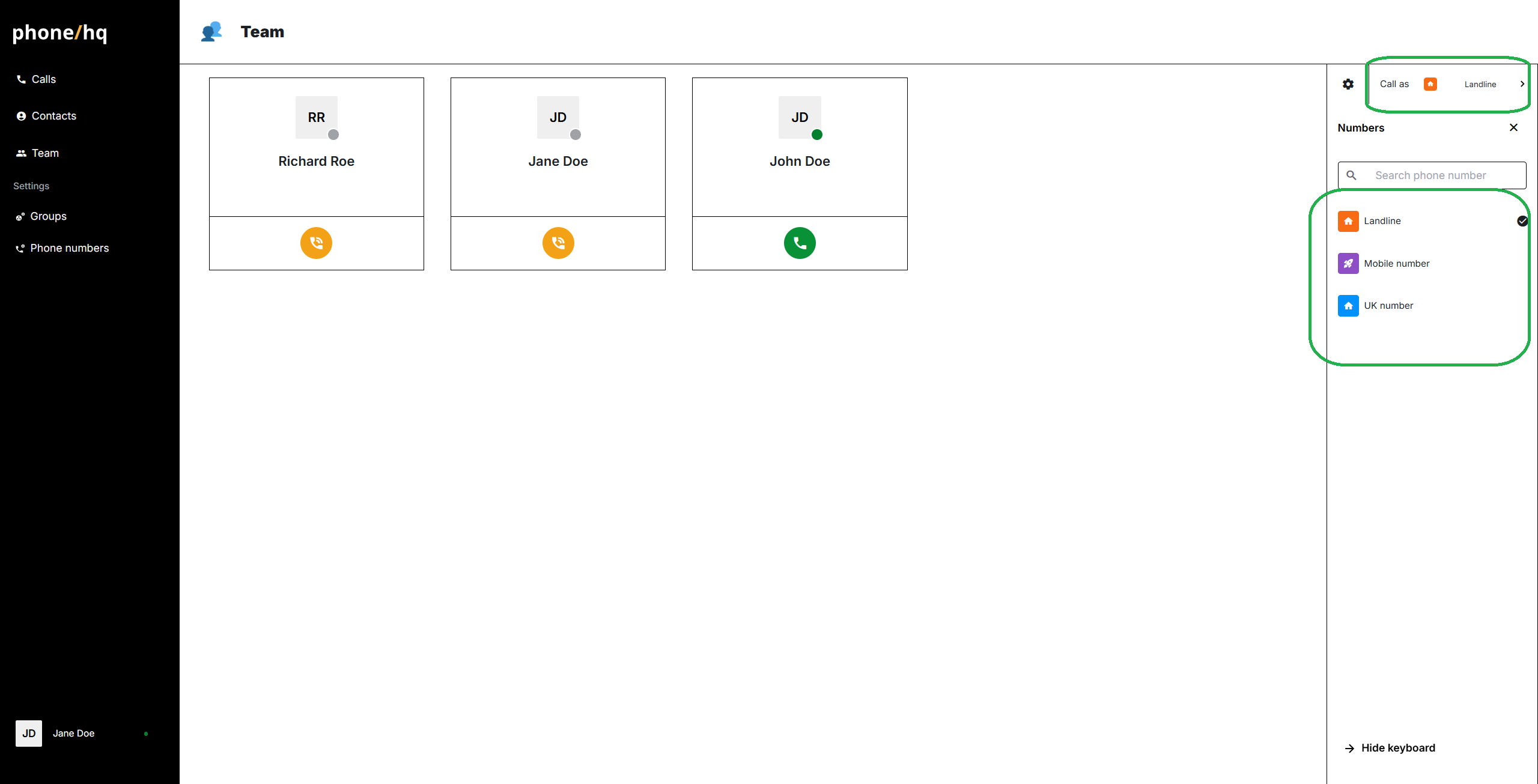
Chose the number you want to use for the call.
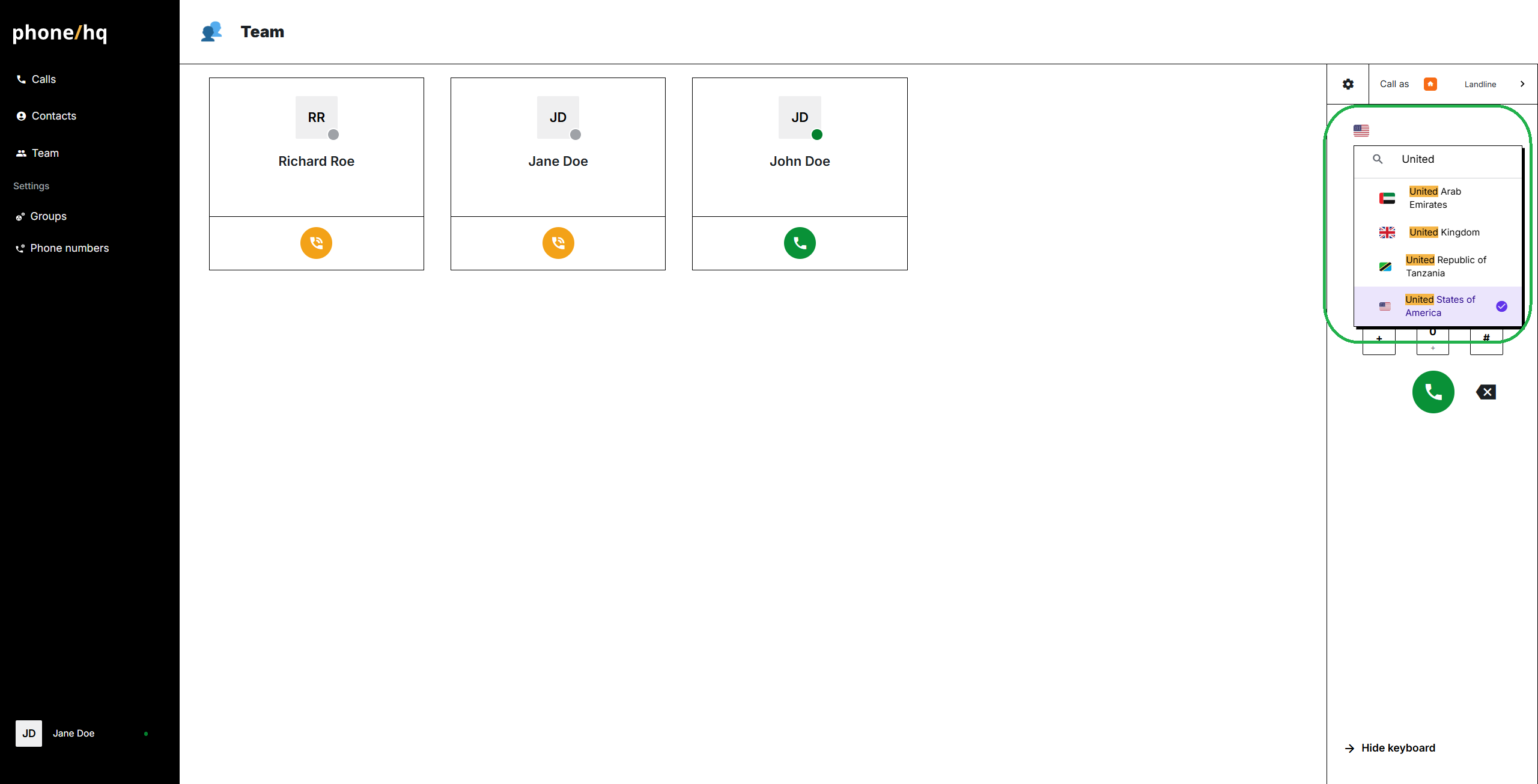
Click on the flag icon and chose the call recipient’s country.
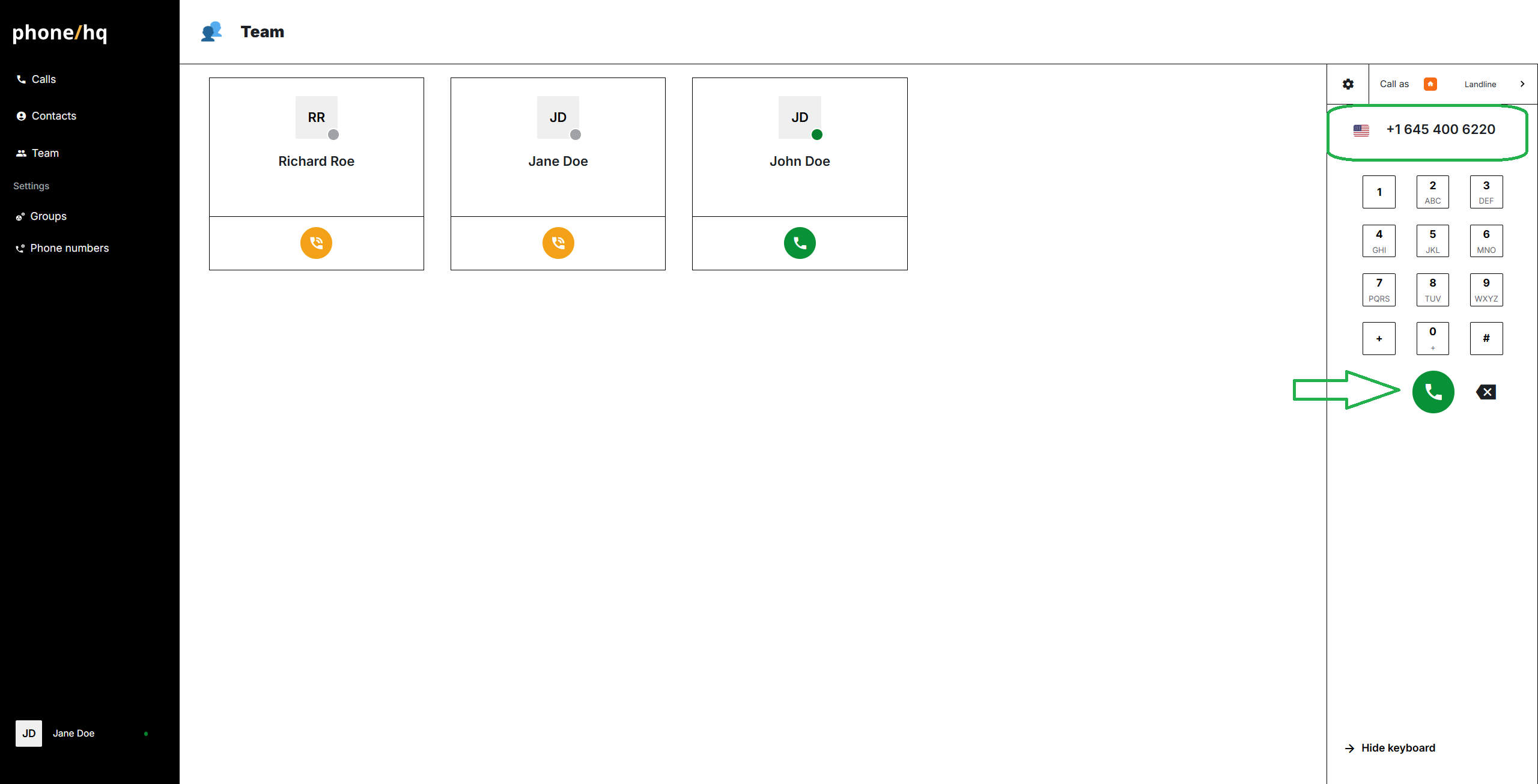
Type the phone number. If you type the number with country prefix (e.g. +1 for US, +44 for UK) you can skip step 4. You can use the dialer buttons or your computer keyboard to enter the number.
Once you’ve entered the phone number, click the green phone icon below the keypad to initiate the call.
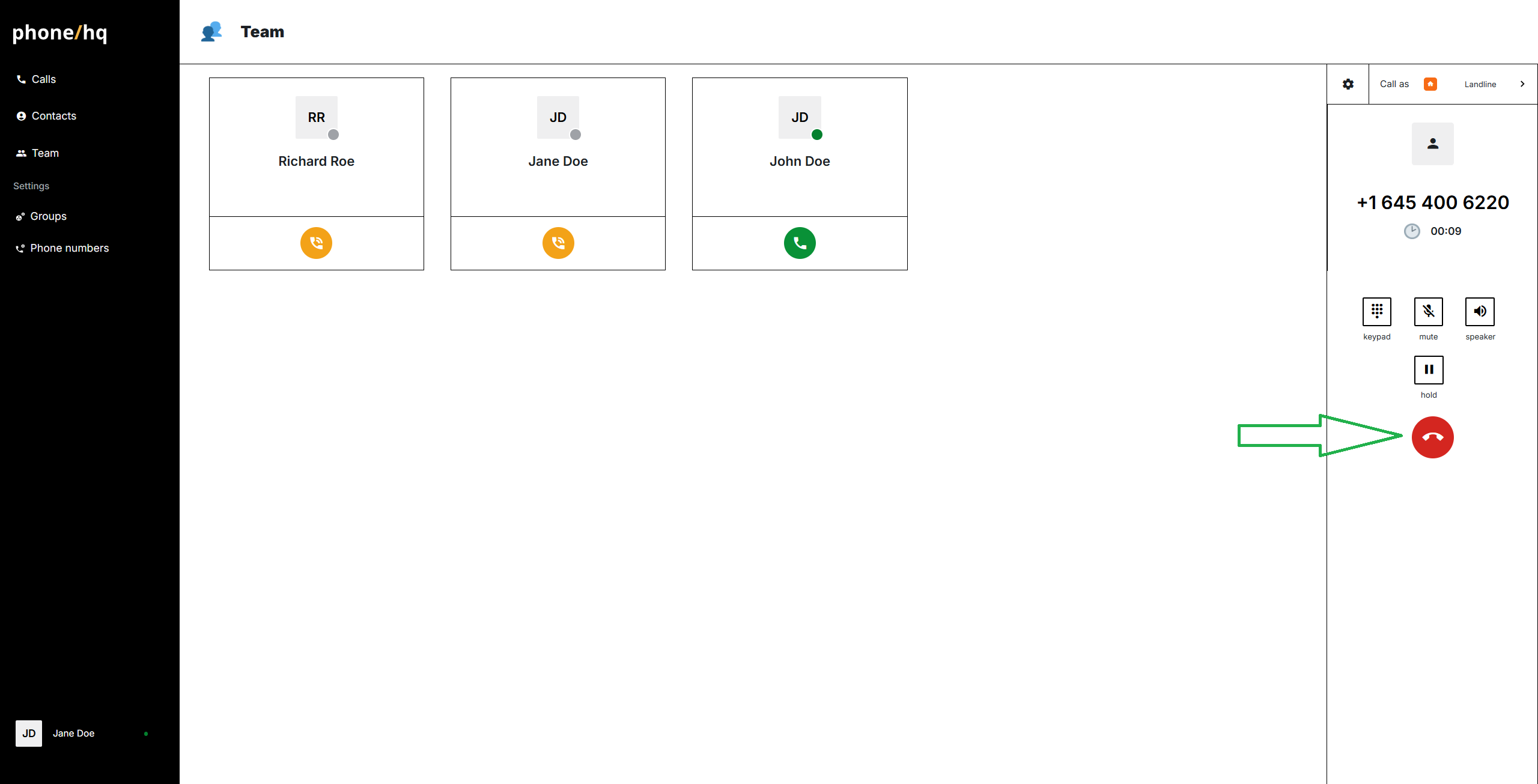
When your conversation is complete, you can end the call by clicking the red phone icon on the dialer panel.
1. Can I dial international numbers?
Yes, as long as your account has permission and credits to place international calls.
2. What if I don't see the dialer panel?
Make sure you are logged in correctly and your account has voice-calling capabilities enabled. Refresh the page or contact PhoneHQ Support if the panel is still missing.
3. Can I paste a number into the dialer?
Yes, you can paste a full phone number into the input field — including the country code.
4. How do I know which number I’m calling from?
Your selected outgoing number will appear in the drop-down above the dialer.
5. Do I need to include the “+” before the country code?
No, it's optional. The system will recognize the number as long as the correct country prefix is included.
Term | Definition |
Dialer Panel | The section of the Web Portal interface used to enter and place phone calls. |
Country Prefix | The international dialing code needed to reach a phone number in another country (e.g., +1 for the US). |
Green Phone Icon | The button that initiates the call. |
Red Phone Icon | The button that ends the call. |
Flag Icon | A clickable symbol that allows users to select the recipient’s country for auto-inserting the prefix. |
Web Portal | The browser-based interface for accessing PhoneHQ features such as calling, messaging, and settings. |
Found a mistake or missing article? Contact PhoneHQ Support and let us know!
