Last update: 11/03/2025
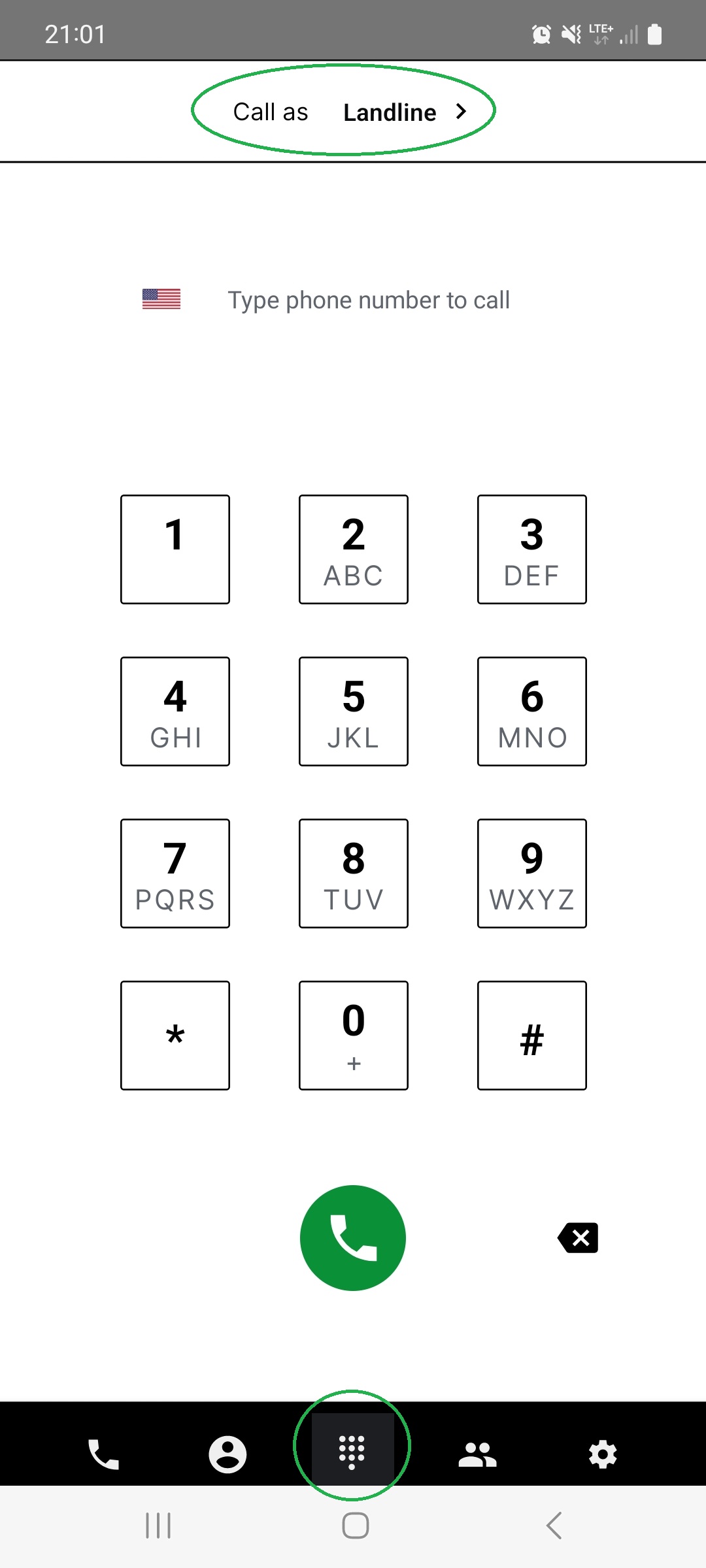
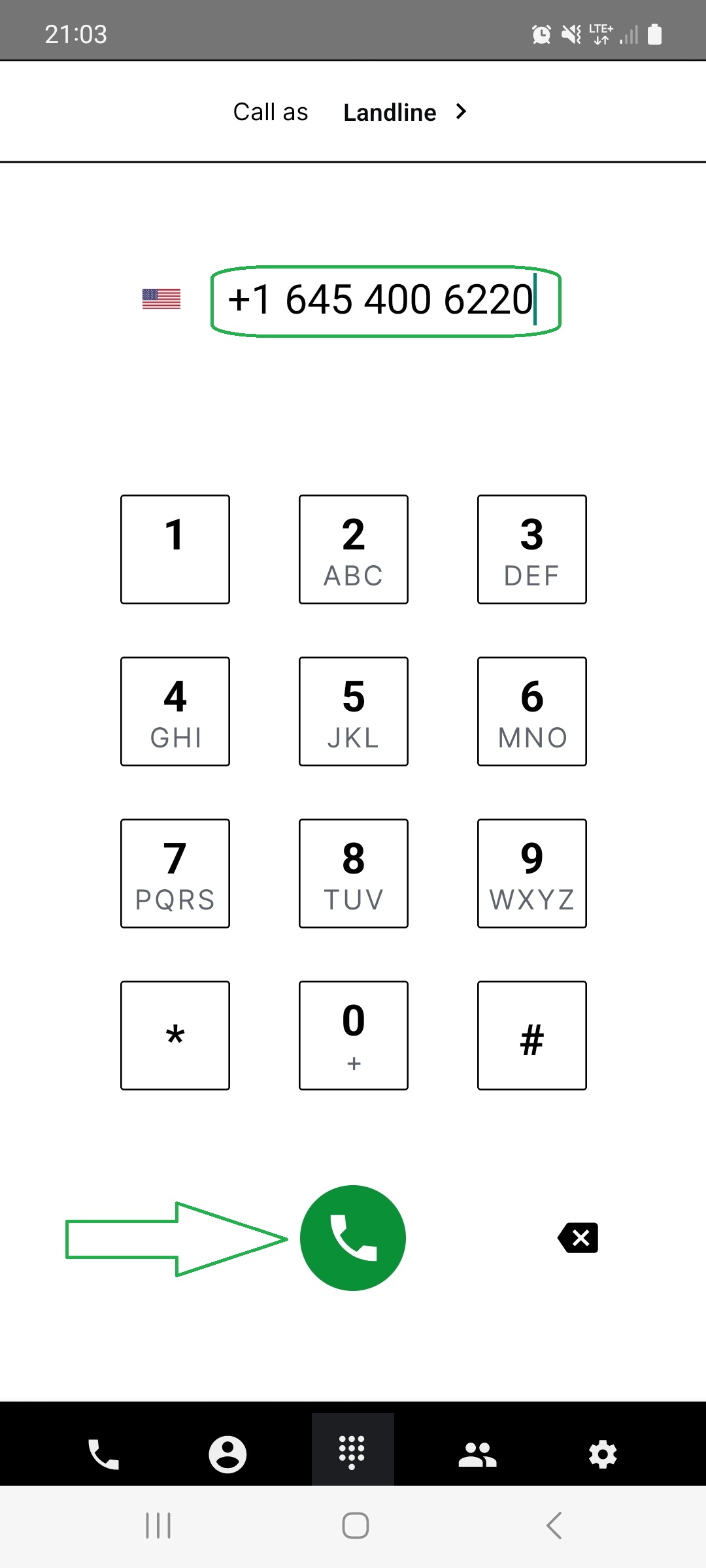
Go to the dialer panel. It should be visible on the main screen after logging in. If not - tap the middle icon on the bottom menu.
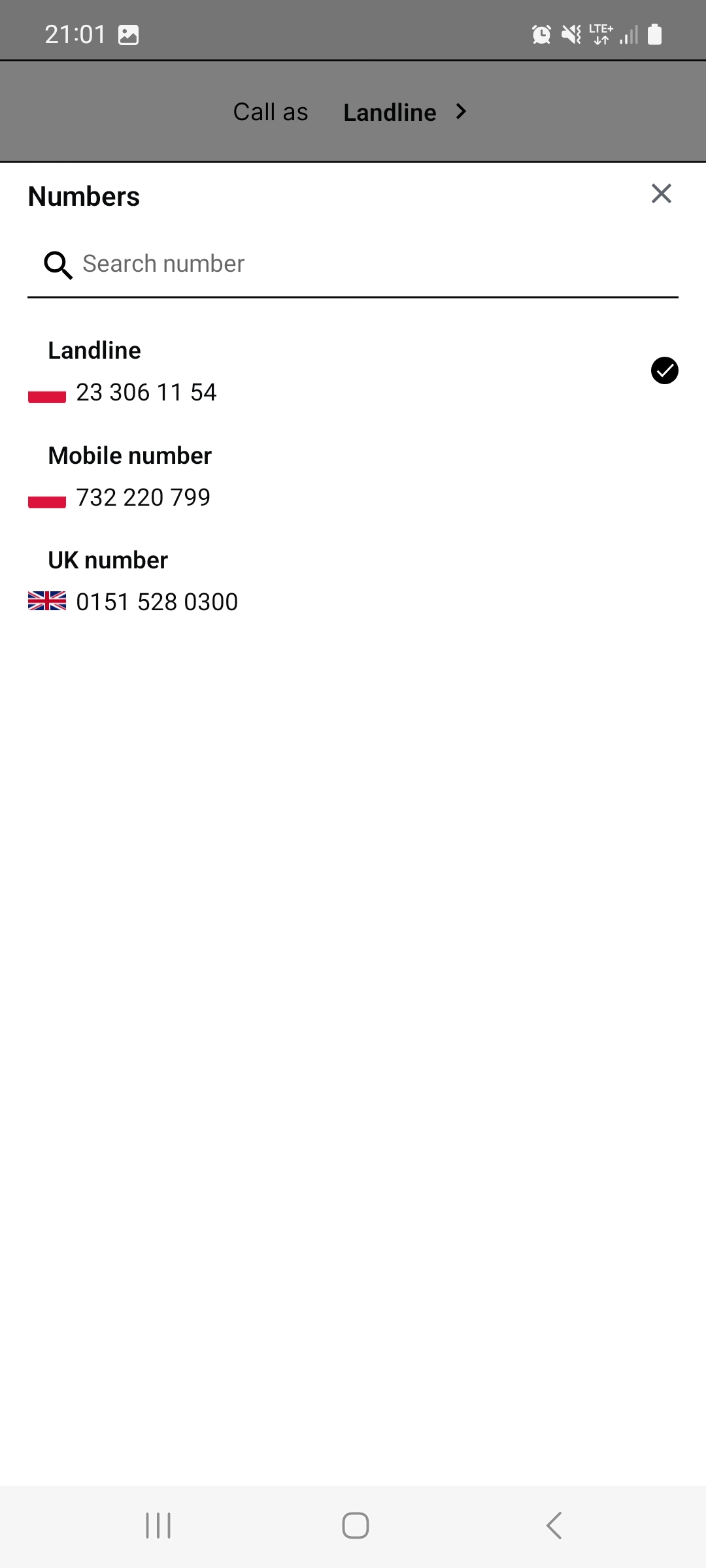
Choose the number you want to use for the call by clicking on “Call as” section at the top of the screen, and then picking a number from the list.
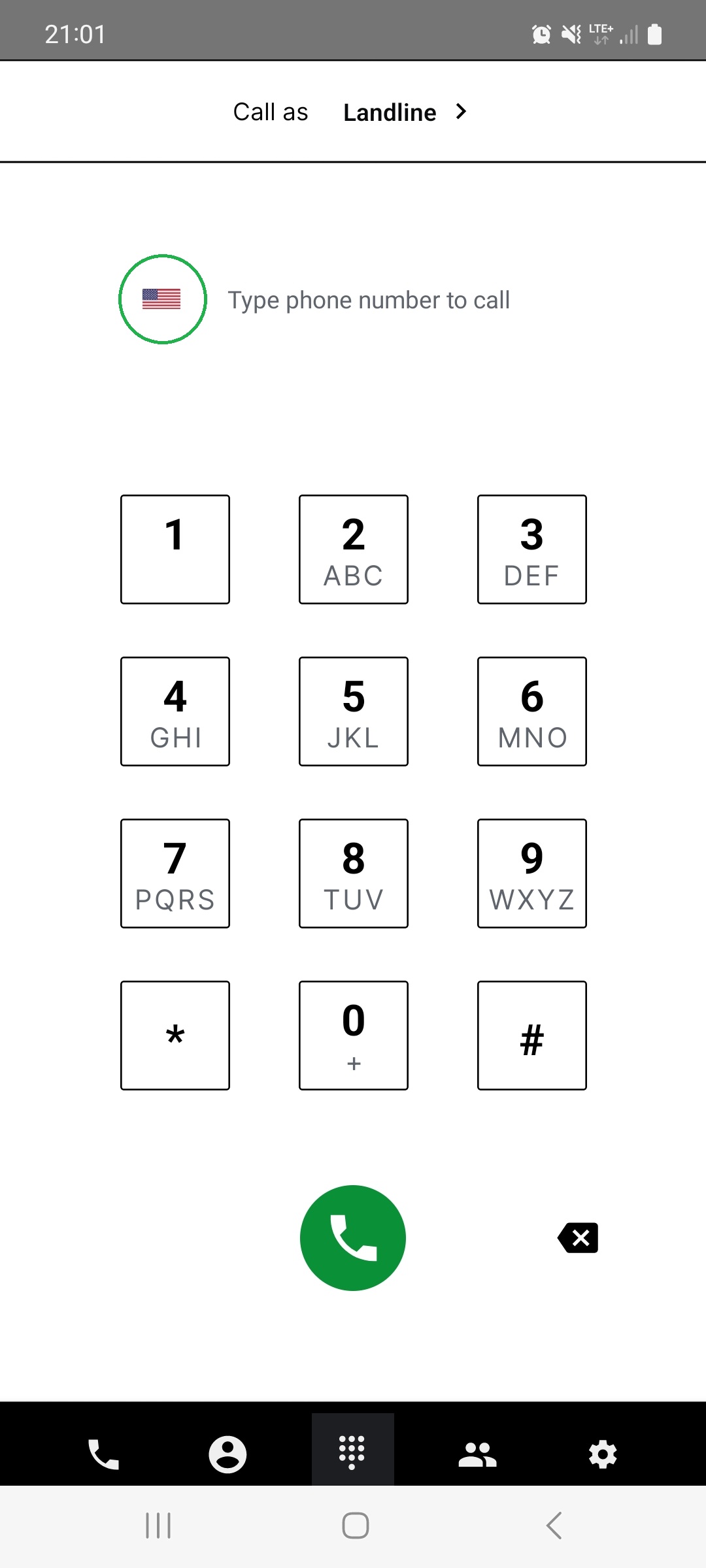
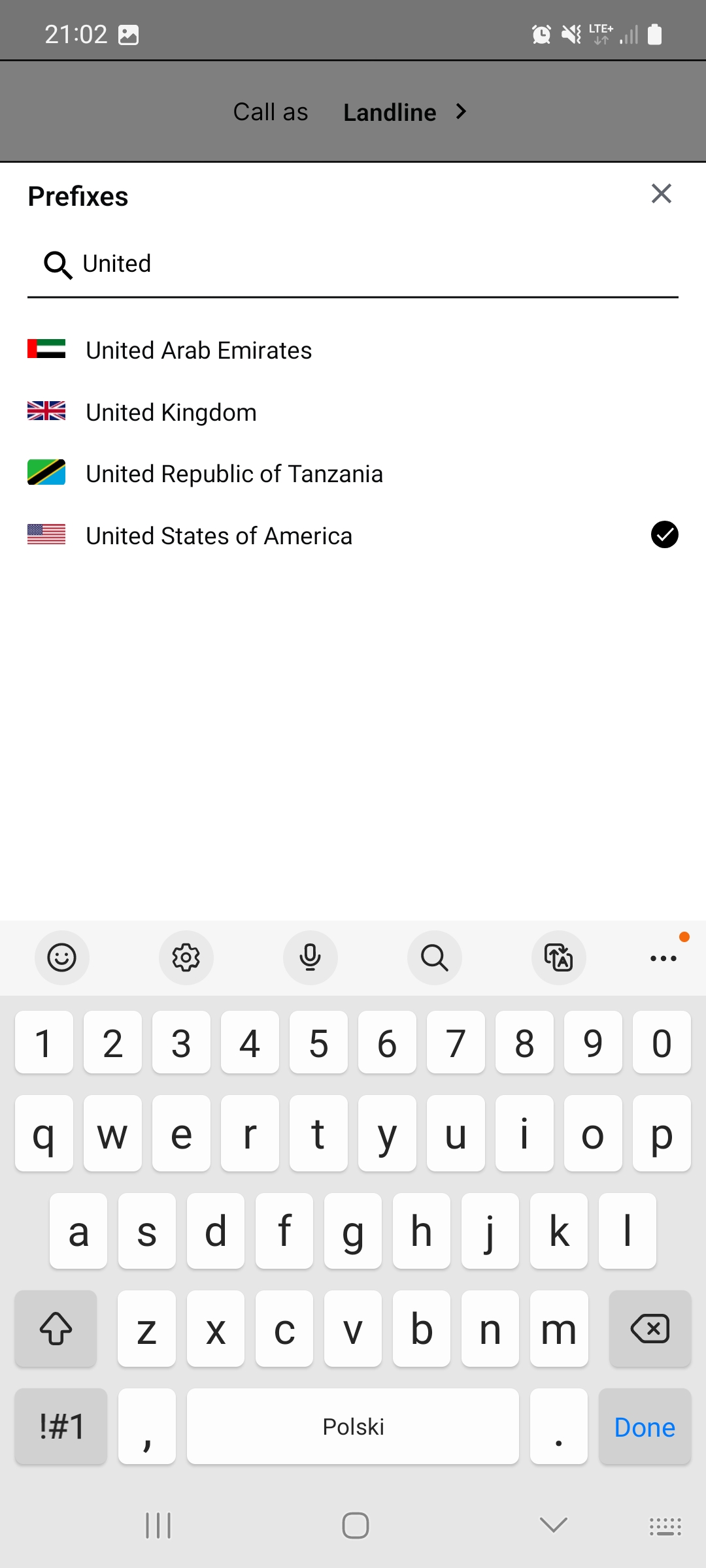
Click on the flag icon and choose the call recipient’s country.
Type the phone number. If you type the number with a country prefix (e.g. +1 for US, +44 for UK) you can skip step 4.
Once you’ve entered the phone number, click the green phone icon below the keypad to initiate the call.
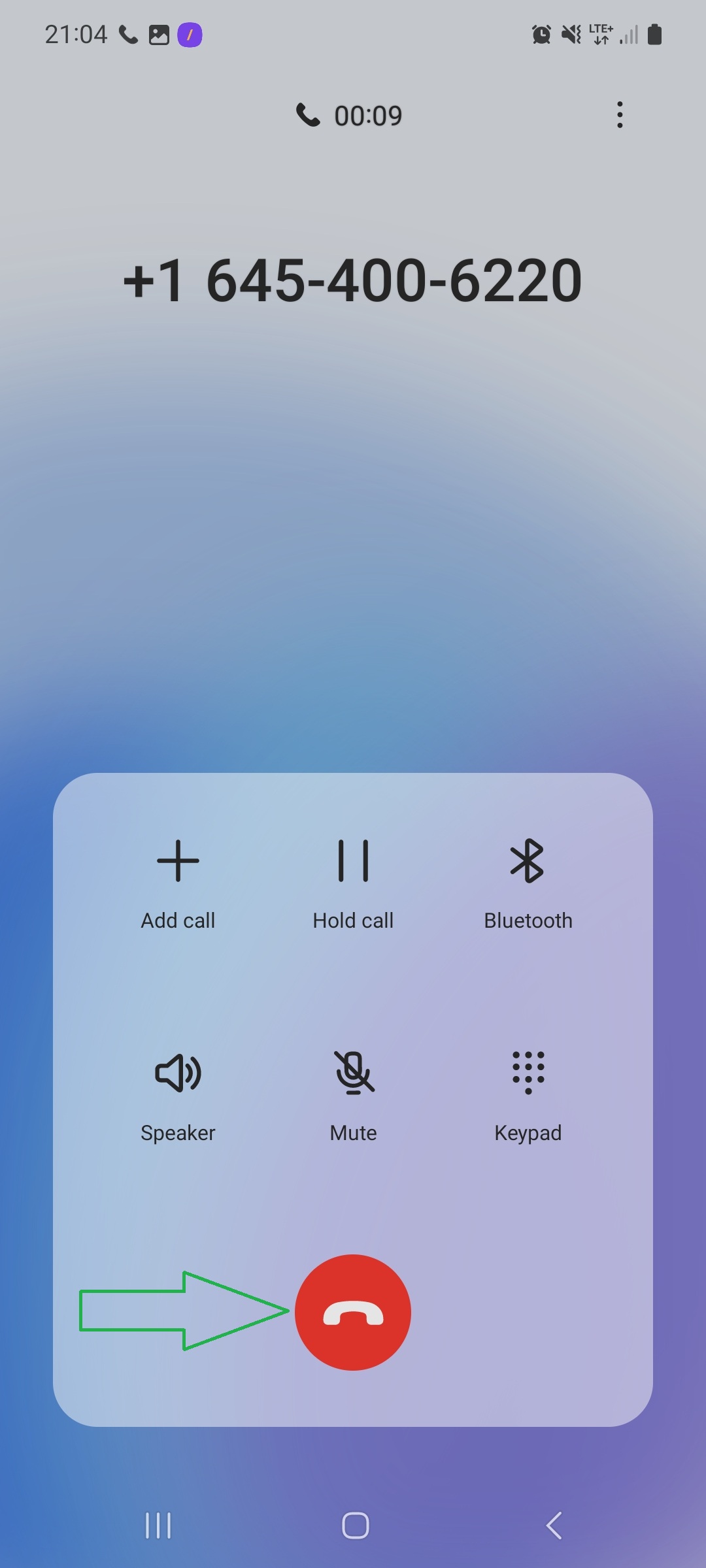
When your conversation is complete, you can end the call by clicking the red phone icon on the dialer panel. Button may vary depending on your phone system.
1. Can I switch numbers during a call?
No. You must choose the outgoing number before initiating the call.
2. What if I don’t see the dialer panel?
Tap the center icon in the bottom navigation bar to return to the main screen.
3. Do I need to select a country if I use the full number format with a + prefix?
No. Entering a number like +44 123 456 789 skips the country selector.
4. Why do I see a different red phone icon?
UI elements may vary slightly depending on your Android or iOS version.
Term | Definition |
Dialer Panel | The screen in the app where you enter phone numbers and initiate calls. |
Call as | A feature that lets you choose which assigned phone number to call from. |
Flag Icon | A selector for the recipient’s country code (e.g., 🇺🇸 for +1, 🇬🇧 for +44). |
Country Prefix | International dialing code (e.g., +1, +44) added before the number. |
Green Phone Icon | The button you press to begin a phone call. |
Red Phone Icon | The button you press to end the call. |
Middle Icon (App Nav) | The central button in the bottom navigation menu of the PhoneHQ app. |
Found a mistake or missing article? Contact PhoneHQ Support and let us know!
