Last update: 11/08/2026
Navigate to the “Team” section by tapping the second icon from the right side on the bottom menu bar.
Find the person you want to call, and check their status:
green means they're available, so you can call them,
yellow means that they are currently during the call
gray means that they are logged in, but not active for a while,
red means that they’ve set up “do not disturb” status.
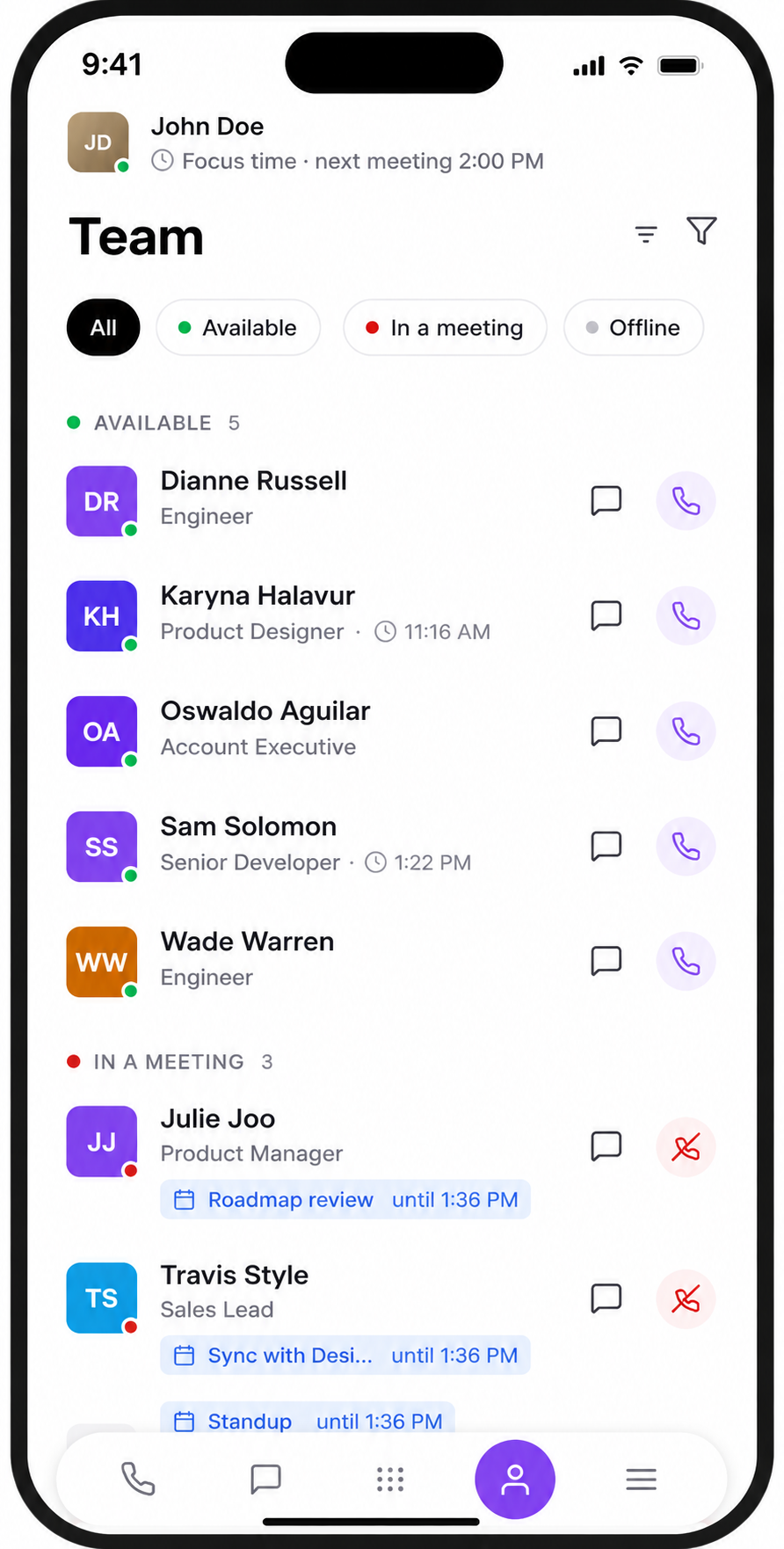

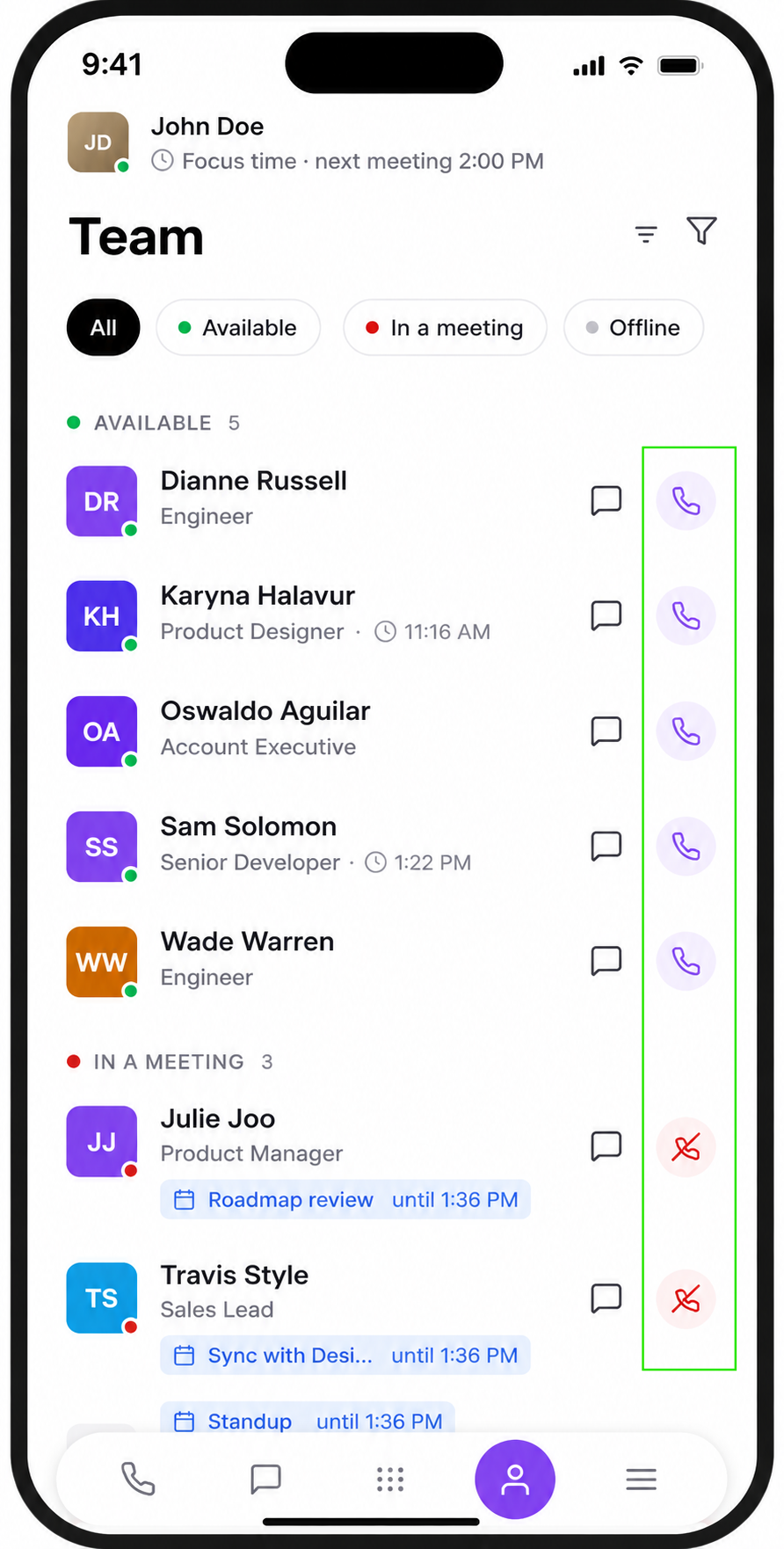
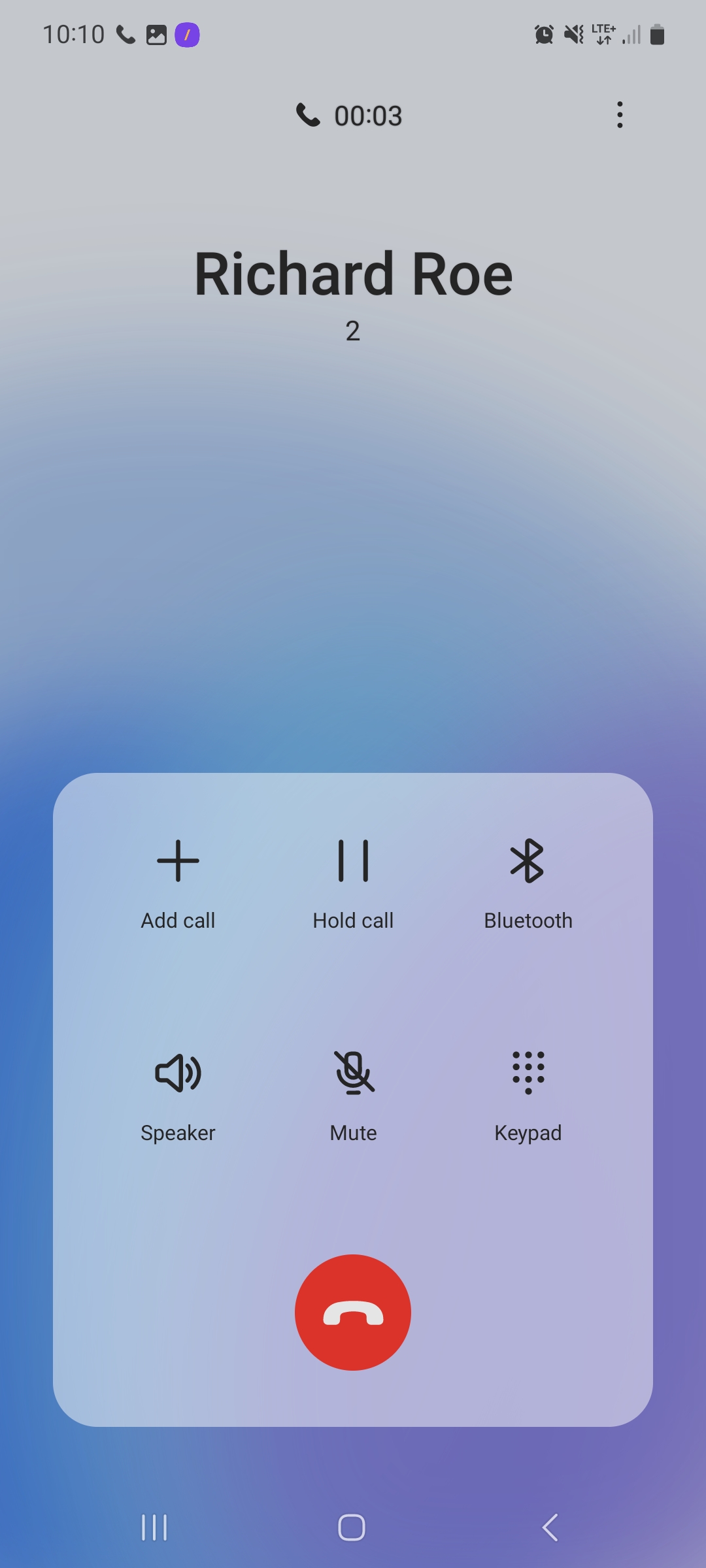
To initiate the call, click the phone icon on the name bar. The call will start and appear as ongoing on the dialer panel.
When your conversation is complete, you can end the call by clicking the red phone icon on the dialer panel.
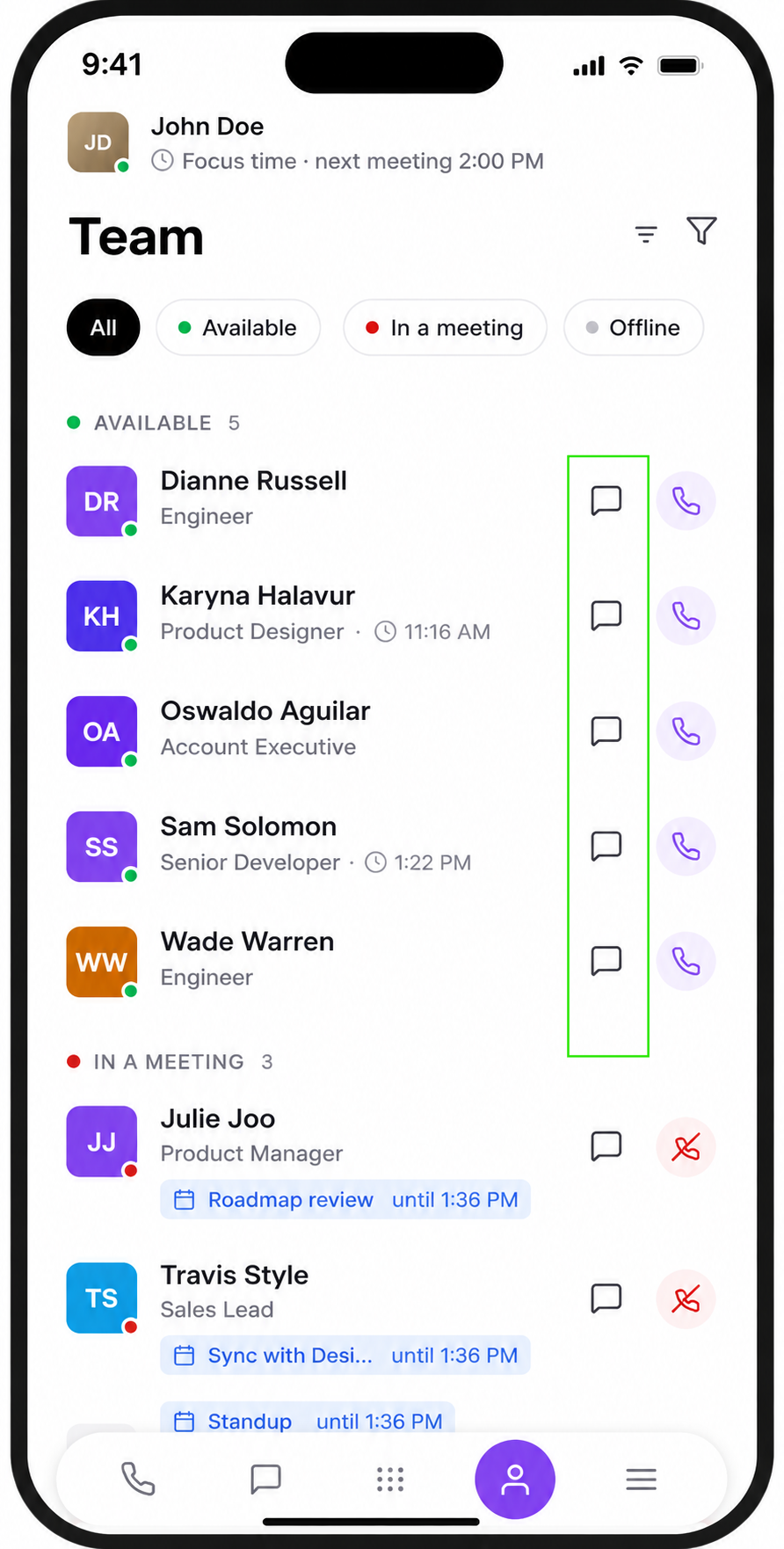
You can also access the user's chat directly from this section. Simply click the message icon, and you will be automatically redirected to the conversation with that user.
1. Can I call someone who is set to “Do Not Disturb”?
Yes. When you try to call a user who has Do Not Disturb enabled, the app shows a warning and asks whether you want to proceed. Select Call anyway to place the call. Reserve this option for urgent or emergencies.
2. What does a custom status mean?
Custom statuses are set by users and may include specific messages like “In a meeting” or “Working remotely.” Tap on the status to read the description.
3. Is internal calling free?
Yes, all calls between PhoneHQ users within the same account are free and do not consume any external calling credits.
4. I don't see the phone icon next to a teammate. Why?
The user may not have a number assigned or might be restricted from internal calls. Contact your admin for more details.
Term | Definition |
Team Section | A section in the mobile app listing your coworkers within your PhoneHQ account. |
Status Icon | A color-coded indicator showing a user’s current availability. |
Do Not Disturb (DND) | A setting that suppresses notifications and incoming calls. |
Custom Status | A personalized message set by a user to show specific availability. |
Phone Icon | Tap this to initiate a call directly to the selected team member. |
Dialer Panel | The screen where active calls appear and can be managed. |
Found a mistake or missing article? Contact PhoneHQ Support and let us know!
