Go to the “Contacts” section on the left side menu.
Click “Create contact” button in the top right corner of the screen.
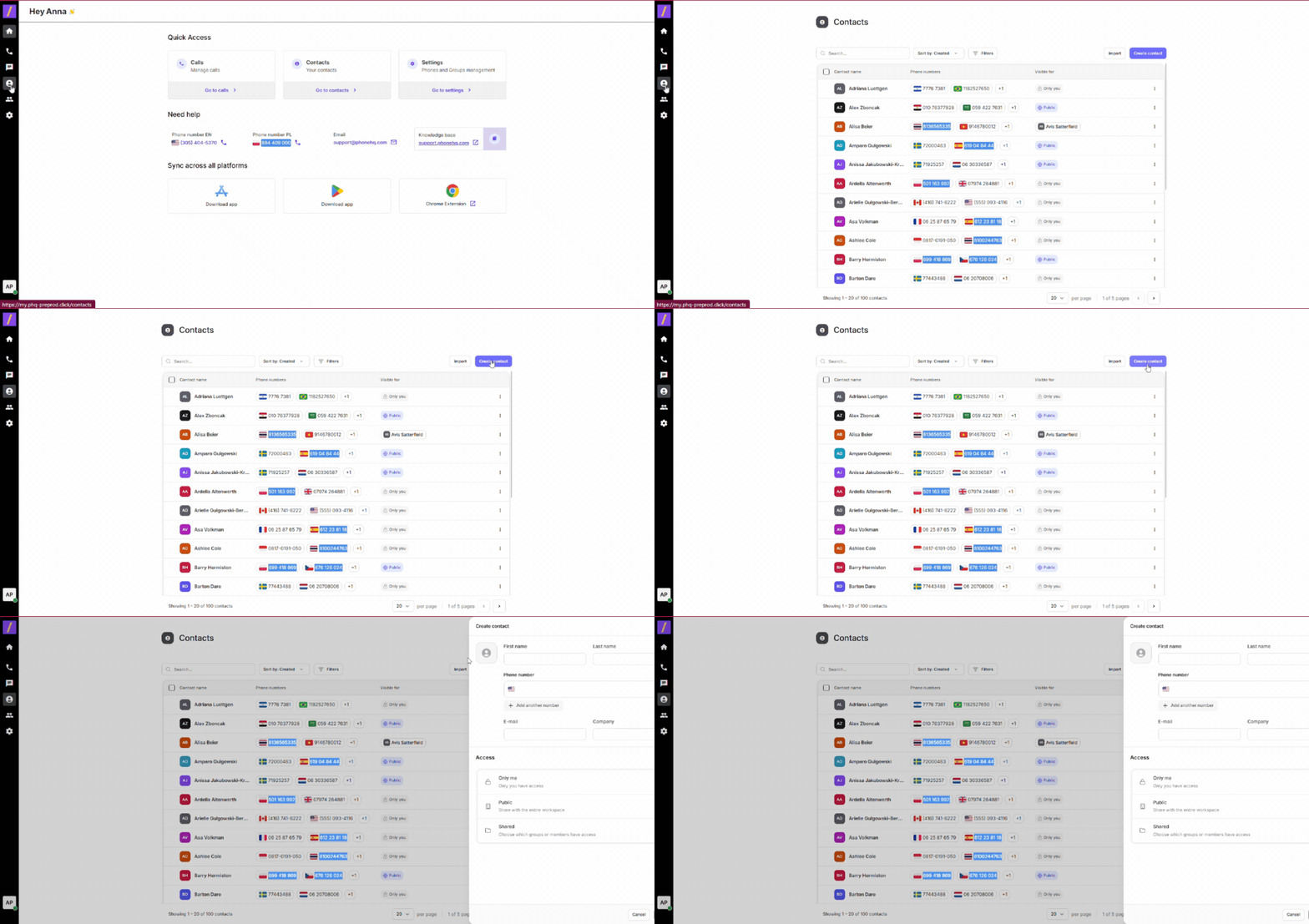
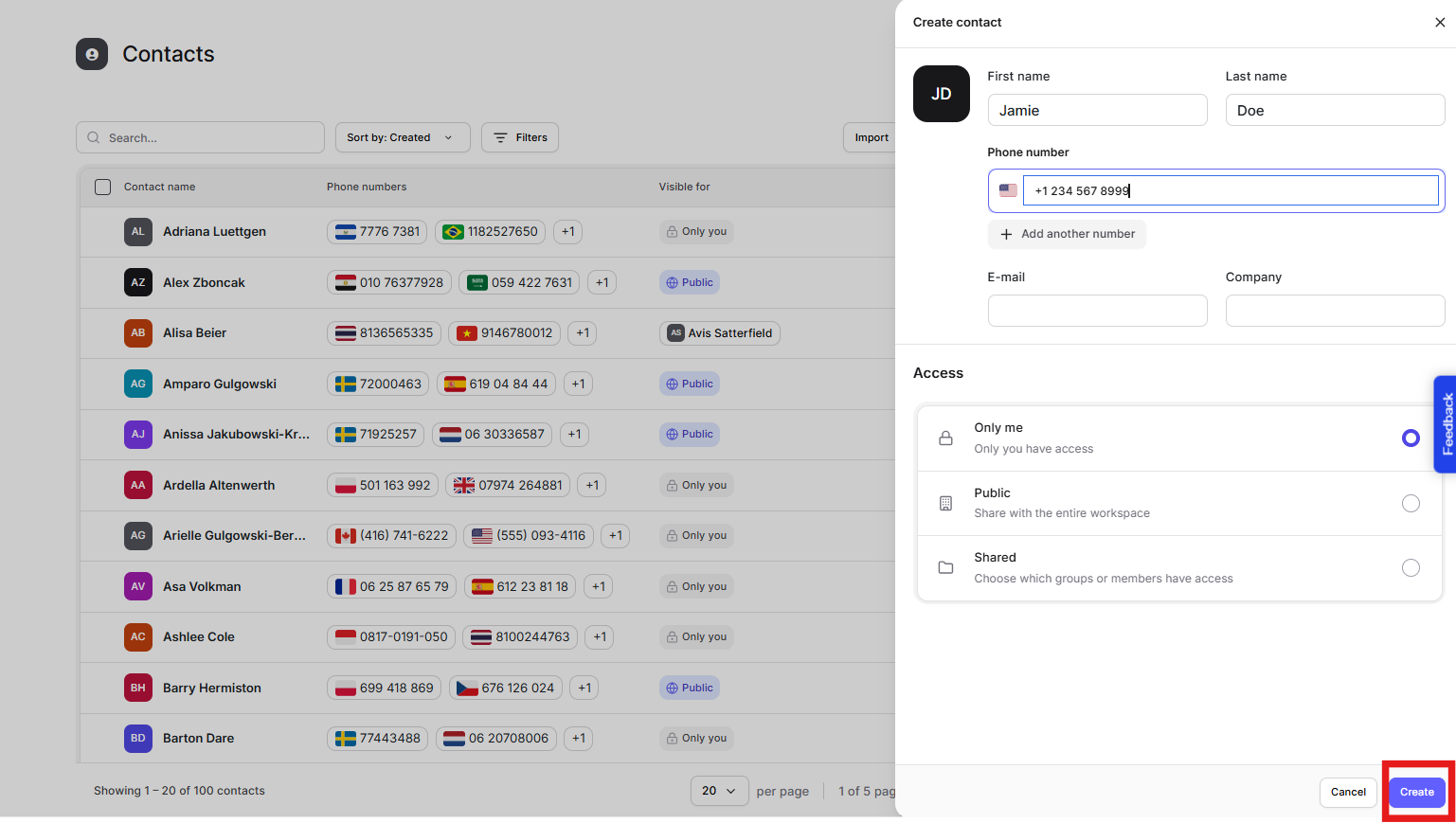
Fill the form with contact information - first name, last name and phone number are required.
Choose the Contact Availability option.
Click the “Add contact” button below the form.
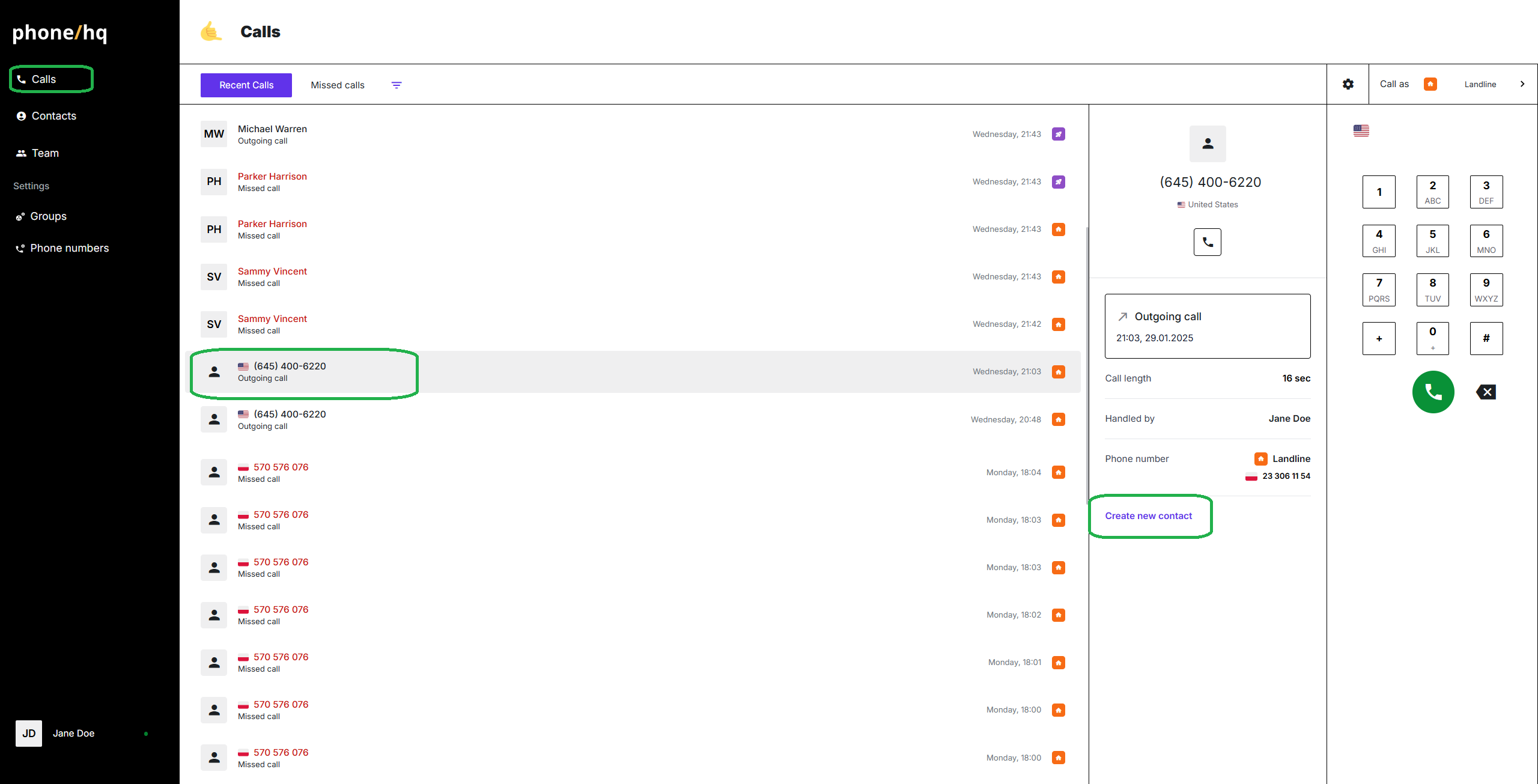
There is a call in the history:
After logging in, you should see your call's history. If not, go to “Calls” section on the left side menu.
Find the call with the number that you want to save as a new contact and click on it.
The details of the call should appear on the left side, between the dialer panel and calls list.
Click on the “Create a new contact” option below the call details.
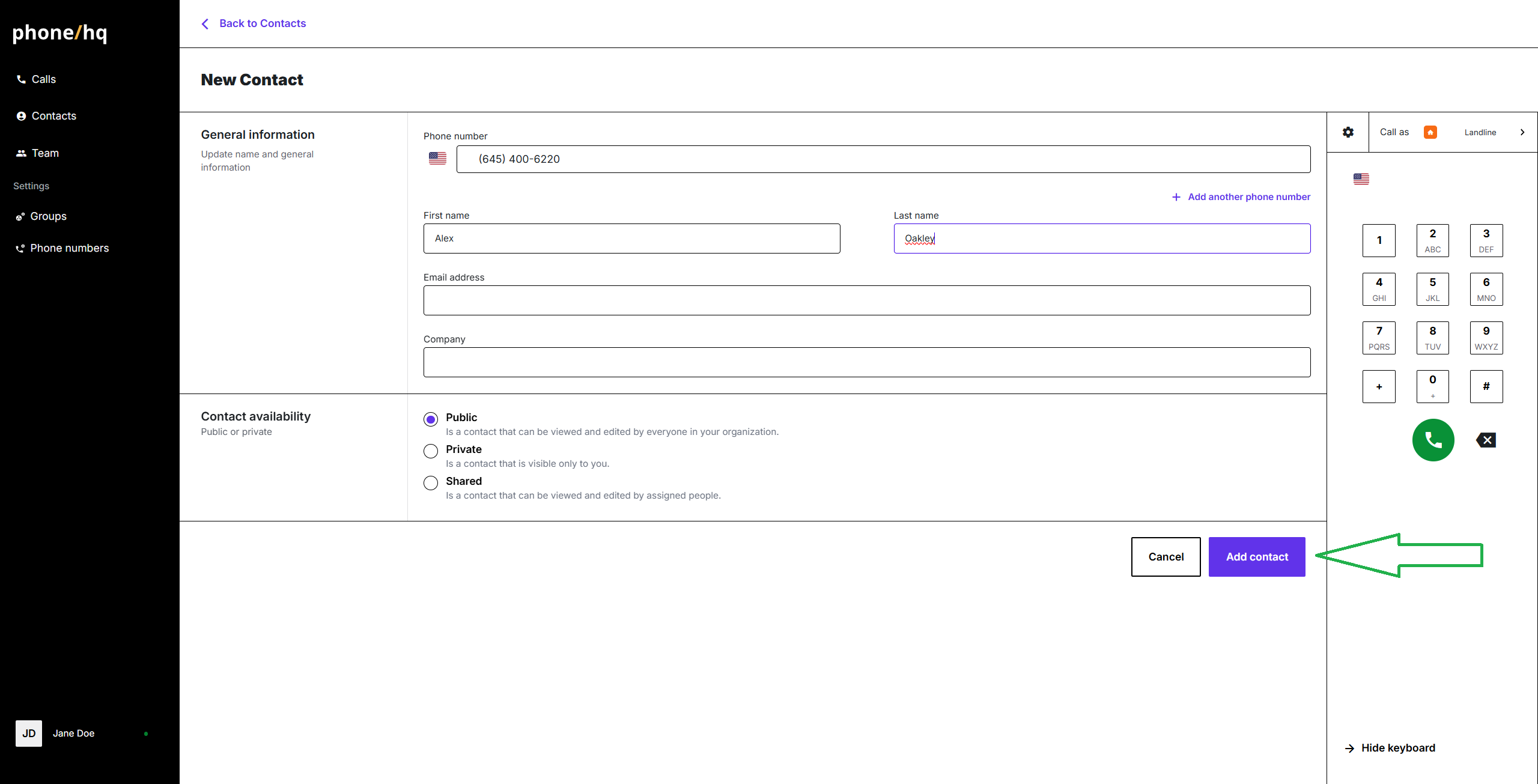
Fill the form with contact General information - first name, last name and phone number are required.
Choose the Contact Availability option.
Click the “Add contact” button below the form.
1. Can I edit a contact after saving it?
Yes. You can go to the Contacts section, search for the contact, and click the edit icon to update details.
2. What happens if I don’t select a Contact Availability type?
The contact will automatically be saved as Public.
3. Can I add a contact from missed or rejected calls?
Absolutely. Any call listed in your call history can be used to create a new contact.
4. Why is the "Create a new contact" button missing in call details?
This may occur if the number is already saved or linked to an existing contact.
Term | Definition |
Contact Availability | Access level for a contact—Public, Private, or Shared. |
Public Contact | Contact visible and editable by all users. |
Private Contact | Contact visible only to the user who created it. |
Shared Contact | Contact shared with specific users or groups. |
Web Portal | The browser-based interface for managing your PhoneHQ account. |
Call History | A list of all incoming, outgoing, and missed calls within your account. |
Call Details Panel | A section that displays detailed information about a selected call. |
Found a mistake or missing article? Contact PhoneHQ Support and let us know!
