Last update: 18/03/2025
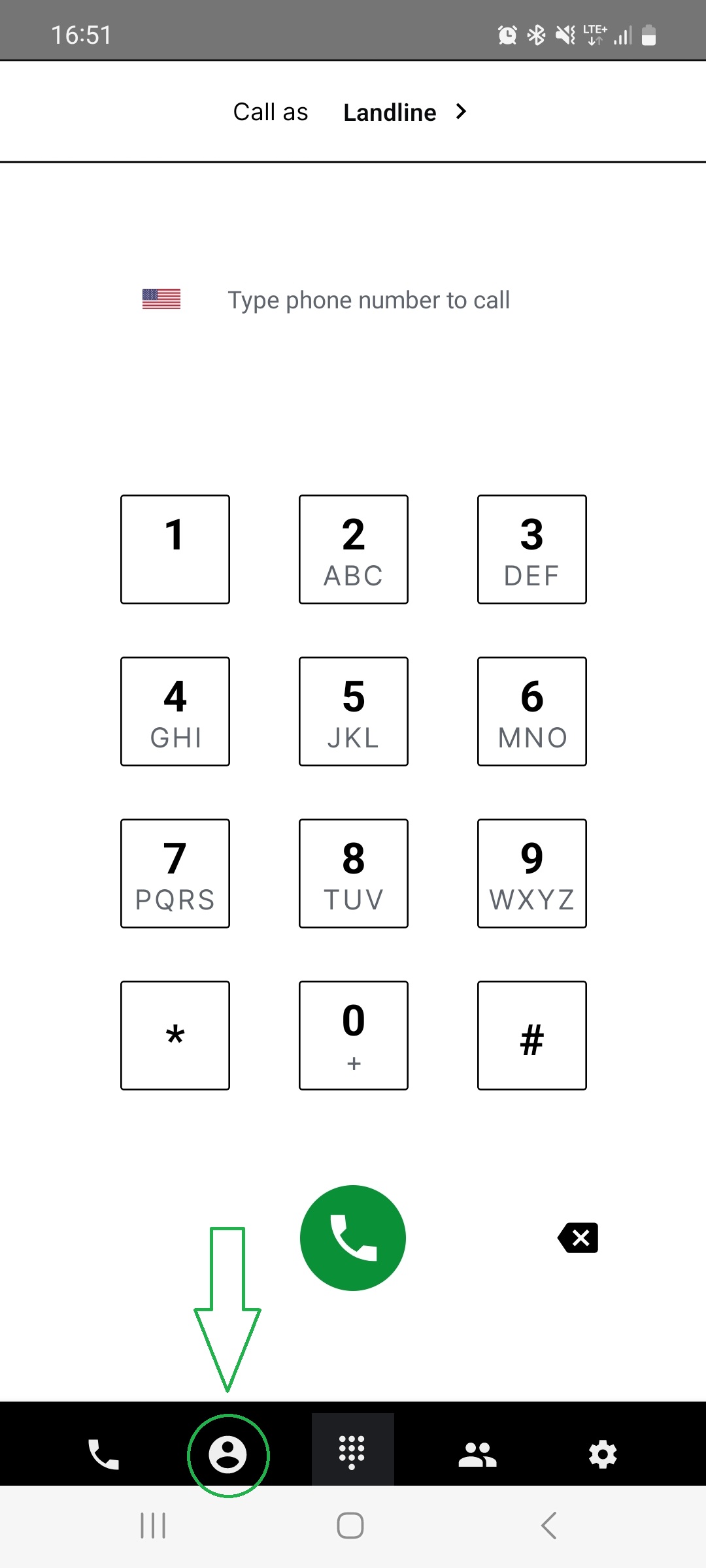
Go to the “Contacts” section - second button from the left on the bottom menu bar.
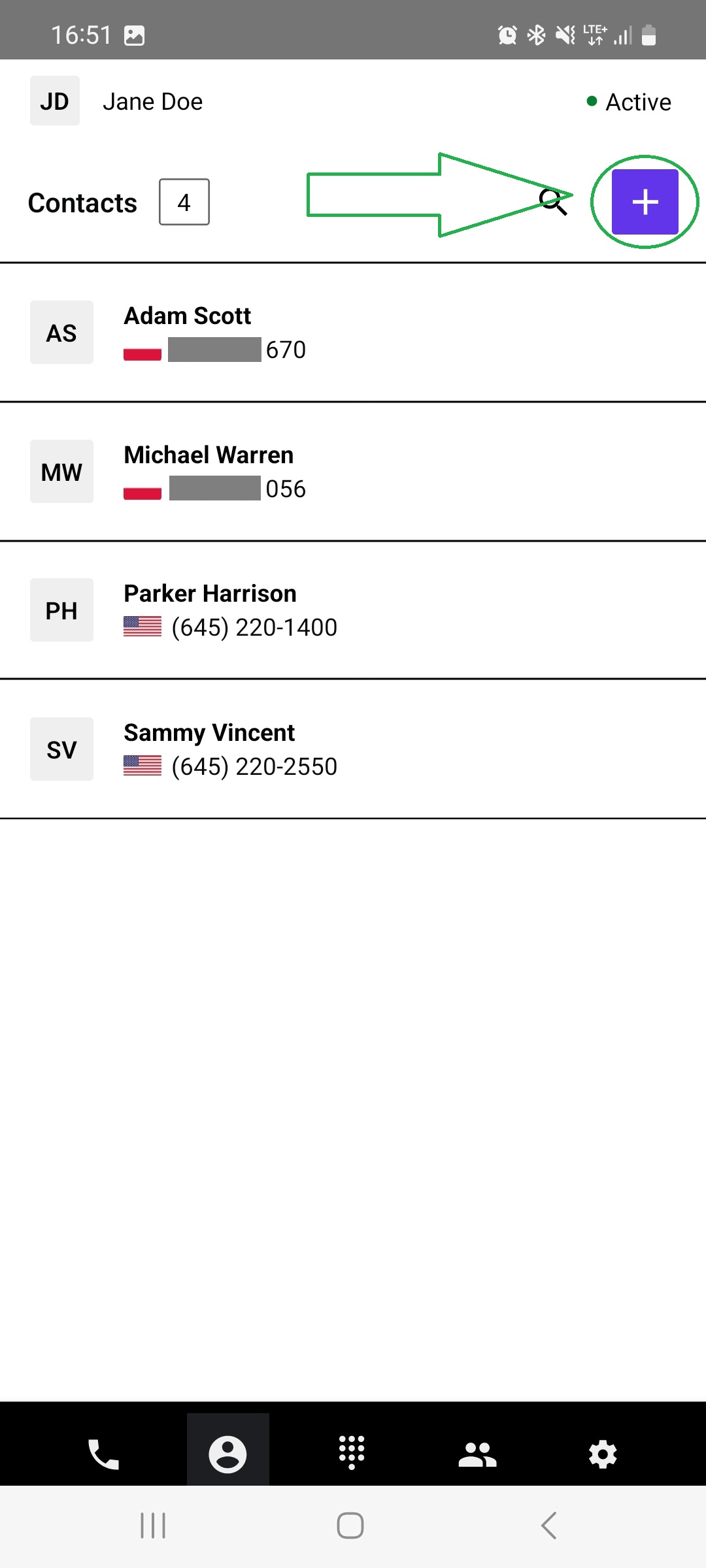
Tap the “plus” icon in the top right corner of the screen.
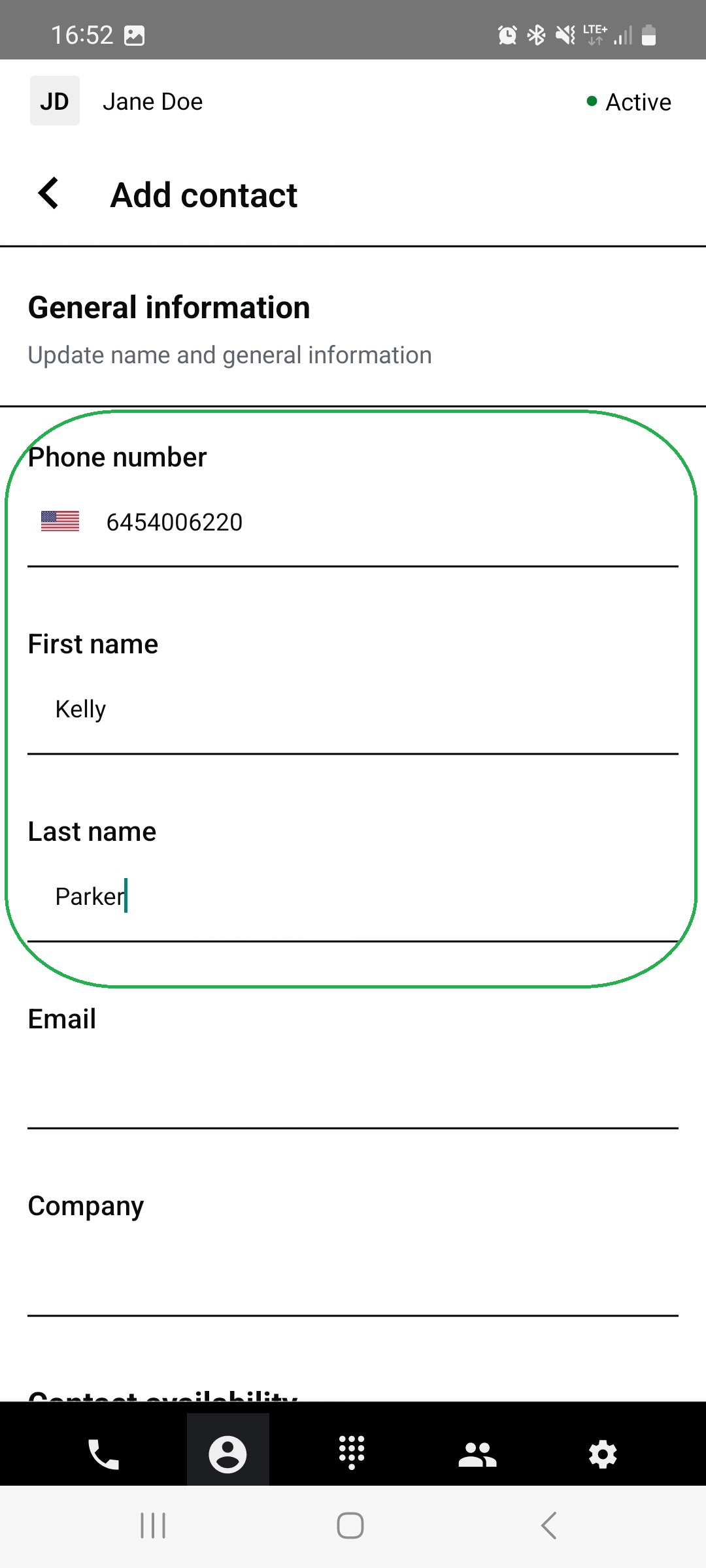
Fill the form with contact General information - first name, last name and phone number are required.
Choose the Contact Availability option.
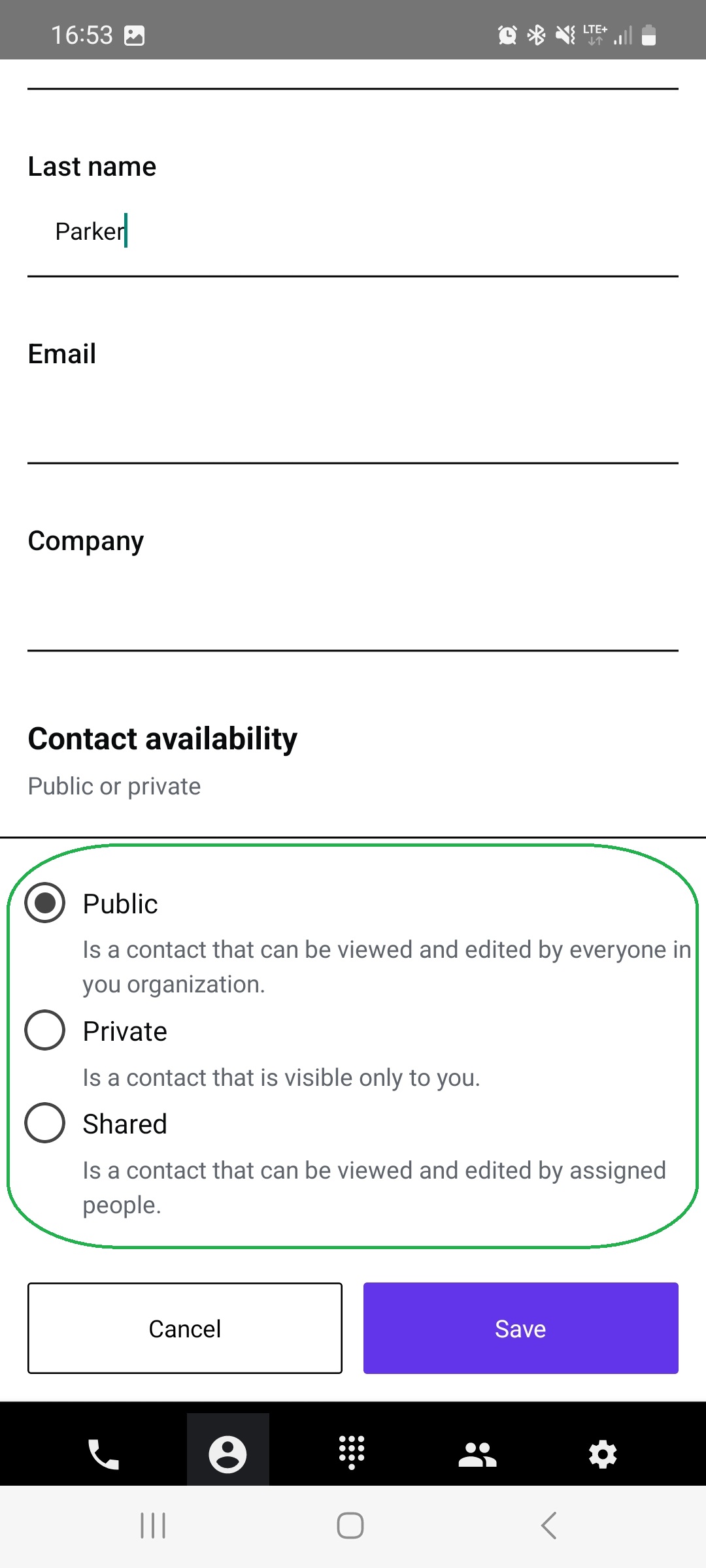
Click “Save” button below the form.
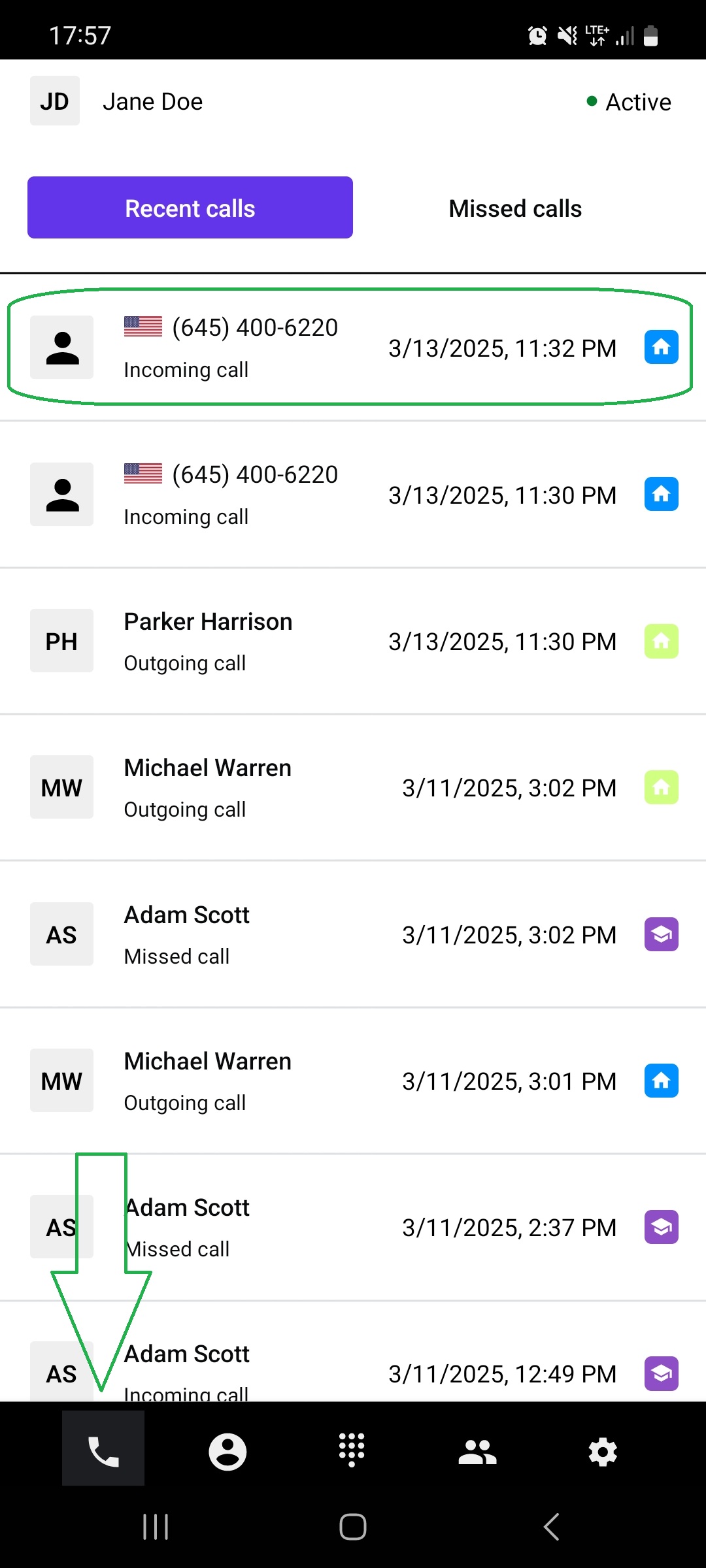
Go to the “Calls” section - first from the left on the bottom bar menu.
Find the call with the number that you want to save as a new contact and tap on it.
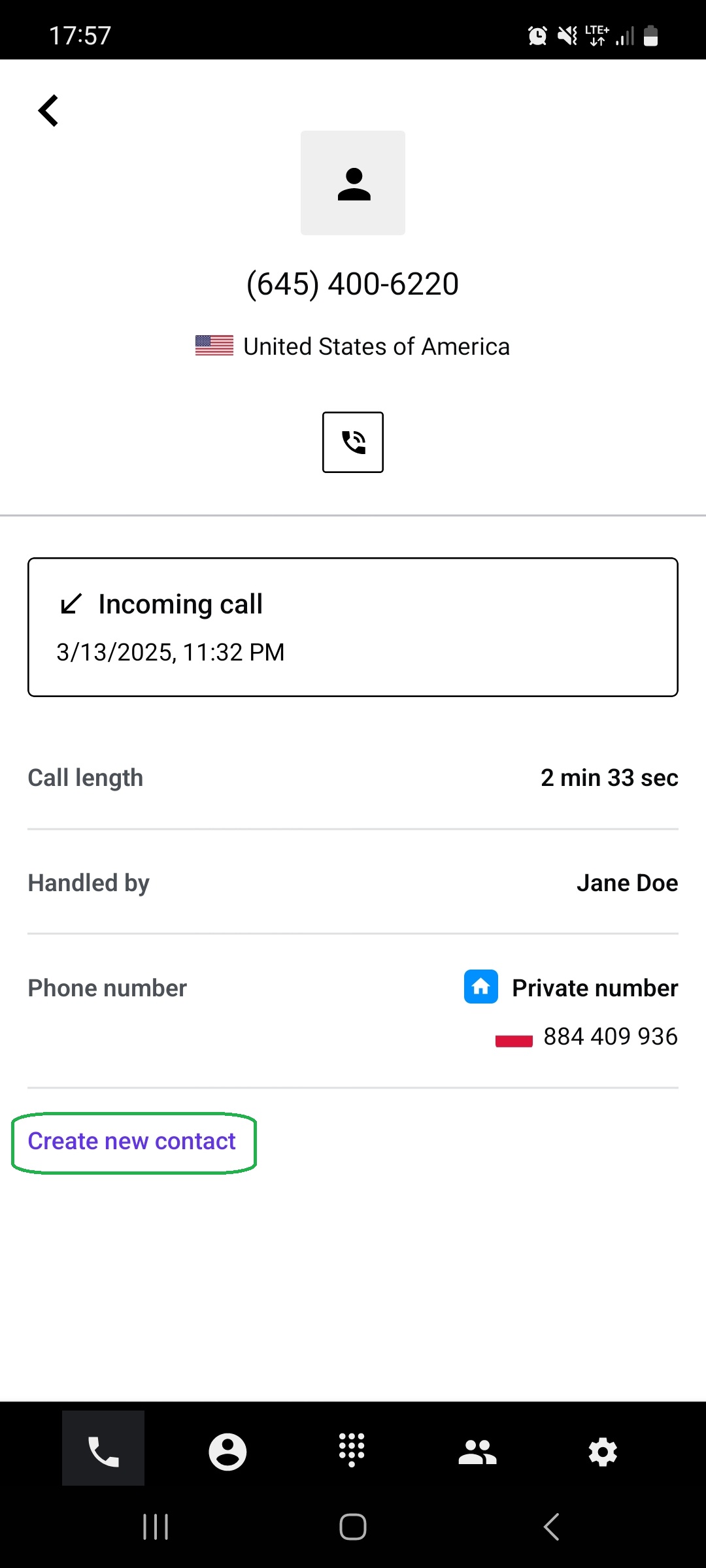
The details of the call should appear on the screen.
Tap on the “Create a new contact” option below the call details.
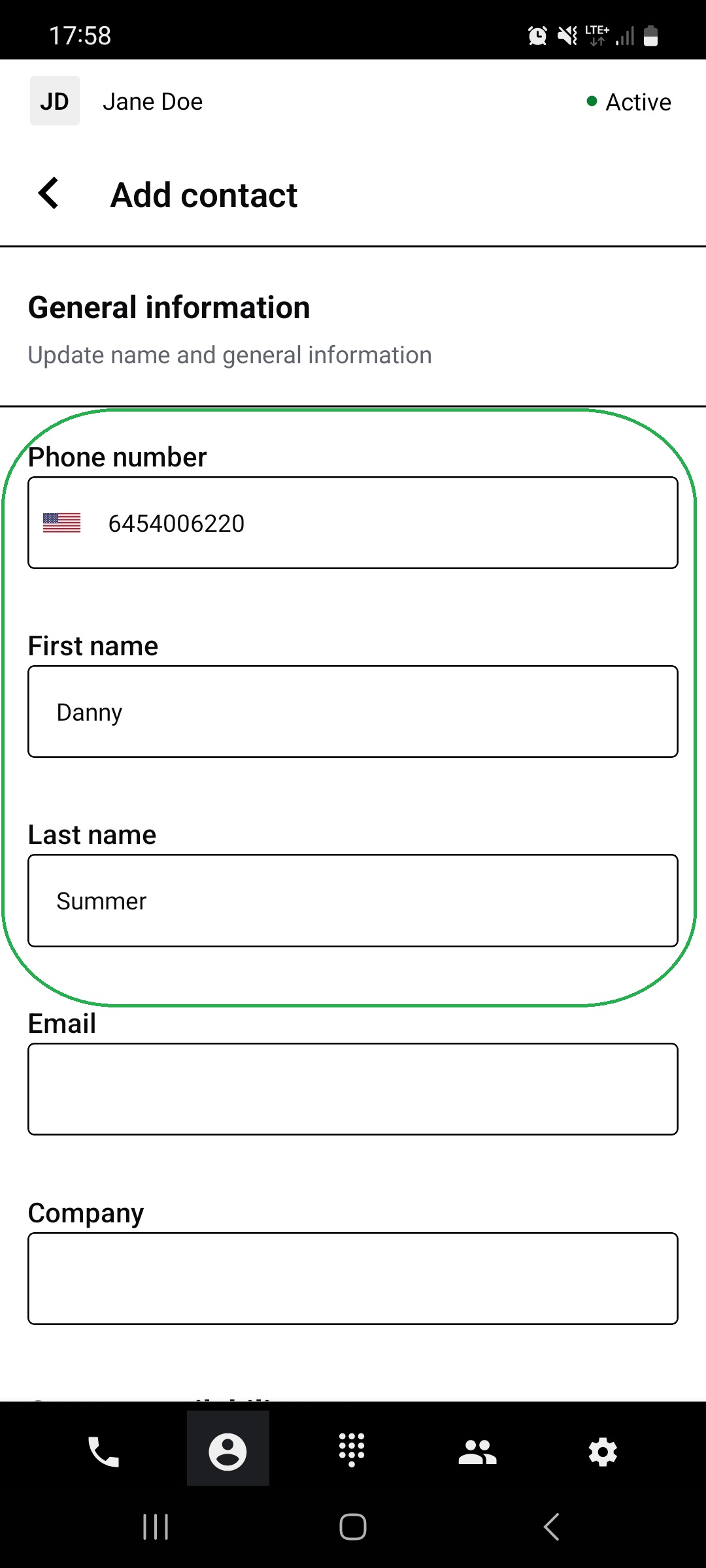
Fill the form with contact General information - first name, last name and phone number are required.
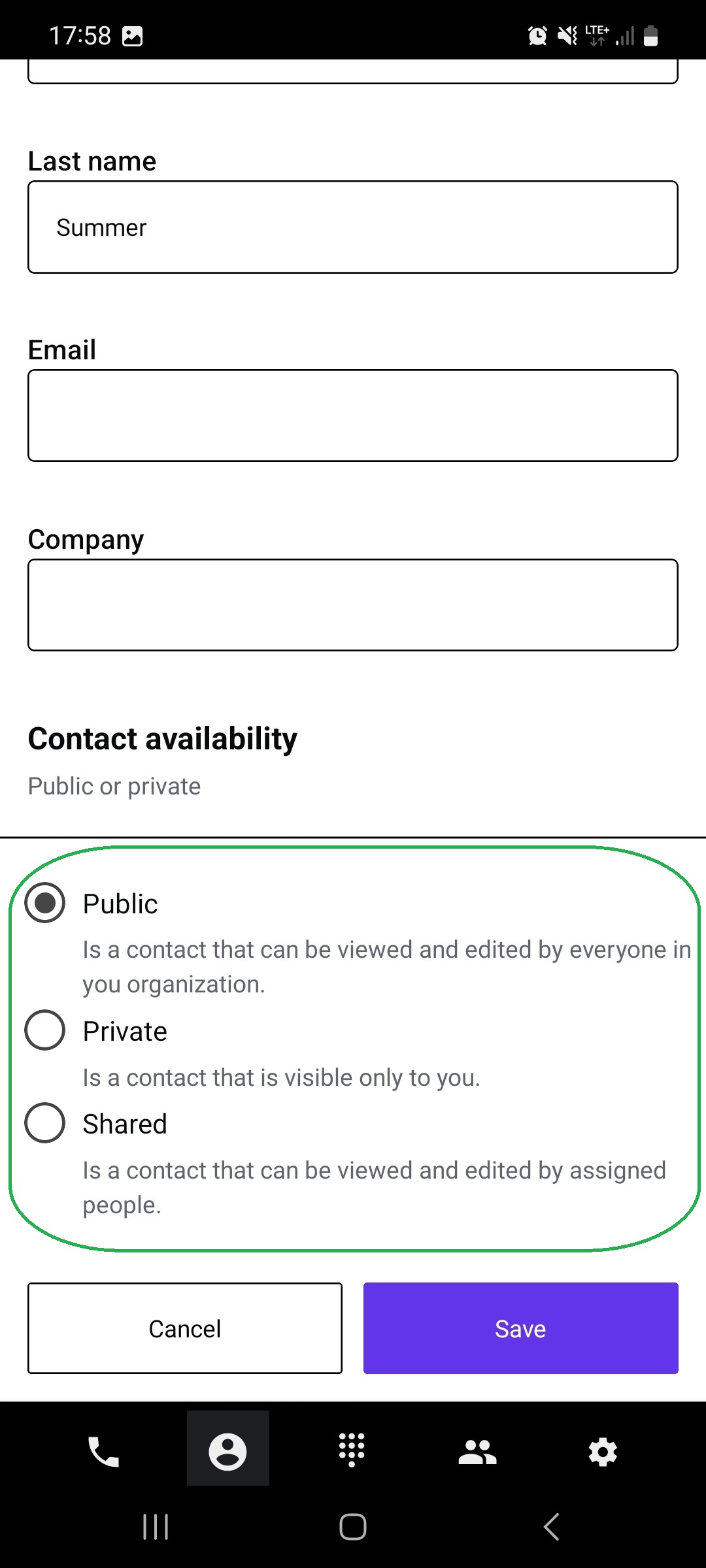
Choose the Contact Availability option.
Click the “Save” button below the form.
Found a mistake or missing article? Contact PhoneHQ Support and let us know!
