Fully active PhoneHQ account.
Fully active Google Workspace account.
Admin permissions for both services (Check PhoneHQ Admin articles).
Click on your profile button in the bottom left corner of the page.
Go to the Admin Panel.
Navigate to the “Integrations” section.
Click “Connect” on the Google Workspace tab.
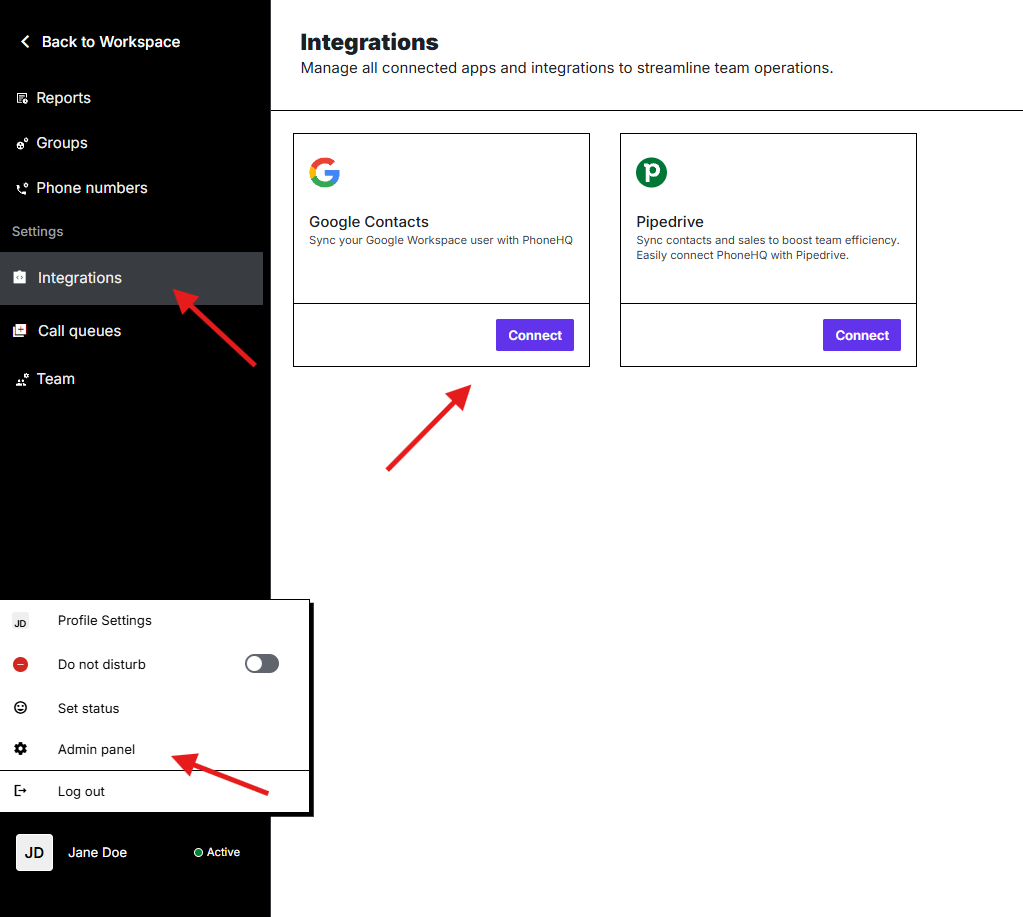
Log in to the PhoneHQ web panel.
Go to Integrations.
Click Integrate with Google Workspace.
You will be redirected to the production Google Workspace Marketplace application
After clicking Integrate with Google Workspace in PhoneHQ, you are redirected to the Google Workspace Marketplace.
Sign in using a Google Workspace administrator account.
Click ‘Admin installation’ and then ‘NEXT’ on the informative pop-up
Review the list of requested permissions, click on the acceptance checkbox and then click on the finish button.
Go back to PhoneHQ and click the checkbox - I have installed the application in Google Marketspace.
Enter your Google account email.
Click Begin Sync and wait a moment.
Select the users you want to add to PhoneHQ (using checkboxes), then click Sync Users.
That’s it! New users will receive an email with instructions on how to log in.
Found a mistake or missing article? Contact PhoneHQ Support and let us know!
