Admin permissions in PhoneHQ allow designated users to manage system settings, control integrations, and oversee user accounts.
Log in to the Web Portal. Admin features are available only there. Mobile App does not include Admin panel.
Check the options available in your user profile. If Admin permissions are active on your account, you will see the appropriate button in the list.
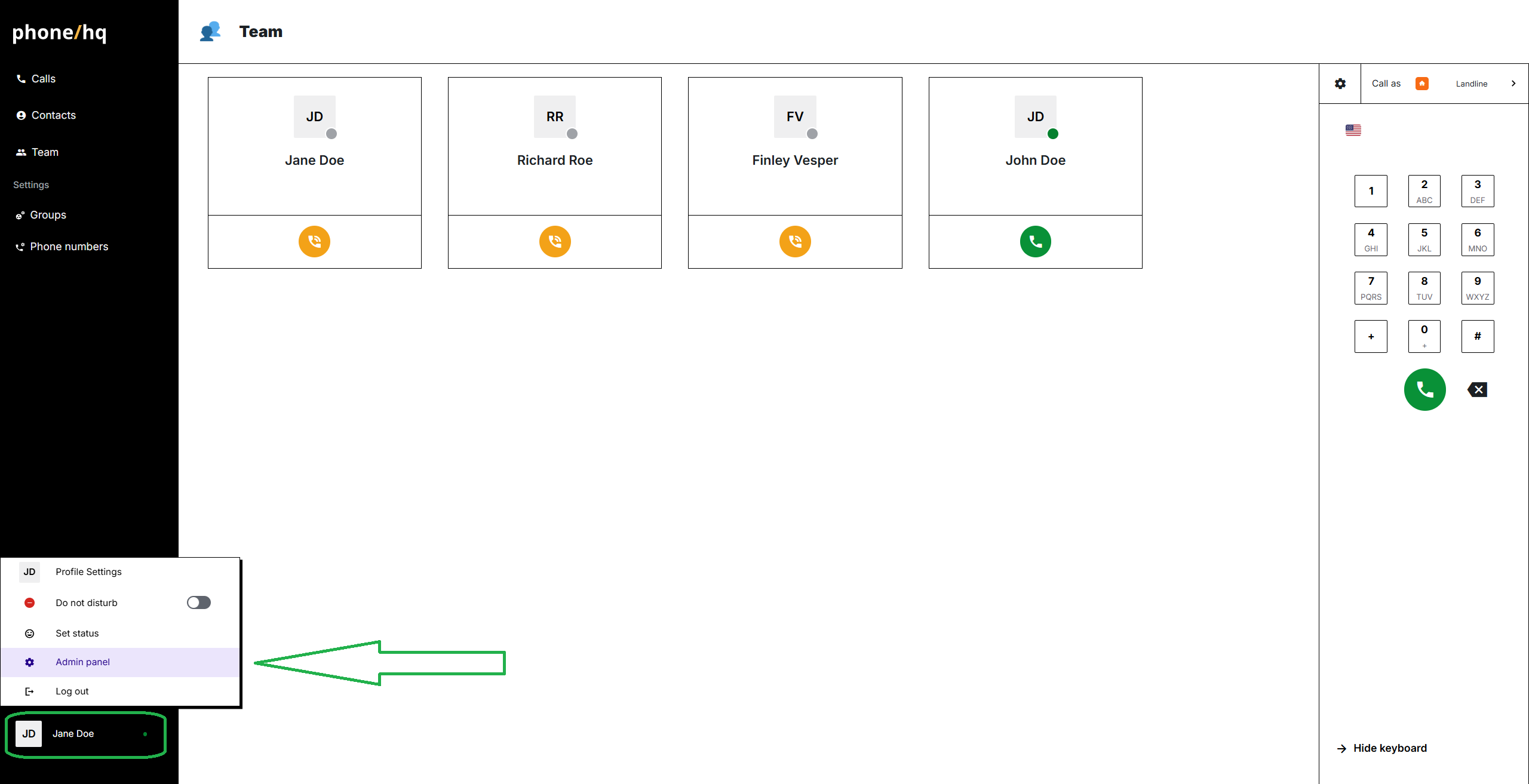
Admin permissions are automatically granted to the primary user who created the company account.
The primary user (Admin) can contact support to request Admin permissions for other system users.
When requesting Admin permissions for another user, please provide:
First and last name of the user,
Email address associated with the user’s PhoneHQ account,
Once we receive your request, it may take up to one business day for us to process the changes and enable all necessary features for the user profile.
After the update is complete, both you and the newly assigned Admin will receive an email notification from our team.
1. How do I know if I have Admin permissions?
Log in to the Web Portal and check your user profile options. If Admin permissions are active, you’ll see the Admin button available.
2. Can I access Admin features on the Mobile App?
No, Admin features are only accessible through the Web Portal.
3. Who gets Admin permissions automatically?
The primary user who creates the company account is automatically granted Admin permissions.
Term | Definition |
Admin Permissions | Special rights to manage system settings, integrations, and users. |
Primary User | The first user who created the company PhoneHQ account. |
User Profile | The personal account details and settings for each PhoneHQ user. |
Web Portal | The online platform where Admin features can be accessed. |
PhoneHQ Support | The team that assists with account management and permissions. |
Found a mistake or missing article? Contact PhoneHQ Support and let us know!
