Last update: 06/08/2026
Welcome to PhoneHQ! If you’ve just received your login credentials, this guide will help you get started and ensure a smooth onboarding experience.
You can access PhoneHQ on both desktop (Web Portal) and mobile (PhoneHQ App).
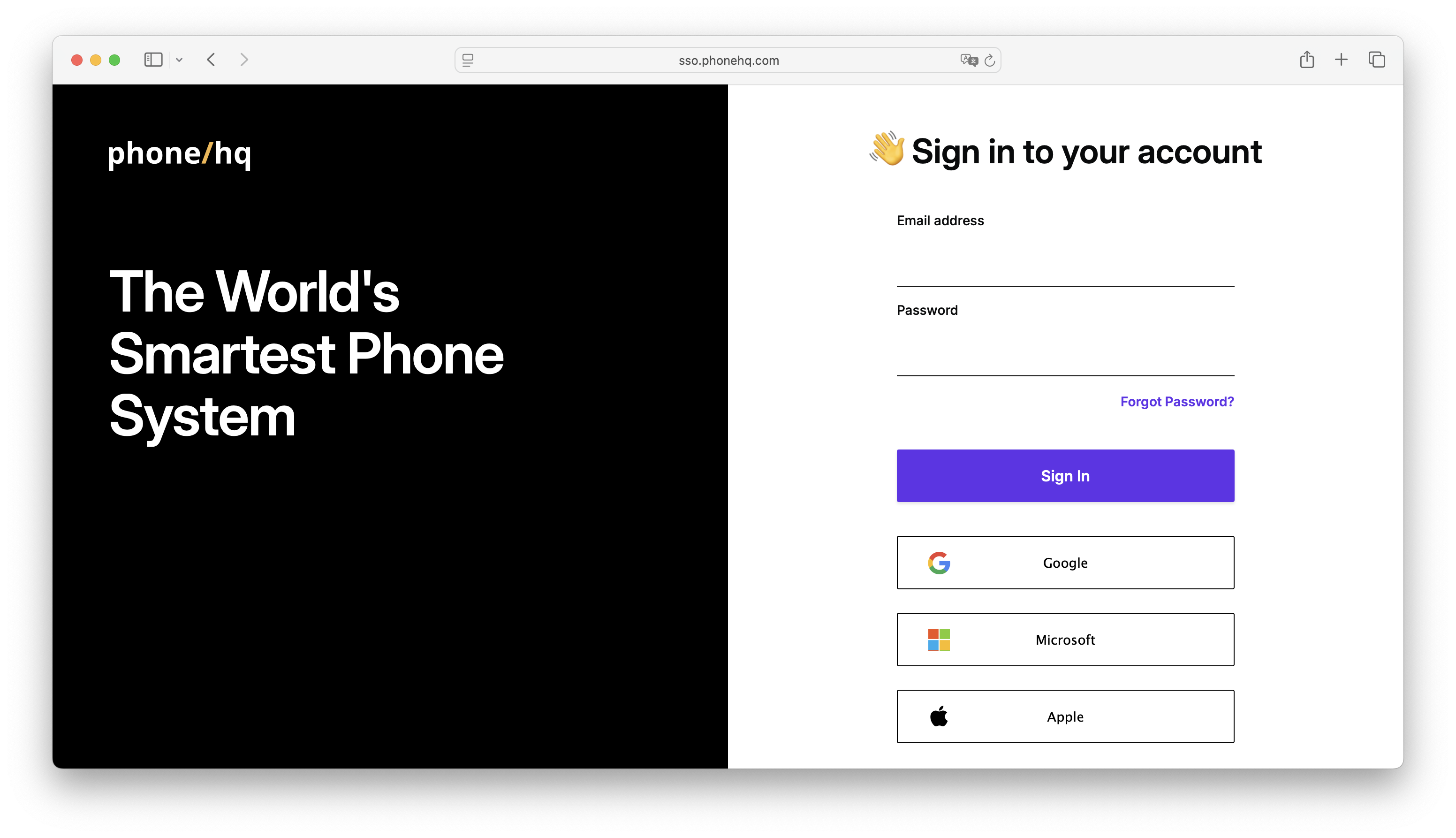
Open your web browser and go to PhoneHQ Web Portal.
Enter your email address and password provided in your welcome email.
Click “Sign In” to access your account.

All call-related features, including making and receiving calls, are available in the PhoneHQ Mobile App.
To get started:
Download and install the PhoneHQ App:
Log in using your email and password or Single Sign-On (SSO) if your company has enabled Google or Microsoft.
Apple ID sign-in is not currently supported. Future availability will depend on customer demand.
You can perform call operations equally on both - Web Portal and Mobile App:
Open the PhoneHQ App or Web Portal and access the dialer panel (middle icon on the bottom menu in the Mobile App, right side of the screen on the Web Portal).
To make a call:
Dial the number manually or select a contact from your list.
Tap the green phone icon to initiate the call.
To receive a call:
When a call comes in, tap Accept to answer or Decline if unavailable.
Check more sources on call operations:
Profile settings are available only on the Web Portal. Settings available for Everyday Users do not influence call operations availability. Specific changes available in the Profile Settings are:
Editing first and last name,
Adding or changing job title,
Enabling and disabling email notifications about missed calls.
Instruction on how to manage profile settings is available here.
Have additional questions? Check our Help Center or Contact Support for more information!
